
Attention: only customers with a Subscription have dedicated technical support
This help will teach you how to send a problem report message to Mapaprop Support
Mapaprop Help System
Access help at any time from the Help button. If you don't find answers, send a "Problem Report"
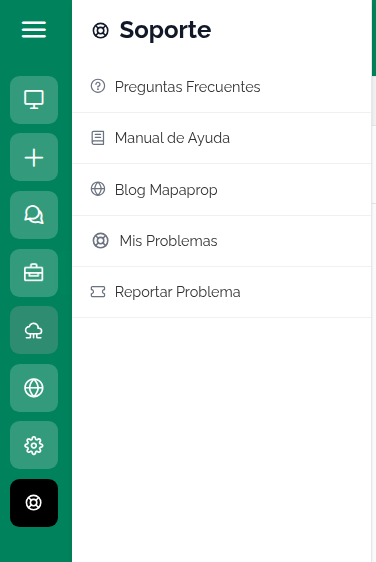
How to request help
1- Read the help
Many screens contain a floating Help button
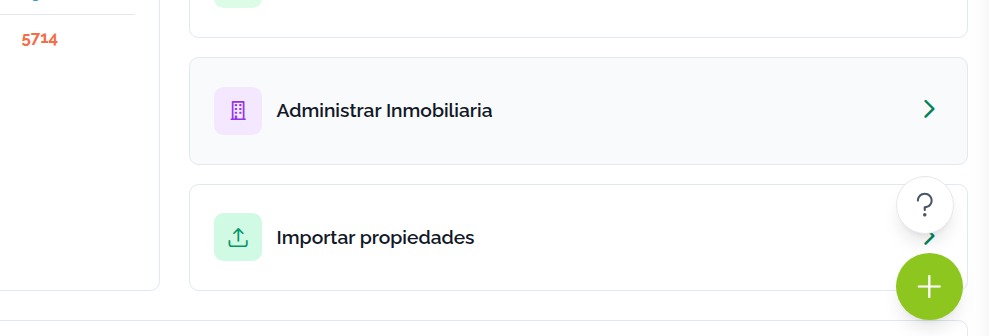
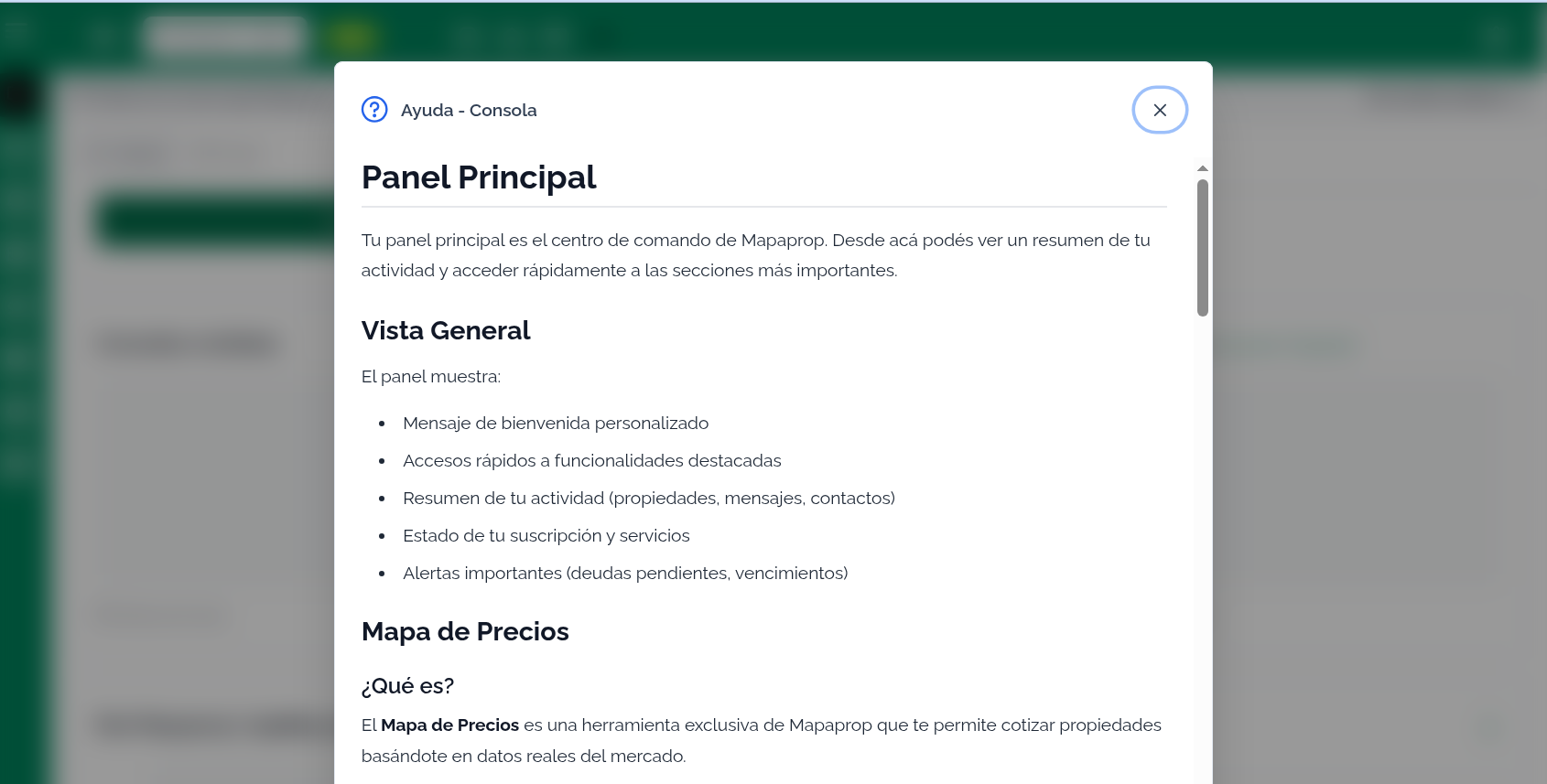
Clicking it displays visual help
You can also access it from the menu
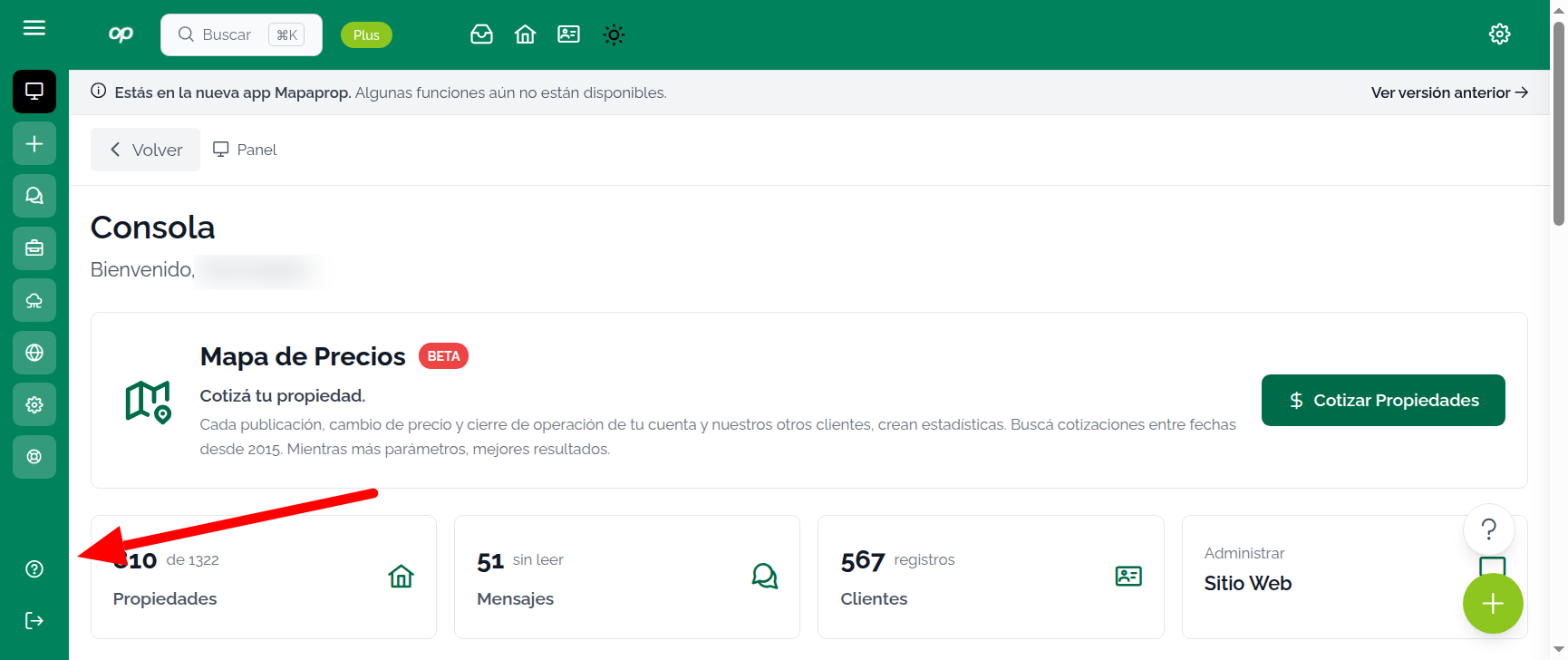
2- Report a problem or suggestion ticket
There are multiple access points to report tickets to support. The official method is Menu > Support > Report Problem.
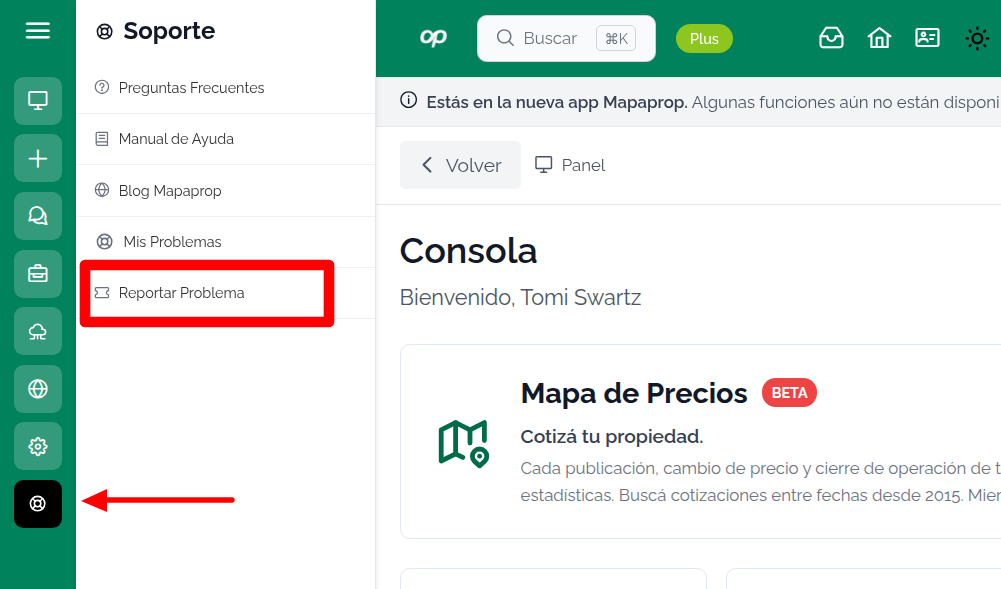
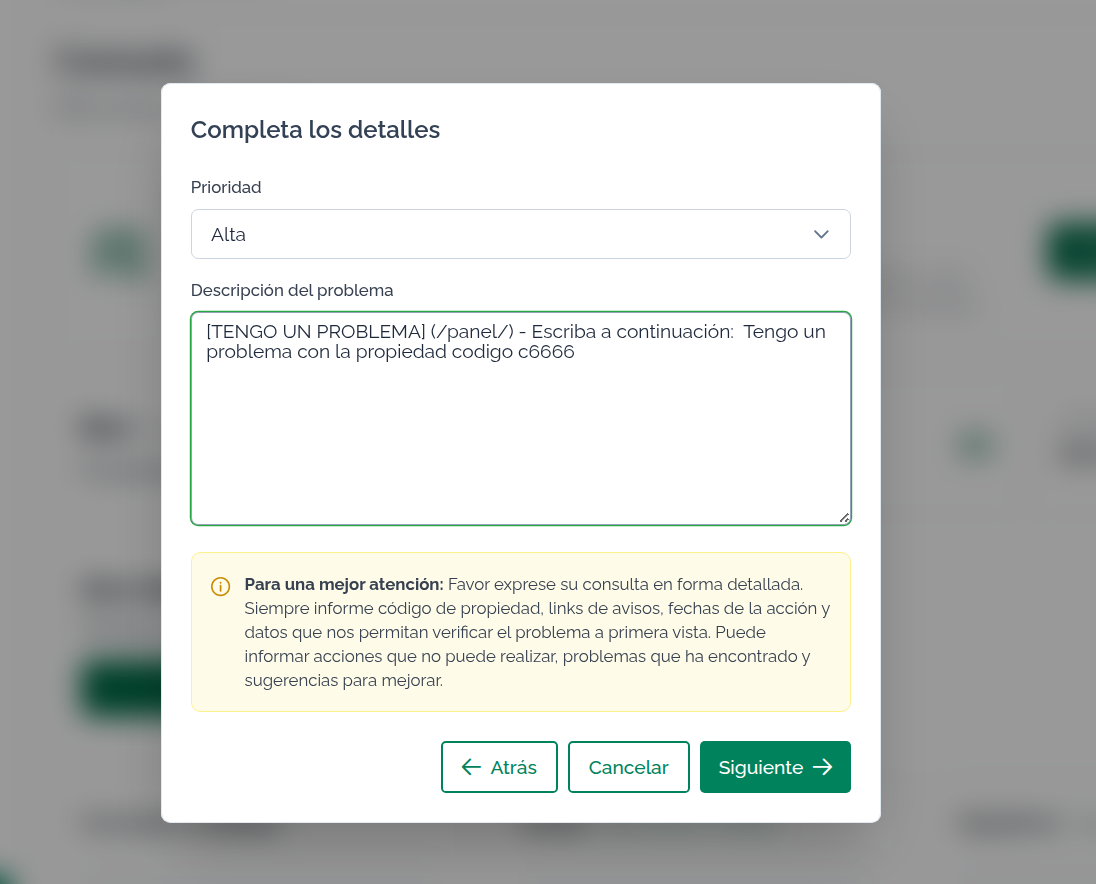
Now you can report your problem. Be specific and provide data such as property code or reference URLs.
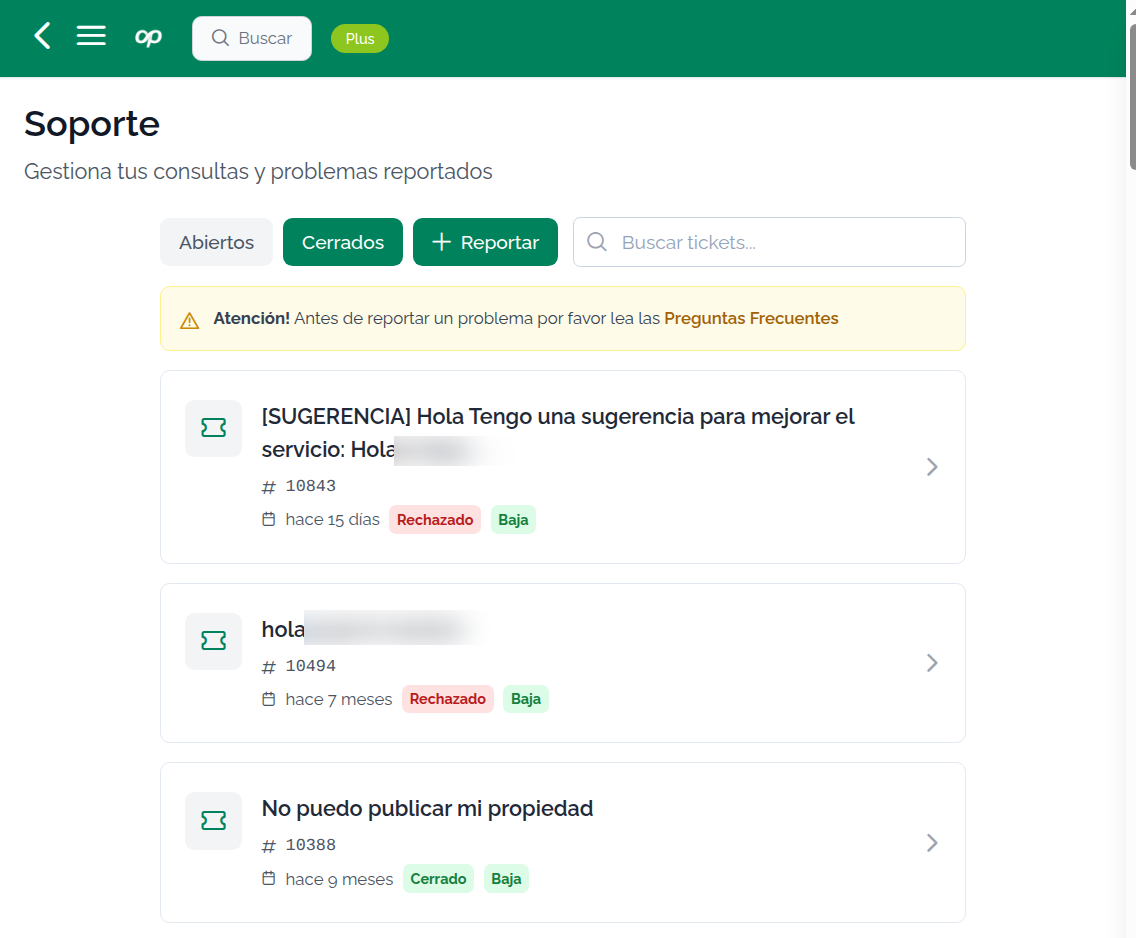
3- My Problems: Read responses and send messages
Reported problems are recorded in My Problems, and can be accessed from the same help button
From My Problems, you can view your list of active problems. By clicking on the problem you can see the details and send more messages.
By clicking on the message, you can see its details
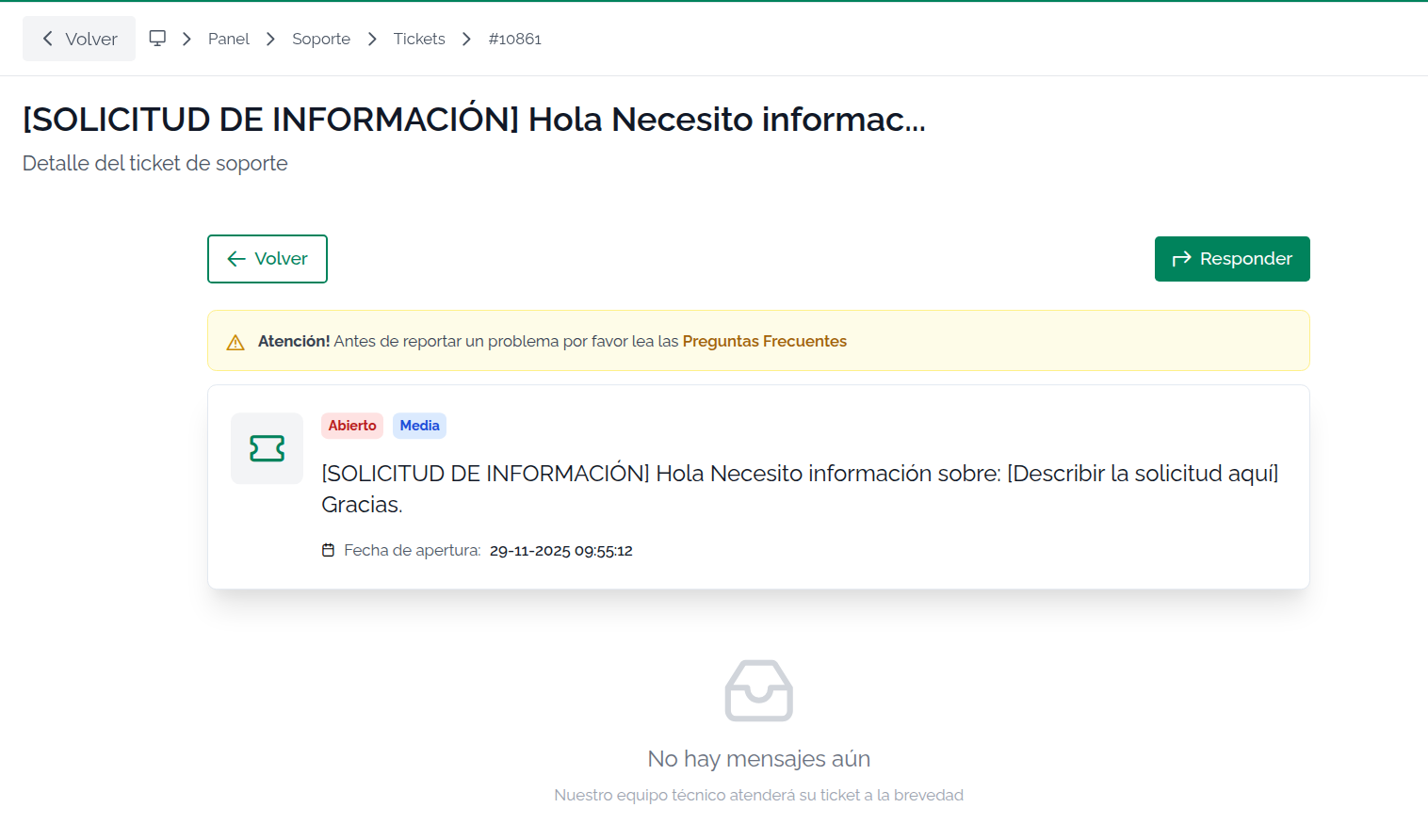
By pressing Reply you can continue sending messages about the same problem
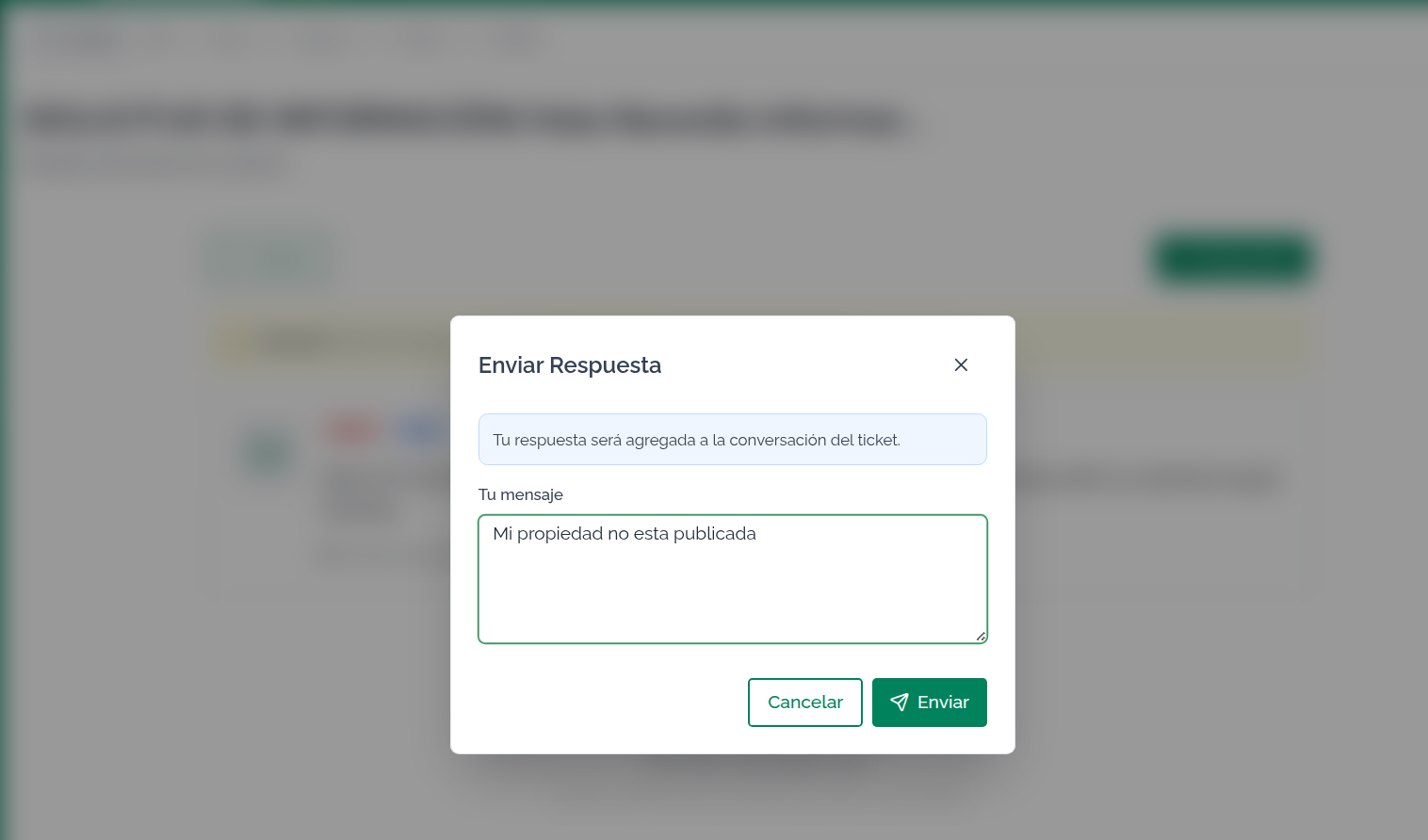
The send new message screen will allow you to continue detailing the problem so Support can find the solution
Conversations accumulate
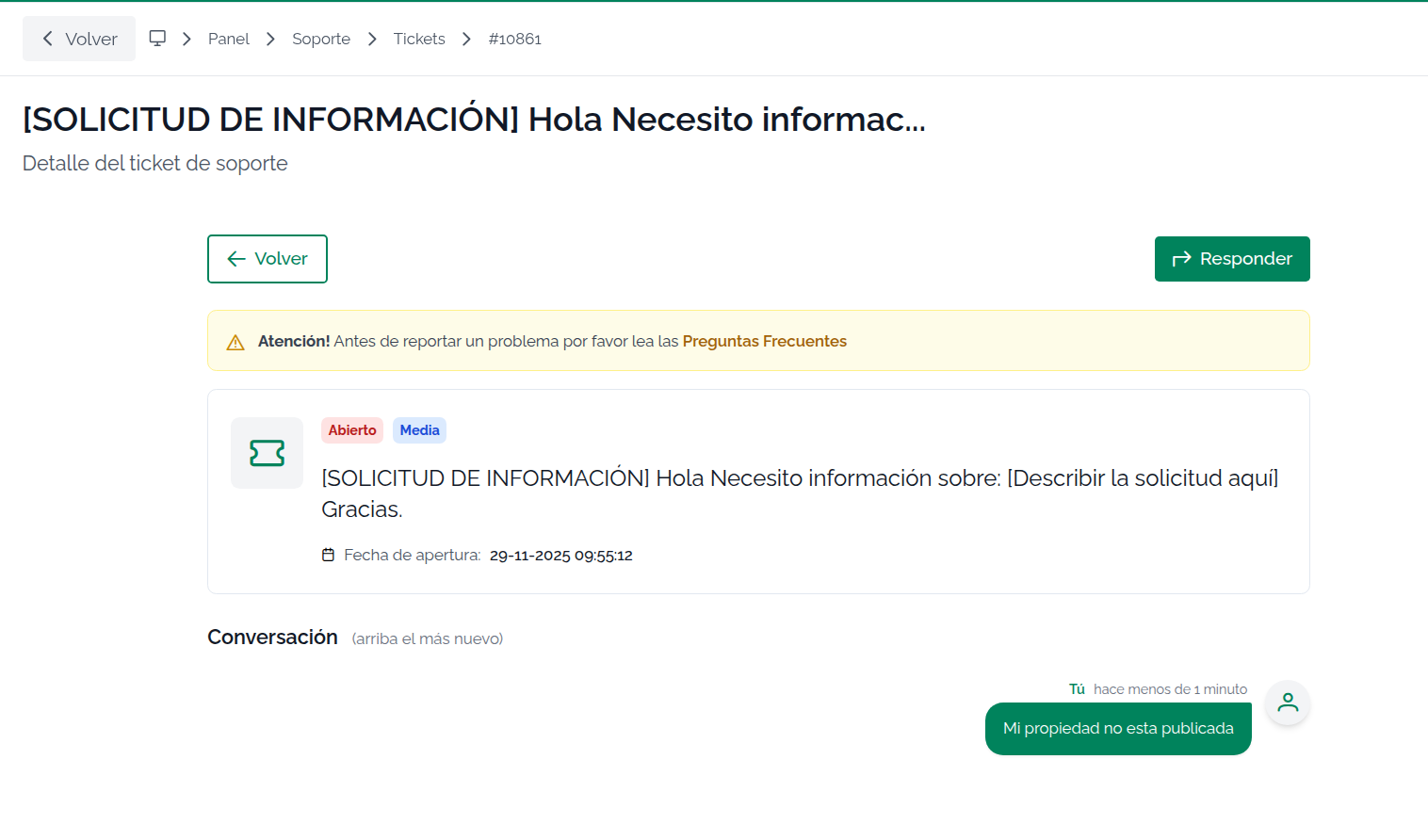
4- Report, response, and resolution notifications
When you report a problem, the Support team is responsible for responding to it. The process has 4 stages:
- Report
- Acceptance
- Response/s
- Problem closure
Report:
You report a problem and will receive a copy by email to your user address.
Acceptance
When Support reviews your problem, it is accepted, which means it has been read and they are working on your case. This action does not generate an email notification and can only be viewed in your Help and Support.
Responses
The support team will respond to your report. For each response, you will receive an email notification at your registered email address in your user (My Profile). The responses are recorded in your Help and Support. They may include the solution or request additional information to better understand the problem. Each response generates an email notification.
Problem closure
When technical support resolves the problem, they mark it as "Resolved". This closes the problem instance and the system sends a final confirmation email to the email registered in My Company.
Keep in mind that before the "problem resolved" email, you received a response to your user email. If you don't find it, check your spam folder or review your account emails.