
This help article will teach you how to manage your company's data registered in your Mapaprop account, which is also the data Mapaprop transmits to third parties so they can contact you (name, phone numbers, and address), or that it includes in your Website, if you have subscribed to one.
Manage your company's data
Accessing the screen
The My Company screen, accessible from Menu > Settings > My Company, lets you manage all your Mapaprop account data.
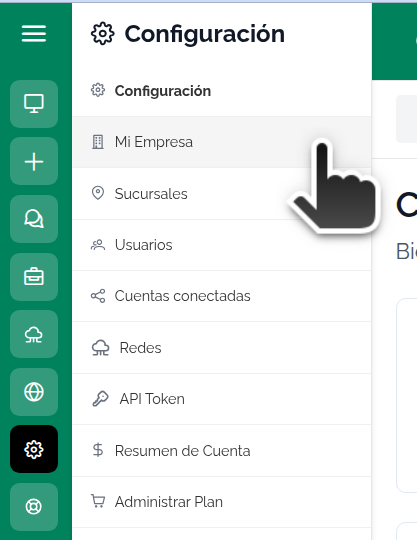
Data origin
When you registered with Mapaprop, your data was saved in your Company account. This screen lets you change that data or add additional information. Access the sections by clicking the arrow to view or edit each data section.
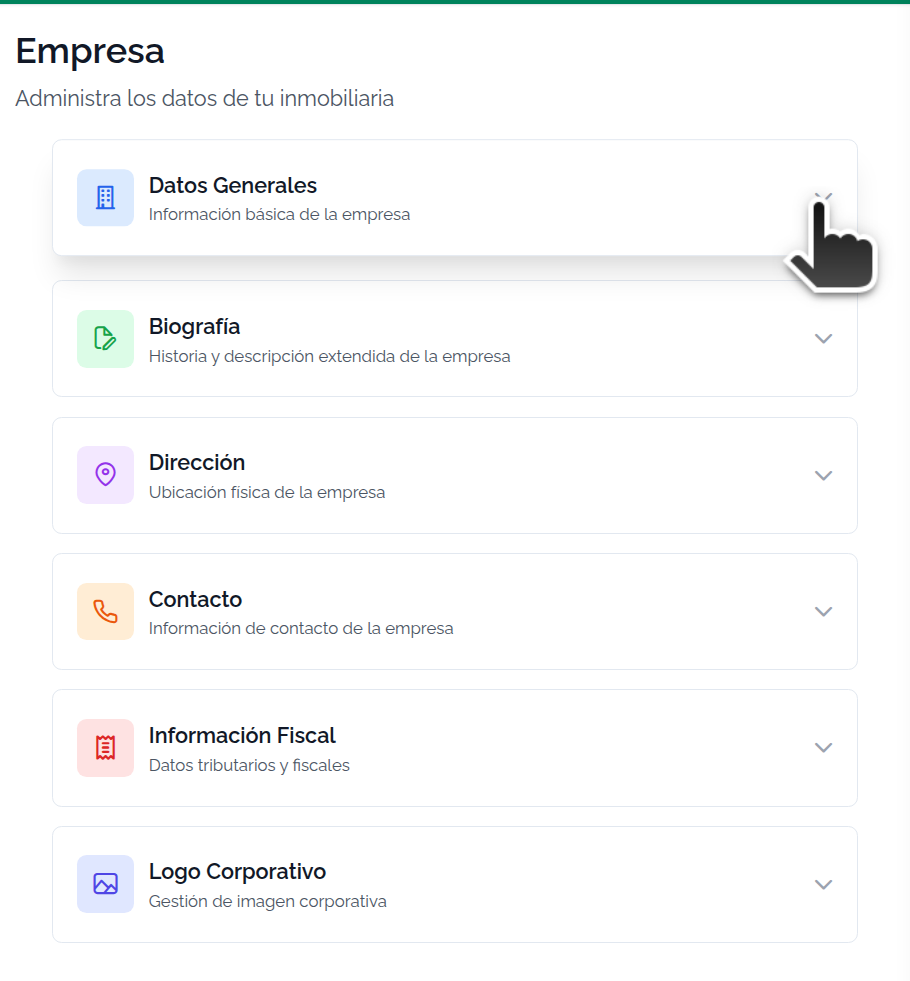
The data shown on this screen originally comes from your Mapaprop registration. During that process, Mapaprop created a Branch and a User with that same data. Both are accessible for editing from Menu > My Real Estate Agency > Branches | Users
Do you make changes in Mapaprop and not see them reflected on your website?
Some website data is saved in the browser session to improve loading speed, such as Featured Properties, data from My Company or Branches, and menu sections. Close all open sessions of your browser, wait a few seconds, and open it again. When you visit your website, you'll see the changes.
The data you register in Mapaprop serves several purposes, such as being transmitted to real estate portals where it will be published (see Publication)
For other system communications, emails are sent only to the email account registered in the My Company section.
The available options are
- General data
- Bio
- Address
- Contact
- Logo
- Taxes
General data
This screen lets you change the main email for contact with Mapaprop, your real estate agency's name, and register data for entities that grant you legal authority to operate in your business.
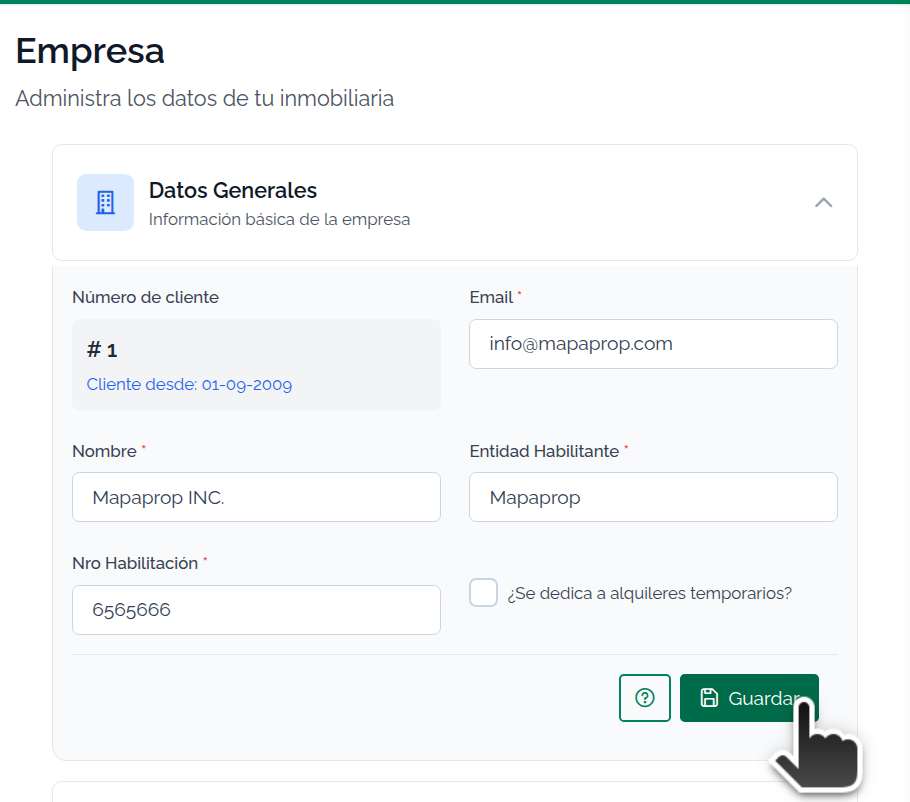
In general data you can edit:
- Email (this is where you'll receive all system notifications)
- Name (this is public information transmitted to all publication portals and websites, and finally to Google)
- Licensing Entity (name of the institution that grants you permission to carry out your activity)
- License number (unique identification granted to you by that institution)
- Short-term rentals? (use this if your business is in short-term rentals)
Biography
The biography is optional and public information that you can fill in if you wish. It lets you talk about your company, your track record, your skills, or your services. This information is public and is transmitted to some portals, and is used to introduce you to portal visitors or other colleagues.
Business hours
Business hours are an optional field. Write freely the days and times you are open (for example: "Monday to Friday from 9 AM to 6 PM. Saturdays from 9 AM to 1 PM.").
If you have a Mapaprop Website, both the bio and the business hours are shown in the footer of your site. If you leave the business hours field empty, that block will not appear on the site.
Address
The physical address where you can be located by people interested in the properties you sell. If you don't have a customer service office, write the street without a number, or just a few dashes "---"
Contact
These are the phone details that Mapaprop transmits to the different publication portals. They are also the details included on your Mapaprop Website. Use the fields freely and at your own discretion. Remember that this information is public. We recommend always including the area or zone code in phone numbers, as well as mobile prefixes.
The option to fill in the Mobile field (only for Mapaprop Plus or Website clients) !IMPORTANT Keep in mind that for messaging systems like WhatsApp to work correctly, you must enter only numbers with no spaces, including the Country Code plus the area code. For example, for the Buenos Aires phone number 11 5555-2222, you should enter 541155552222. For a Villa Carlos Paz phone number like 03541 222-3333, you should enter 543541222333.
Mobile and phone numbers: each field has its own format
The two fields look the same, but they serve different purposes and are best filled in differently:
- The Mobile field is the one that builds the WhatsApp link. It goes with no spaces or dashes and includes the country code (
541155552222). It does not matter that it reads awkwardly: nobody sees it, it is used behind the scenes. - The Phone fields are the ones displayed on screen, exactly as you write them. Here the opposite applies: write them legibly, with spaces or dashes (
11 5555-2222).
If you enter the same number in both fields —one in system format and the other legible—, your Website uses the Mobile field so the WhatsApp button works, and displays the Phone field so it reads well. That way you control how the number looks, without anyone having to modify the design.
Taxes
To subscribe to any service with Mapaprop, it is mandatory to add tax information in order to generate invoices for your account. Add the information corresponding to your company. No field should be left blank.
It is not mandatory for the entered data to be exactly the same as the Mapaprop account holder. If you don't know which option is correct, use the End Consumer option
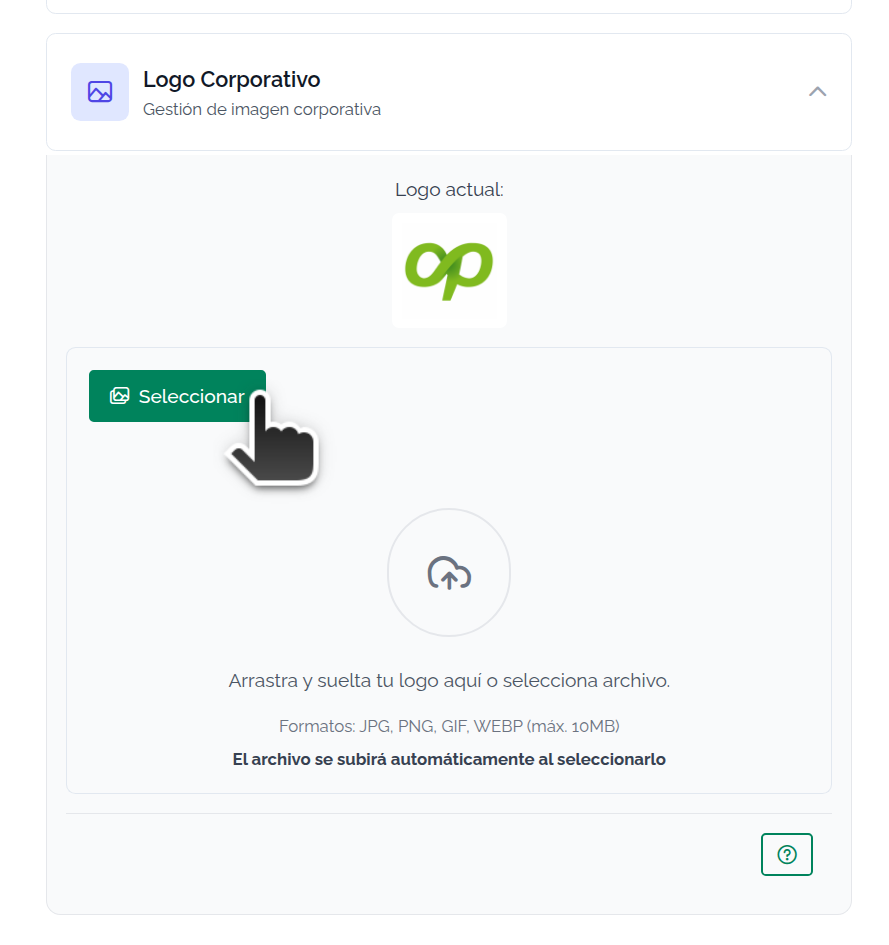
Communicate your real estate agency's logo to your clients and colleagues. To add your logo to the system, you must select an image from your computer. Mapaprop publishes your logo only on portals compatible with the feature. Keep in mind that the image must be square, to avoid distortion. The format can be png, jpg, jpeg, jfif, or gif. The maximum file size can be 10 MB.
Clients with a website
If you have a website, keep in mind that when editing any data (names, phone numbers, addresses, emails, etc.) in Menu > My Company > My Company, Branches or Users, you may need to log out of Mapaprop and log back in for the changes to be reflected in Share by email or the Printable public listing sheet. If you have a Mapaprop Website, you will need to close the website if it is open in any browser tab and then restart the browser. When you open it again, you'll see the changes reflected on your website.
If you have any questions, report an issue by clicking here