
An installer is whoever does the physical work: the person or company that goes to the property to put up or take down the sign. It can be someone on your team or a contracted third party.
Having them loaded lets you assign them to a work order and email them the order, instead of dictating it over the phone.
Adding installers requires the Pro+ plan or higher. With any plan you can enter the module and view the inventory. See the plan comparison.
How to get there
From the console, Installers button.
Loading an installer
New installer button. The fields:
| Field | Required | What for |
|---|---|---|
| Name | yes | how you identify them |
| no | to send them the work orders | |
| Phone | no | to have it at hand |
With the email loaded, sending them an order is one click: you do not have to type the address on every work order. Without the email, sending still works, but you have to type the address every time.
You can also create an installer without leaving the new order dialog, with the + button next to the selector.
Assigning them to a work order
When you schedule an installation, removal or move, the installer is one of the fields. It is optional: you can schedule a work order without deciding yet who is going to do it, and assign it later from the work order's page.
Once assigned, their name appears in the console's schedule, next to the sign's code.
Emailing them the order
There are two moments, and it is the same sending:
- When you create the order, with the Notify the installer button on the confirmation screen.
- Whenever you want, from the work order's page, with the Send by email button.
The email includes:
- Your agency, as whoever is requesting the work
- The type of work — installation, removal or move
- The sign, with its code
- The property's address (both of them, if it is a move)
- The date and time
- The notes you wrote on the order
- A button to see the full work order
If the installer has their email loaded, it comes pre-filled. You can still change it —to send it to someone else— or add an additional message.
Sending is manual. The system does not send the email on its own when the order is created: you decide when, and you can resend it as many times as you need.
The installer sees the full work order, with no account
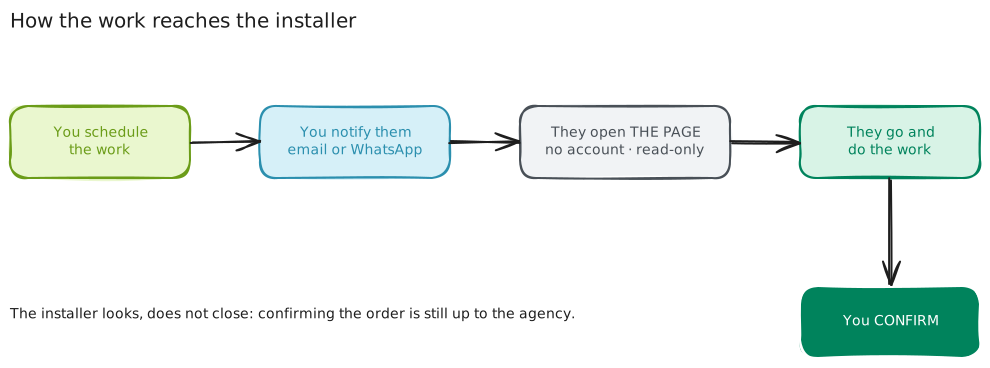
The button in the email opens the work order's page: the sign with its photo and its code, both addresses when it is a move, the date and your notes. It is the same information you see on the order's page.
It opens with no username or password —the installer does not need to have a Mapaprop account— and it is read-only: they can look at it, they cannot change anything or complete the work order. Completing the order is still up to you.
The page does not show up in search engines. Only whoever has the link can get there, so it is best to send it to the person who is going to do the work and not publish it.
Sending it over WhatsApp
On the work order's page, the Copy link for the installer button copies that same link. It is there for the installer who does not have an email, or for when you already sent it and they lost it: you paste it into WhatsApp and that is it.
Retiring an installer
They are no longer offered when scheduling new work orders. The work orders already assigned to them are not touched: they keep showing their name.
Support
If you have any difficulty with this help article, you can report a problem by clicking here