Attention: You can click on the images at any time to view them enlarged
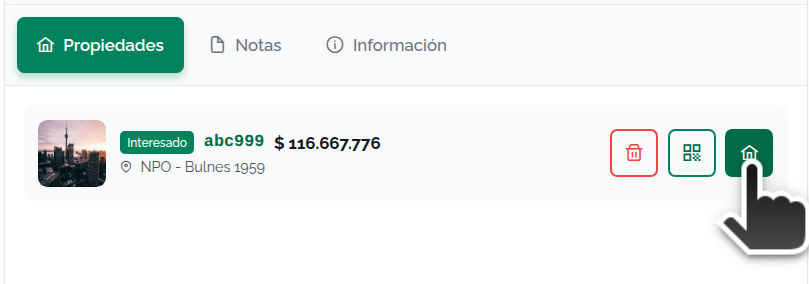
When an inquiry comes into the system, the contact is automatically saved to your database, tagged as "interested", and the inquiry is added as a "note". It's also linked to the property as interested.
Use the delete contact button to permanently remove the information.
Activate Contact
Coming soon
Edit Name, Title, Company
Click the main edit button to change or add data
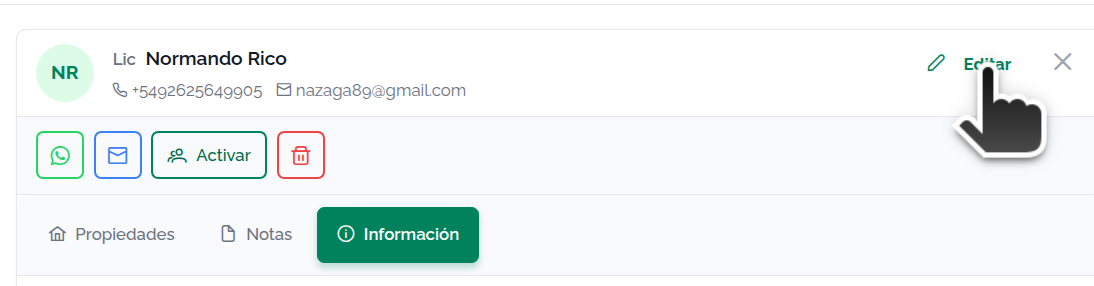
Add or delete phone numbers
Click add for new phone numbers or delete to remove them

Add or delete emails
Click add for new email addresses or delete to remove them

Edit address
Click edit to add or change the address

Edit other details
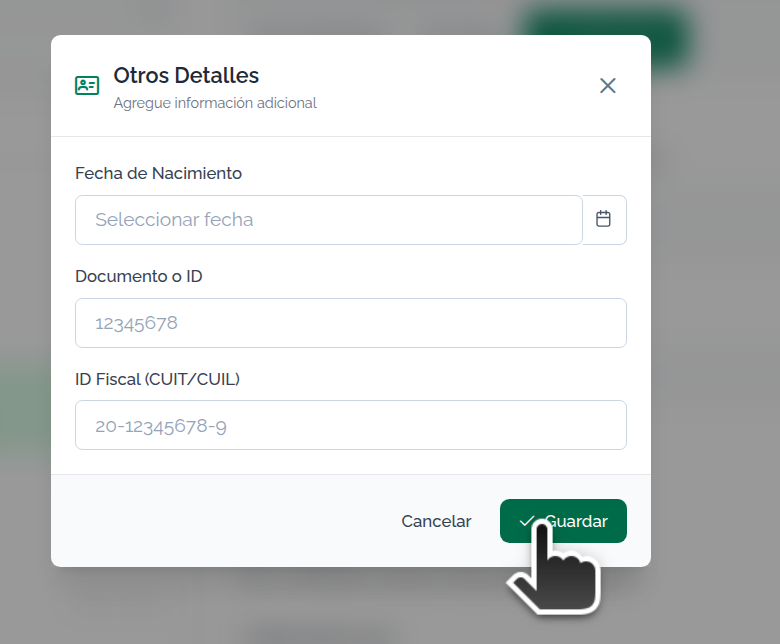
Click edit to add or change details. The options are:
- Birthday
- Tax ID
- Document ID
Edit Description
Click edit to add or change a description or fixed note for the contact

Edit Tags / Categories
Select a tag and add it. Delete tags (some tags are added automatically.)
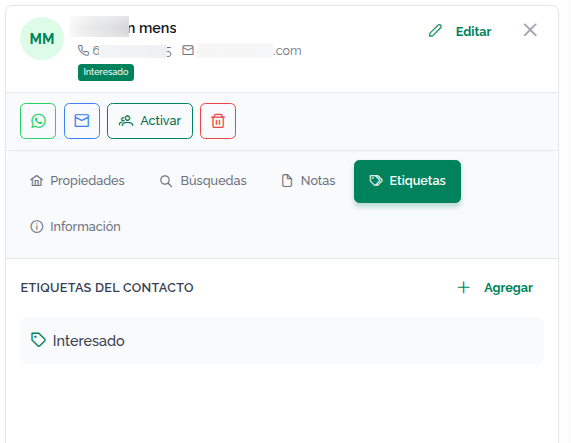
Press Add to select a new tag.
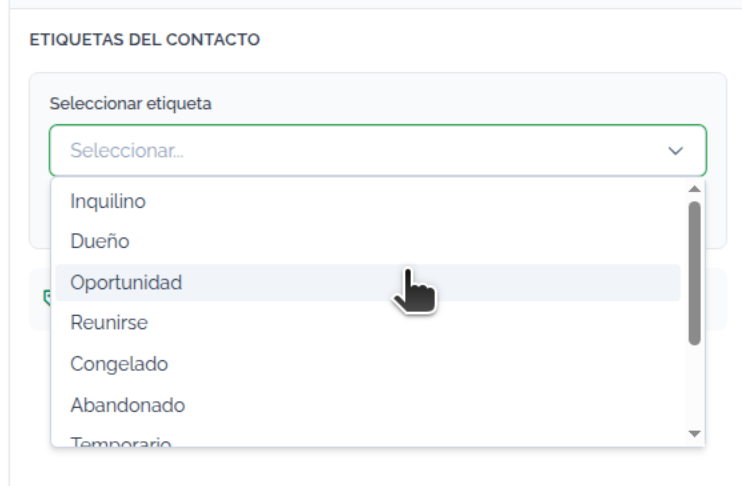
Tags that are added automatically:
- Inquiries that come into Mapaprop automatically add the contact to the "Interested" category.
- Inquiries that come in through the Mapaprop Network automatically add the contact to the "Mapaprop Network" category.
- Contacts assigned to properties from the Property Contacts are automatically categorized as "Owner", "Tenant" or "Interested"
- Contacts assigned to a New short-term booking are automatically categorized as "Short-term"
Here you assign tags that already exist to your contact. To create, edit or delete your own custom tags (with a name and color), use the "Manage tags" button in the contact list. More info in CRM / Customers → Tags.
Contact Notes
Add notes for the contact with no limit. Delete notes (some are added automatically.)
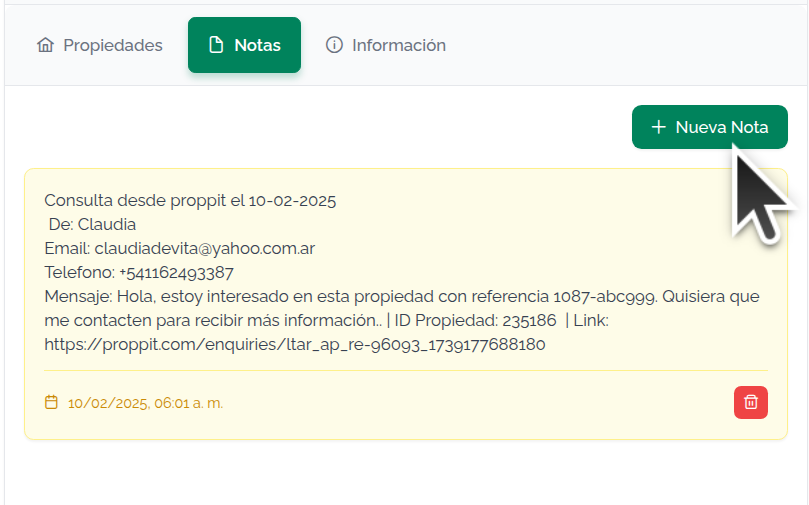
Notes that are added automatically:
- Inquiries that come into Mapaprop add a contact and automatically write the message in a note
Contact Properties
View information, browse properties and remove the link with the contact.