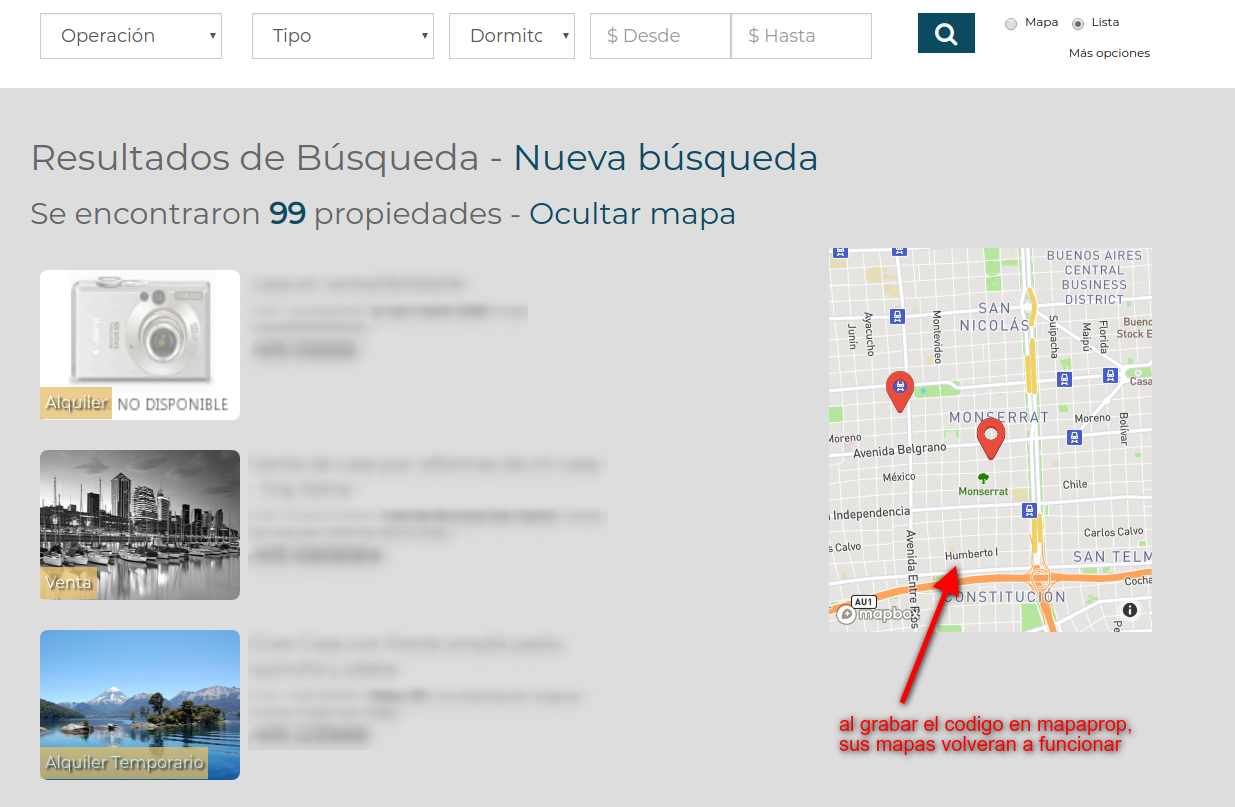
This help article will show you how to get your Mapbox key for the Maps functionality on your website
About Mapbox
Mapaprop Websites have Maps functionality. Our platform uses OpenStreetMap, which is a free project supported by major tech companies and individuals from around the world.
Since Google Maps started charging for map calls for Businesses, Mapaprop migrated the system to get maps from OpenStreetMap, through MapBox
Mapbox is a company that provides a free service, but to activate it you must enter a debit or credit card.
The maps on Mapaprop Websites work with a specific key, which you must create yourself on Mapbox.com. The process is very simple
Activating a Mapbox account requires a credit card, but this does not mean you have to pay anything. It is a verification method. If you have any questions, always write to websites@mapaprop.com
Go to mapbox.com and click the buttons to create a Mapbox account

You can click this link to create the account
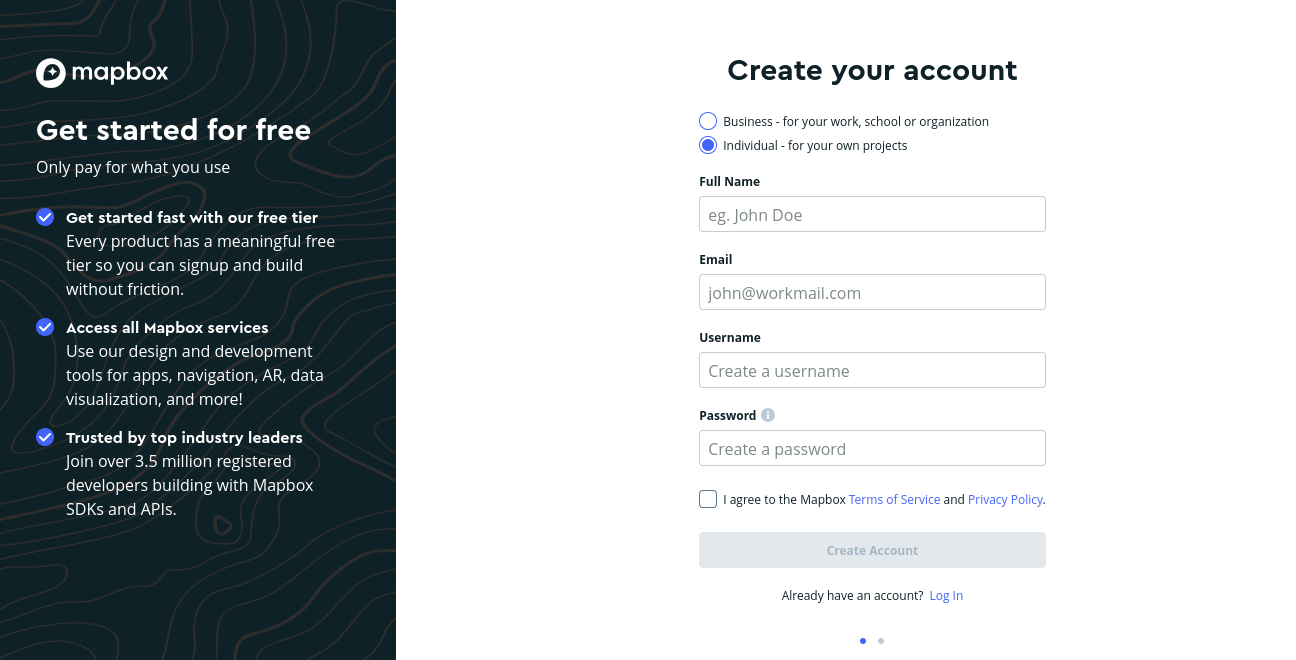
2 Create your account on mapbox.com
You can click this link to create the account. Now enter a username, an email and a password. Then click the button to finish the registration.
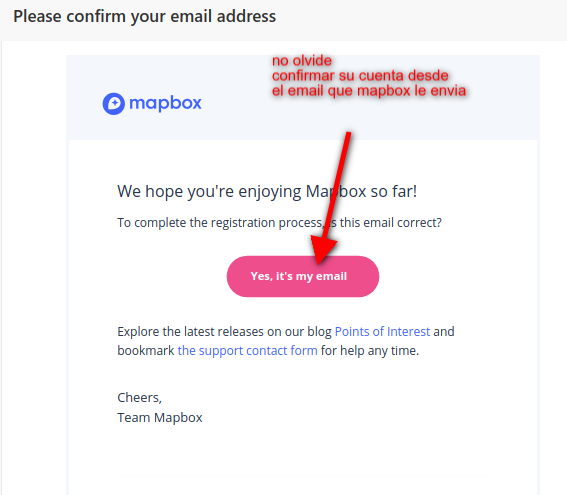
After a while, an email from Mapbox will arrive at the registered inbox. Don't forget to confirm your email by clicking the corresponding button to keep the account active
Make sure to document your username and password. You can also send that information to websites@mapaprop.com so we can document it for you, so that if you ever need your data we can easily recover it.
When you access the created account, you will get an access token, or mapbox code, within seconds. Copy it
Copy the code to later paste it into the Mapaprop account > Website > Website Console > Branch Configuration on the Website
You can always retrieve your mapbox code (access token) by accessing your mapbox account, then going to the access token (mapbox code) option from the menu.
Access your Mapaprop account > Menu > Website > Website Console > Branch Configuration on the Website
Now paste the code you copied from mapbox and then click Save
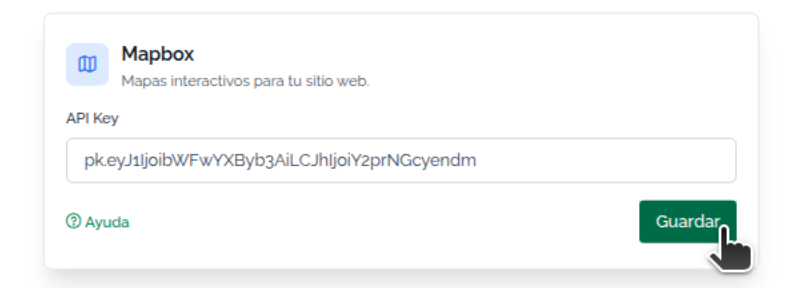
5 Done, your maps are now working
Access your website and see the functionality restored.