
If your account isn't professional, you won't be able to use this feature. Access this Instagram link to verify it, or read this help article to learn how to switch to an Instagram professional account. See help https://business.instagram.com/blog/getting-started-on-instagram?locale=es_LA
To connect accounts with Mapaprop, such as the Meta Connection (Instagram and Facebook), your Meta account must first meet certain requirements unrelated to Mapaprop.
This guide shows you some possible steps to verify / convert your Instagram account to Professional, and also link it to the Meta Business suite.
There are 4 steps
- Have an Instagram account of the Professional type
- Link that Instagram account to a Facebook Page
- Link both accounts to a Meta Business account (all with the same personal Facebook user.)
- Have full control of that Facebook Page (Administrator role, or Facebook access with full control in the new Pages experience)
Step 4 is a mandatory requirement: the connection is made through Facebook and Mapaprop needs the Page's permission in order to publish on it. If your access is partial, task-based, or a role other than Administrator, the Page won't appear in the list when connecting.
1. Instagram: Verifying that your account is the Professional type
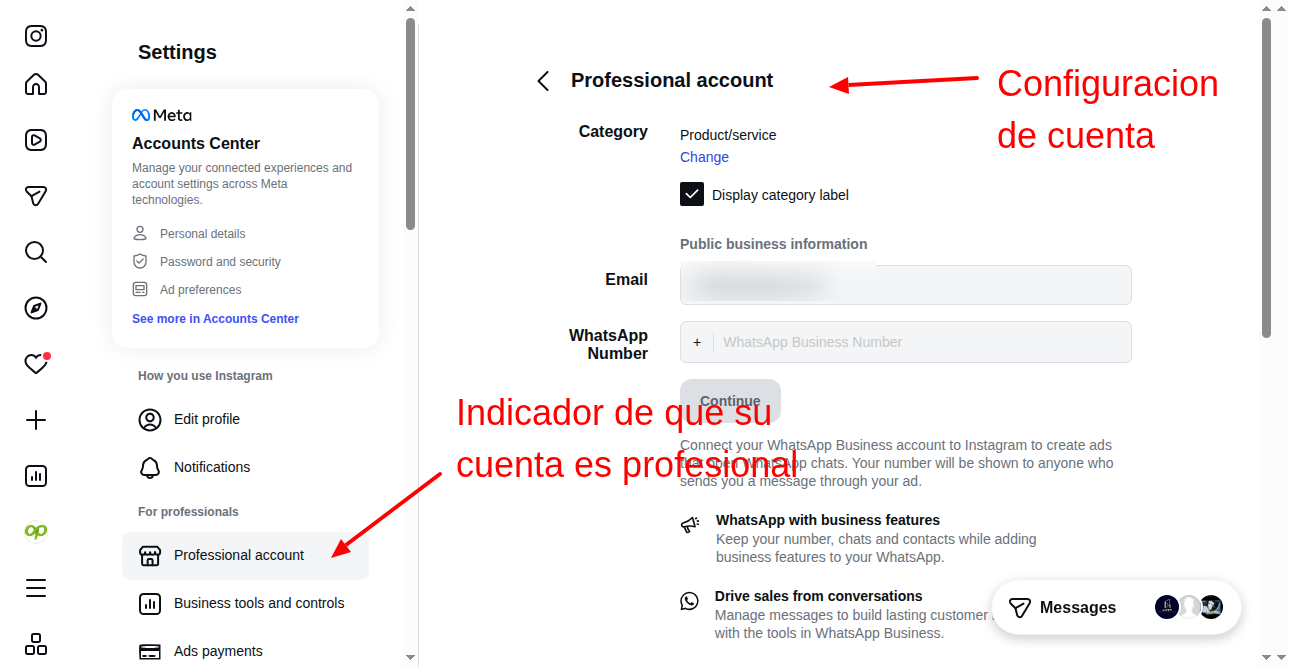
Go to Instagram > Settings. If the Professional Account item appears, your account meets the requirements
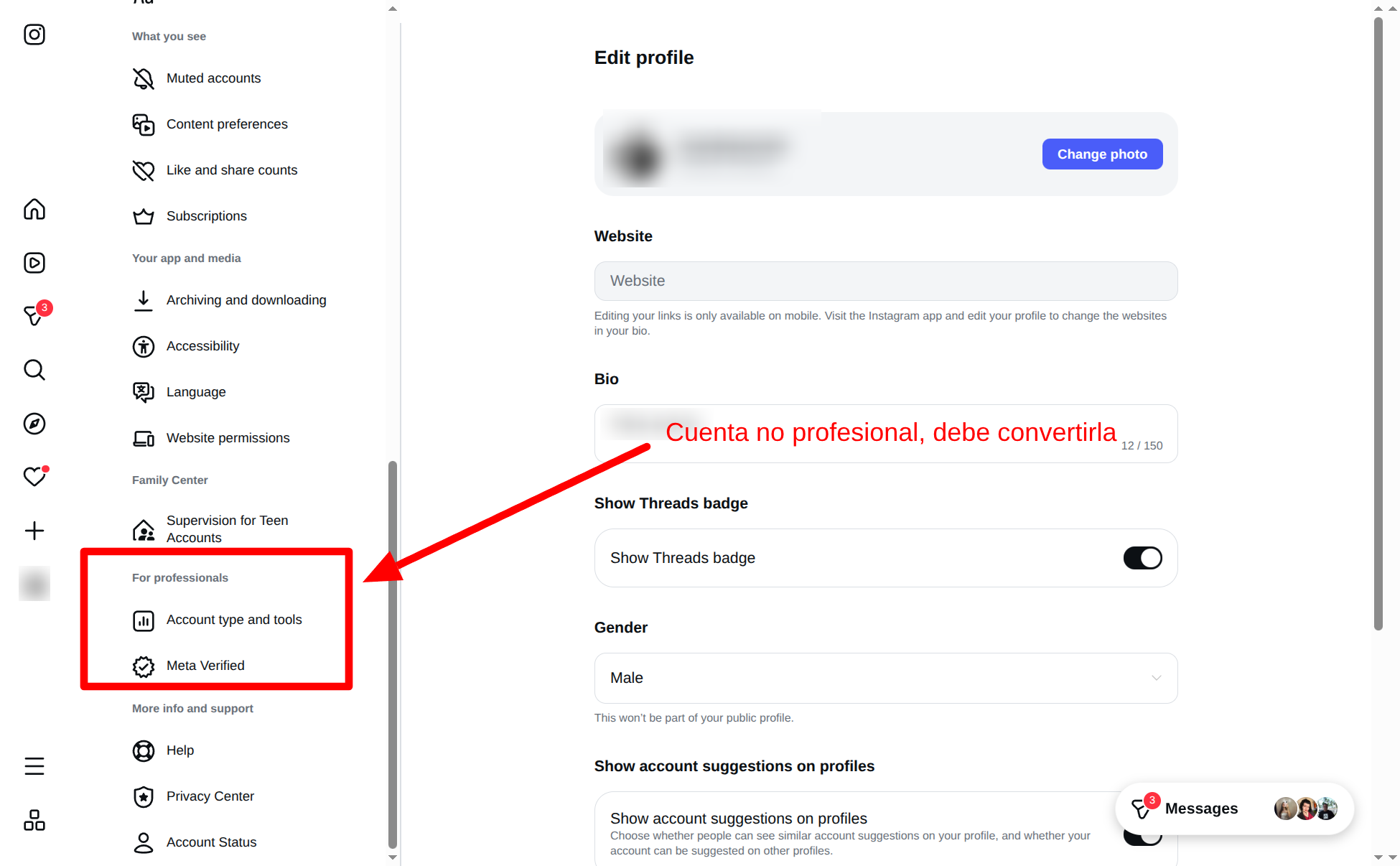
If instead your account shows this type of information, it means it's not Professional and you need to convert it
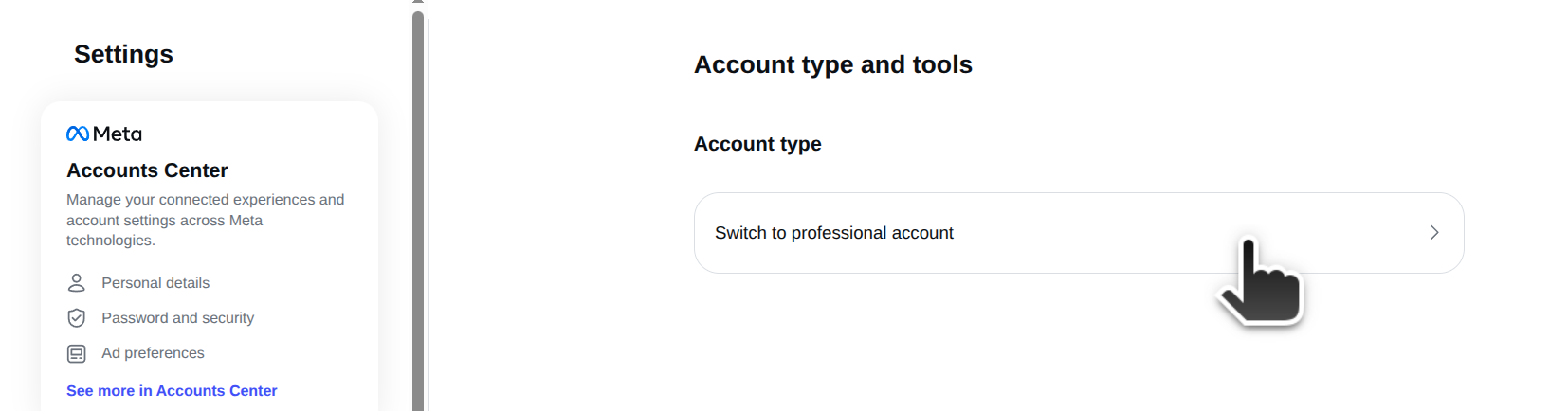
If you go to Account type, you'll be able to convert it
2. Facebook: Verify that your Instagram account is linked to your Facebook page
From your Facebook page, go to Administration > Settings
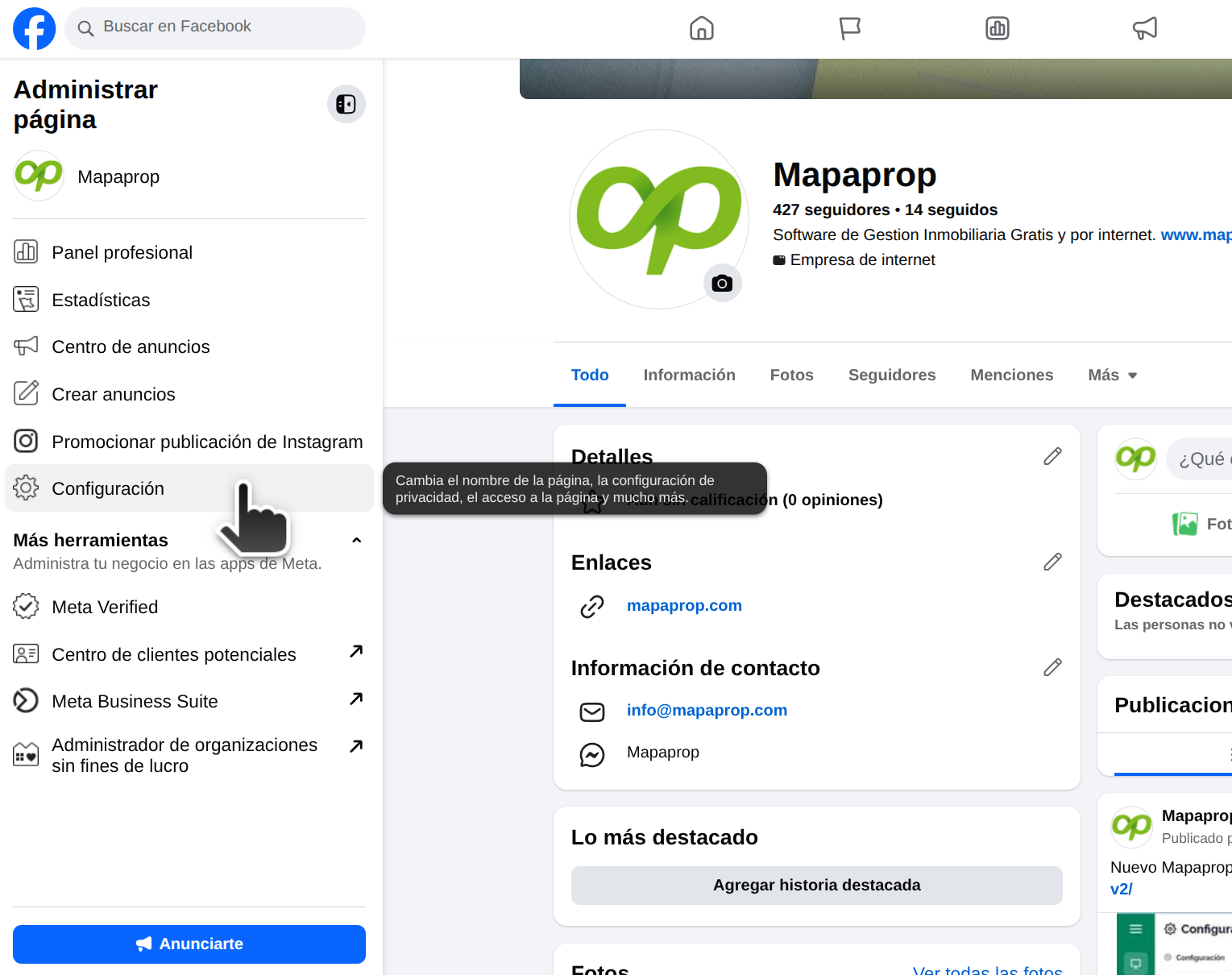
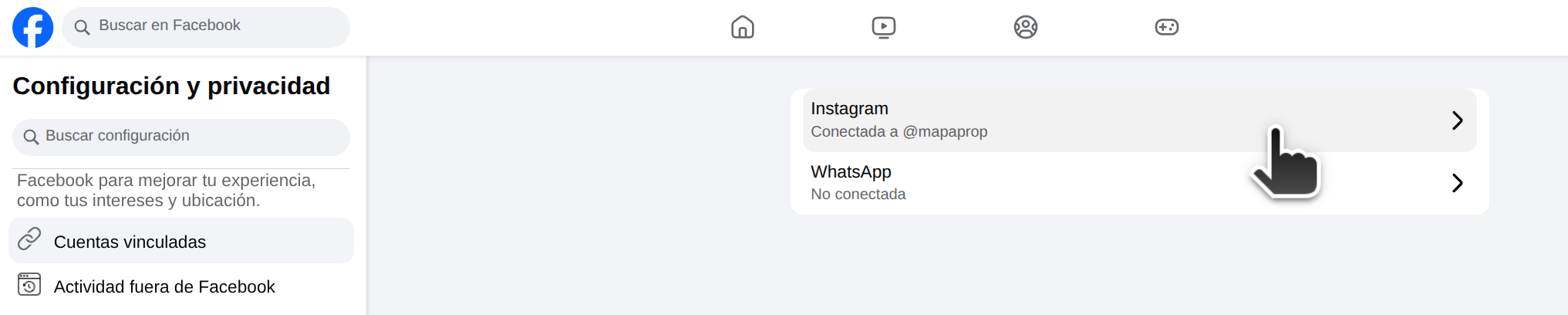
From the administration panel, go to Linked Accounts
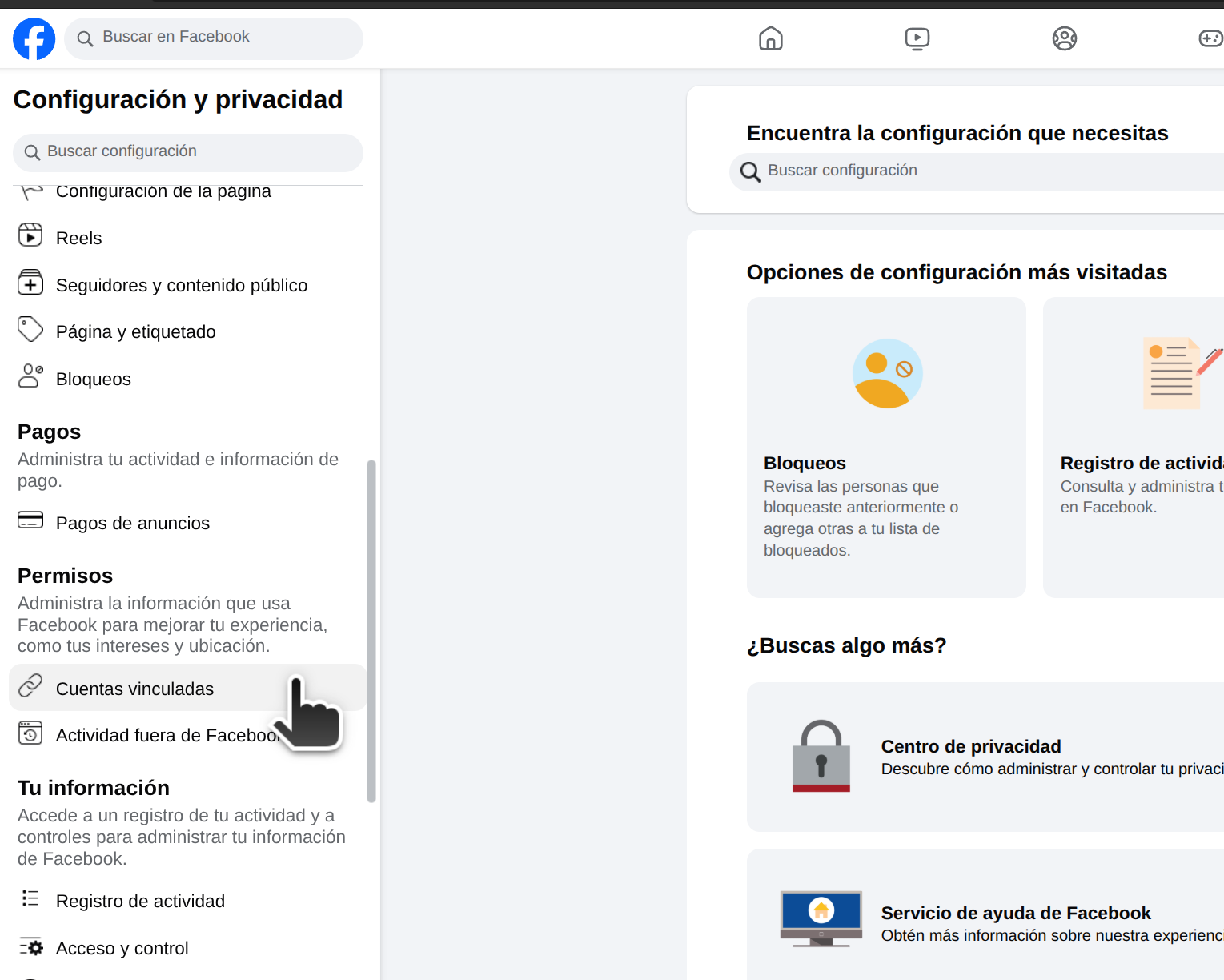
In linked accounts, verify that the same Instagram account is linked. If it isn't linked, you need to link it.
3. Meta Business: Verify the linking of Facebook and Instagram with the Meta business account
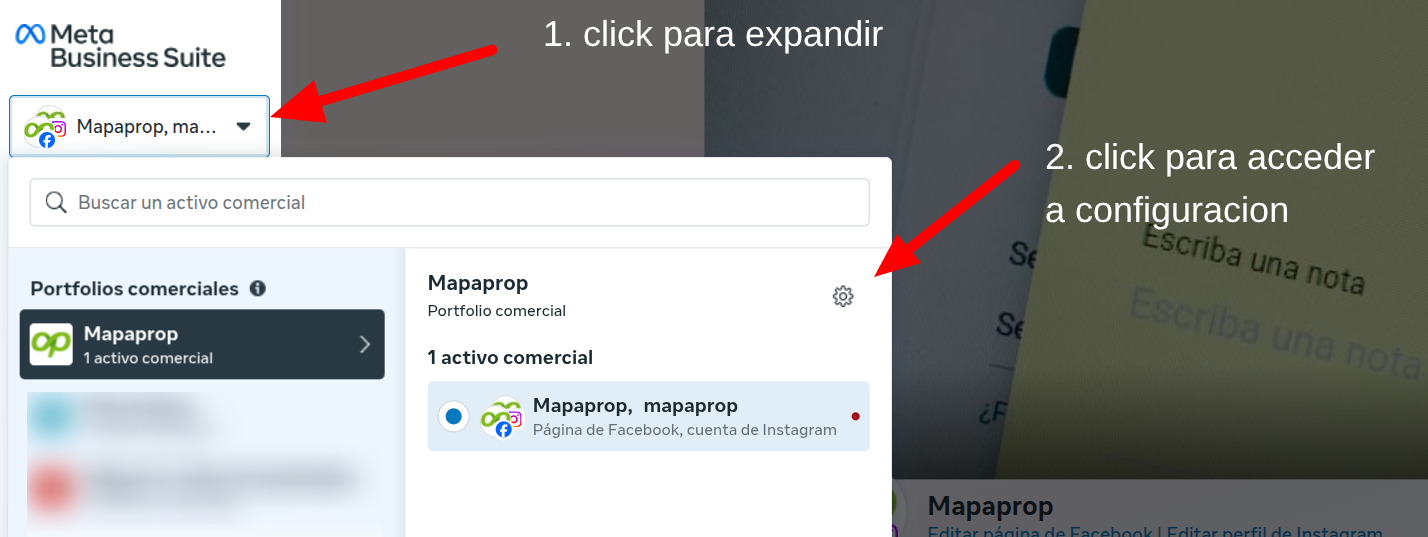
Again from your Facebook > Administration page, go to the Meta Business suite.

Go to the business account settings
Go to the ACCOUNTS section and verify that your Facebook page is linked under Pages
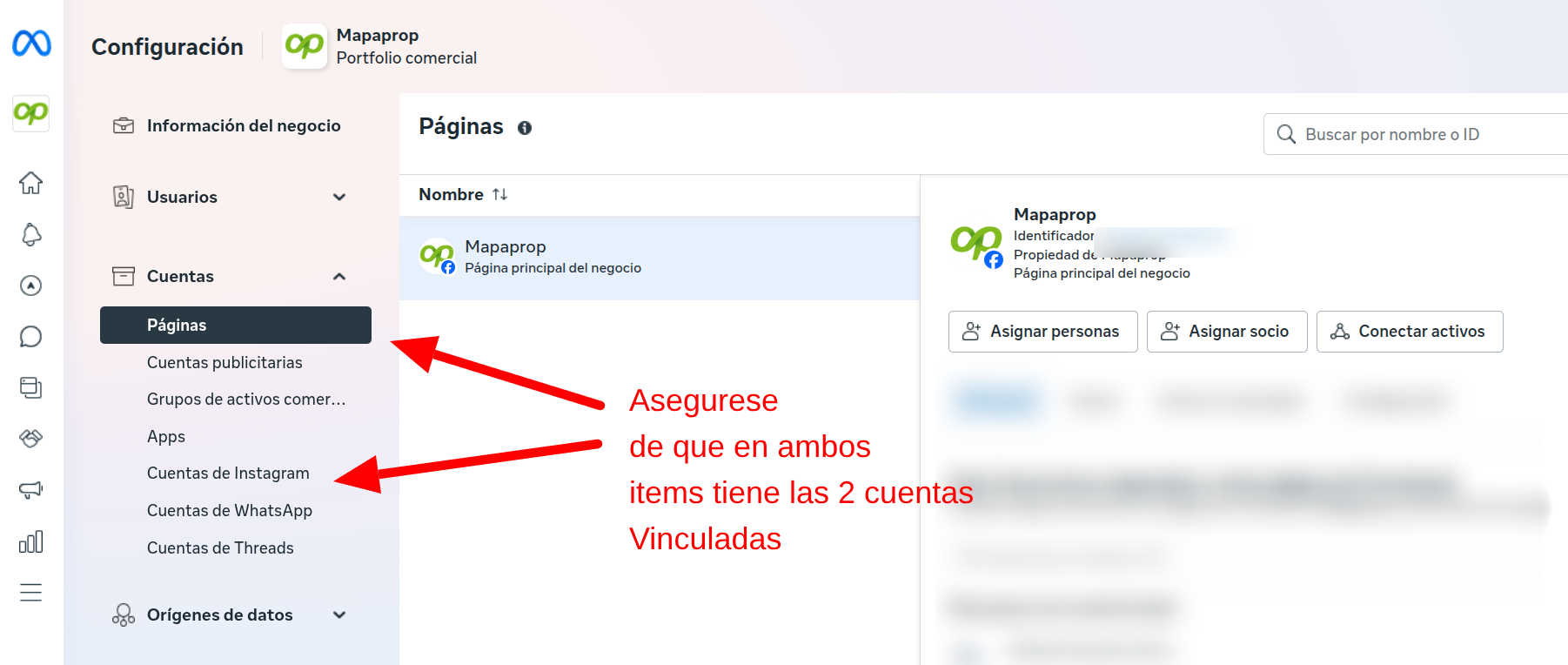
Then in the Instagram section, do the same
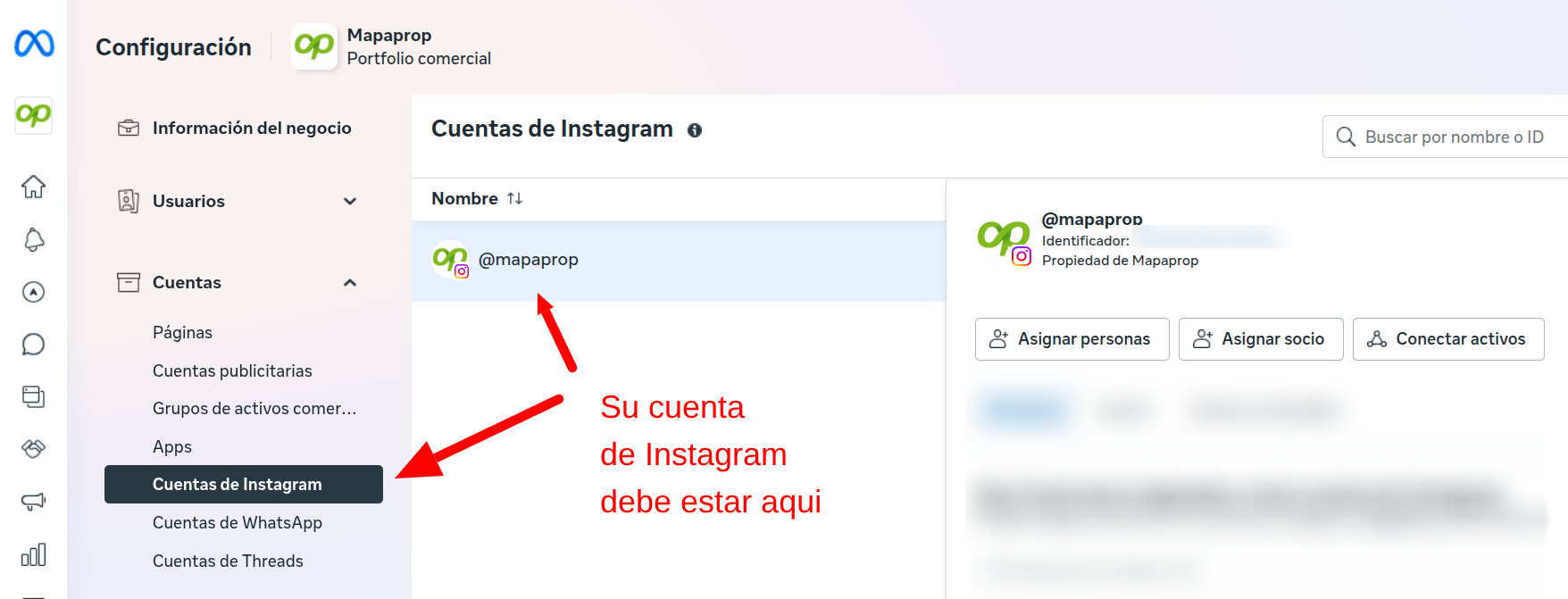
4. Facebook: Verify that you have full control of the Page
Mapaprop needs the Page's permission to publish on it, and only whoever administers it has that permission.
Facebook migrated Pages to the new Pages experience, so the location depends on which one you have:
- New experience: go to Facebook > Your Page > Settings > Page access. You must appear with Facebook access and full control.
- Classic Page (not migrated): go to Settings > Page Roles and check that your role is Administrator.
If your access is partial, task-based, or a role other than Administrator, the Page won't appear in the list when connecting. Ask whoever administers the Page to grant you access, or to make the connection from their own user.
Once these requirements are met, you'll be able to connect with Mapaprop and publish your properties on Instagram, on your Facebook Page, or on both networks at once.
If you were already connected before June 2026
Publishing on the Facebook Page was added in 2026. If you connected your account before June 2026, your connection works for Instagram but doesn't yet have the Page's permission.
You'll notice it when publishing a property: the "On both networks" and "Facebook only" options appear grayed out with a padlock, with the notice "Reconnect your account to enable Facebook".
To fix it, go to Settings > Meta Connection, press Disconnect, and connect again. It's a one-time step, and doesn't affect your properties or your previous posts. The full process is detailed in Connect with Meta (Instagram and Facebook).