
This help article will teach you how to connect your Meta account in Mapaprop. It's a single connection (through Facebook) that enables publishing properties on Instagram and on your Facebook Page.
With a single Meta connection you can publish to Instagram, to your Facebook Page, or to both networks at once, choosing the destination when publishing each property.
Already had the connection set up? Reconnect once to enable Facebook.
If you connected your account before June 2026, the connection works for Instagram but doesn't yet have permission to publish to your Facebook Page (that permission didn't exist when you connected). You'll notice it this way: when publishing a property, the "On both networks" and "Facebook only" options appear grayed out with a lock icon, and below them a notice reads "Reconnect your account to enable Facebook".
To fix this, go to Settings > Meta Connection, press Disconnect, and reconnect following the steps in this help article. It's a one-time thing. You lose nothing: your properties and previous publications remain unchanged.
Prerequisites
To use this feature you must have a Professional type Instagram account, which in turn must be linked to a Facebook page (see help), since the connection to publish is made through Facebook. To find out if your Instagram account is professional, go to this Instagram link (Instagram Account Settings > Professional Account). Instagram accounts are also linked to a Facebook page, since everything converges under the new Meta Business Suite application.
- An Instagram Business / Professional account (does not work with personal accounts).
- A Facebook Page linked to that Instagram account.
- To be an administrator of that Facebook Page.
Verify that your Instagram account meets the requirements
Go to Instagram's Settings. In that section, if your account is Professional, you should be able to access this view
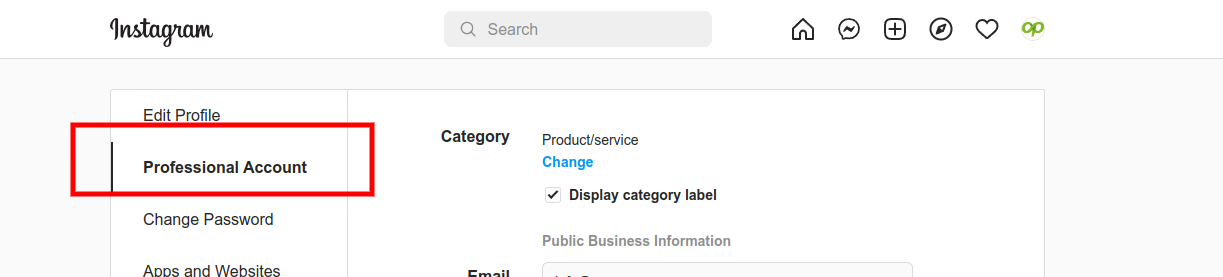
But that's not the only requirement. We have a guide to Verify that your Facebook / Instagram / Meta account is for businesses. Read it to find out if you meet the requirements.
Connect your Instagram Professional account
To learn how to convert your Instagram account into a Professional account, watch this help article from Facebook / Meta. Keep in mind that Facebook changes constantly, so the help article may almost always be outdated, although the processes are generally similar. You can also watch this tutorial Verify that your Facebook / Instagram / Meta account is for businesses
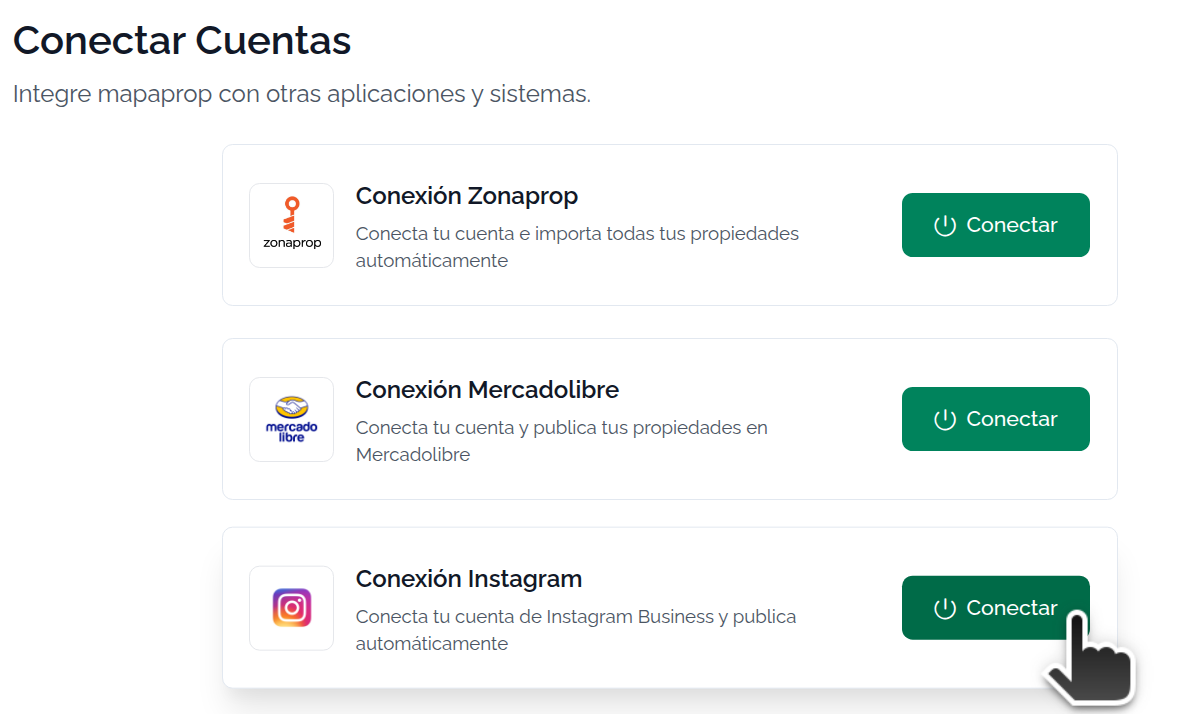
Now go to the Instagram Connection screen. Press Connect
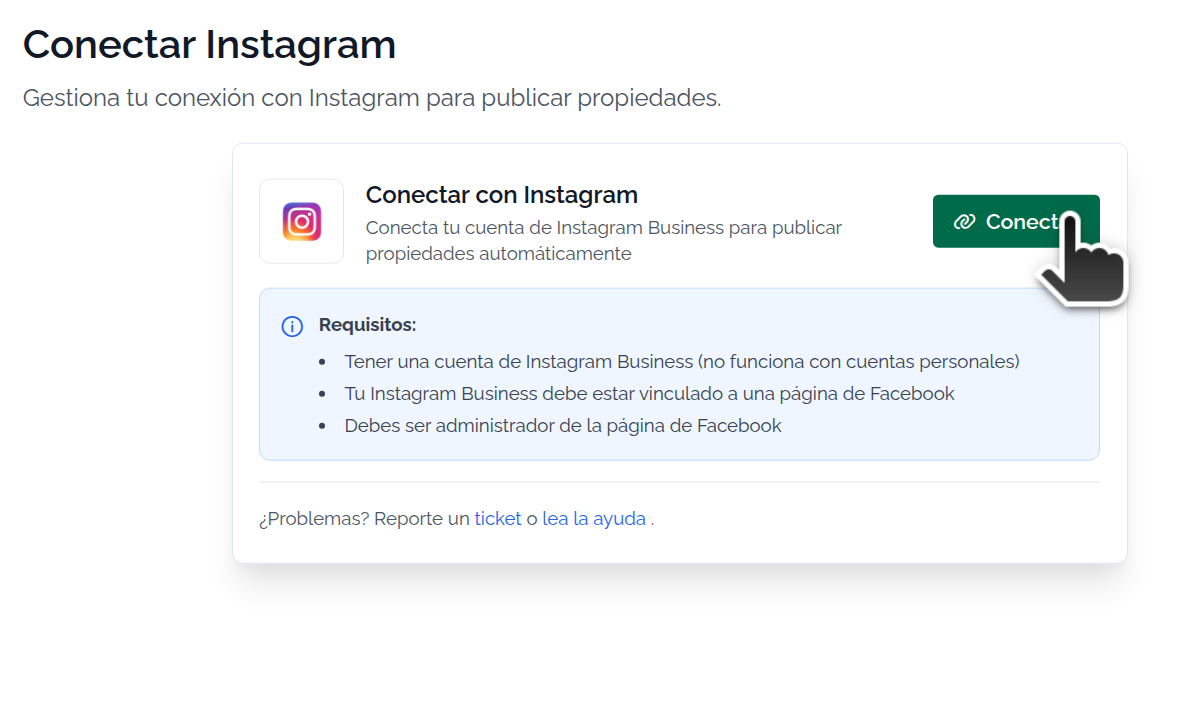
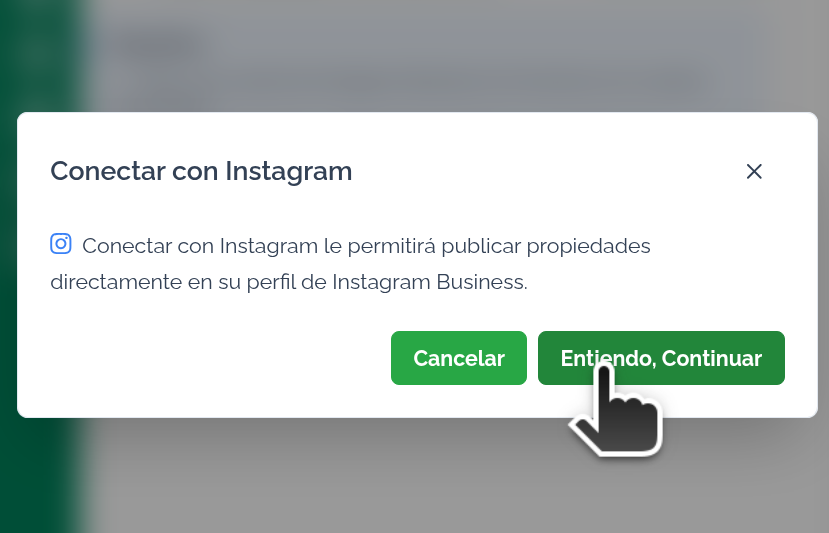
A popup window gives you information and lets you continue. Read it and press I understand, continue
At this point, you'll be asked for Facebook access, since the connection is made through Facebook / Meta. Log in to Facebook
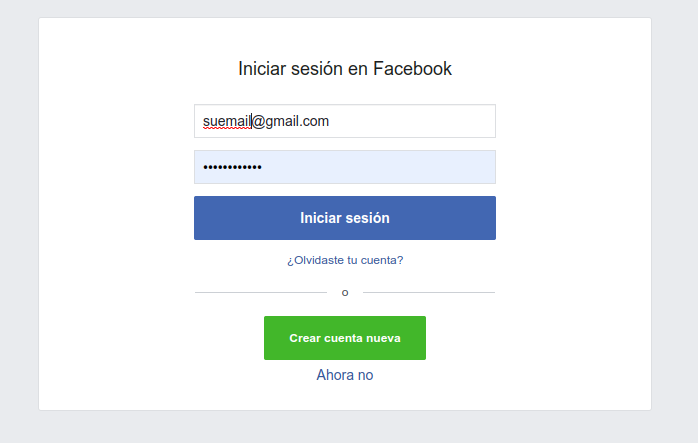
Accept the permissions. In the same window you'll see a Select permissions option where you can see which Instagram accounts you manage. We recommend simply pressing Continue.
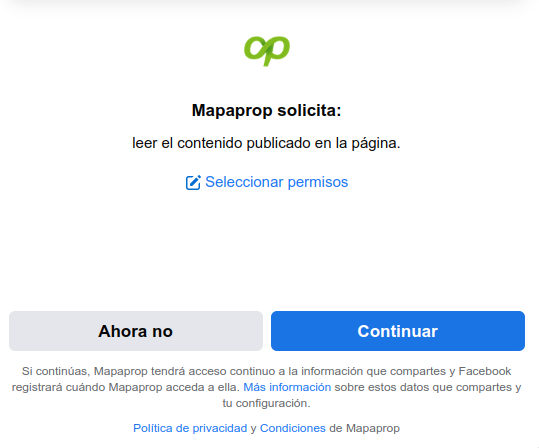
Then a multi-screen selection process will follow where you must accept permissions
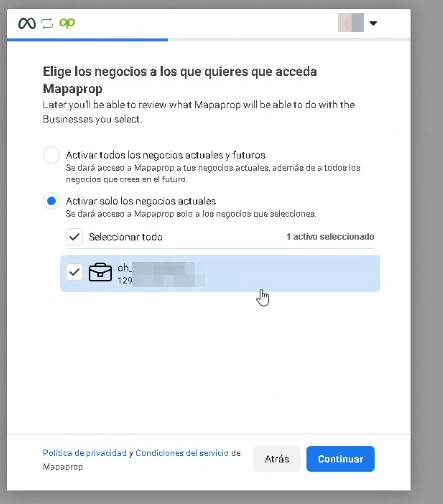
and then
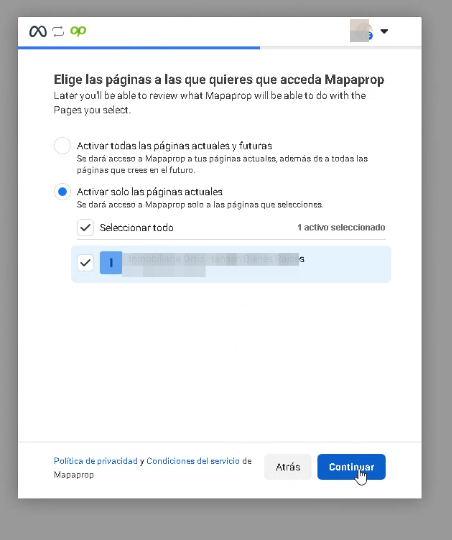
and then
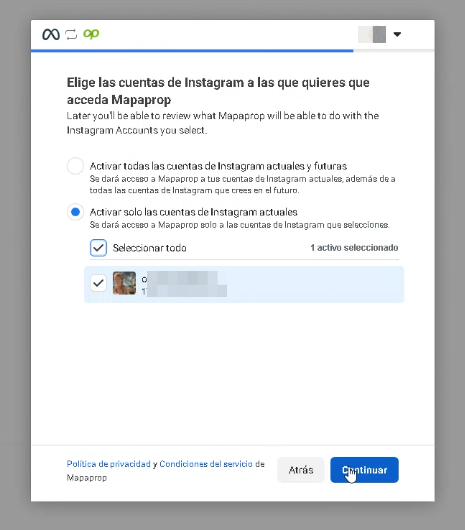
and finally
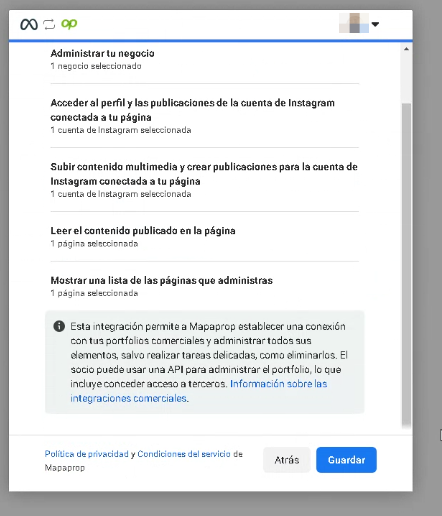
and the final message
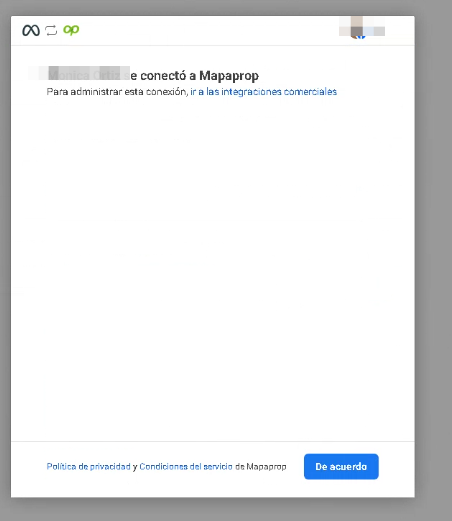
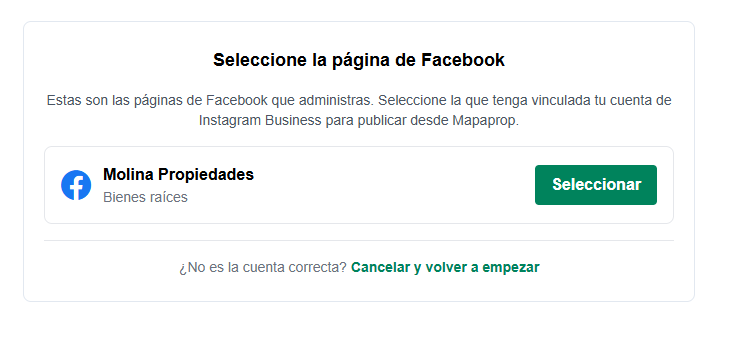
Once the permissions are accepted, you'll return to Mapaprop, where you can select the Instagram account you want to link. Click SELECT to complete the linking
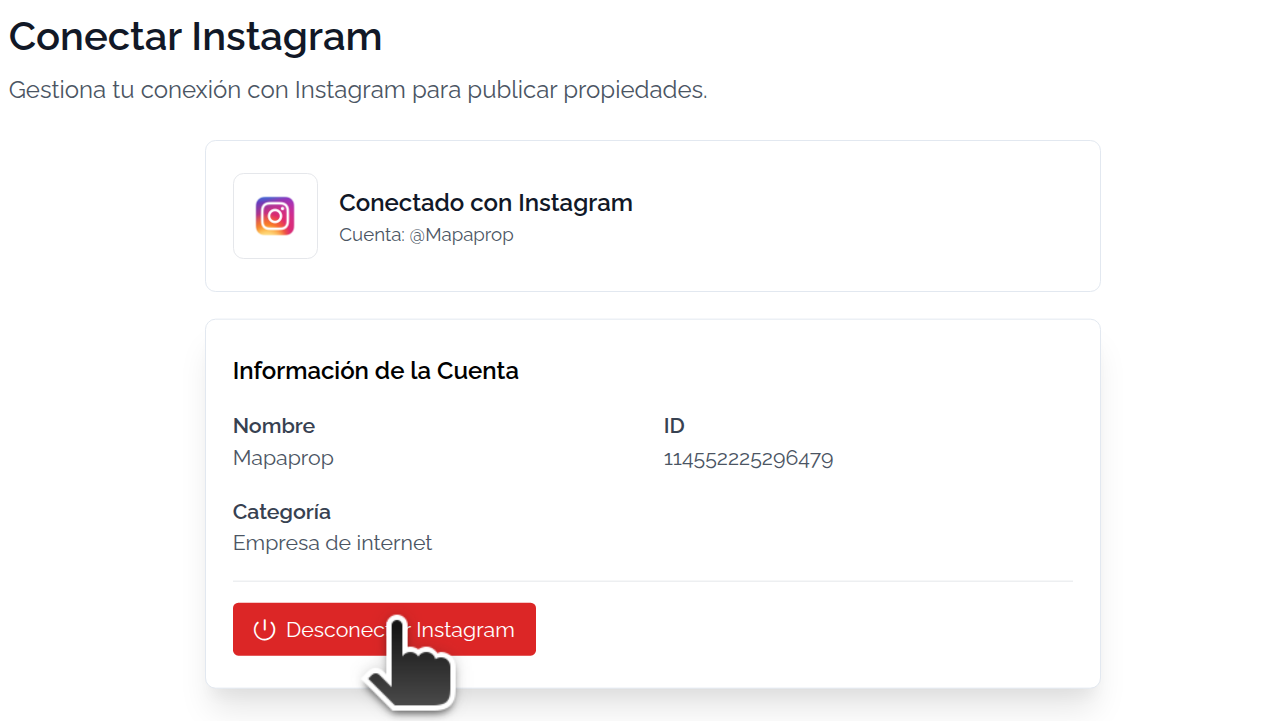
Once the account is chosen, the final information will appear on the Instagram Connection screen. You can access it again whenever you want from the Settings > Instagram page. The visible information is simple, and the only available option is to disconnect.
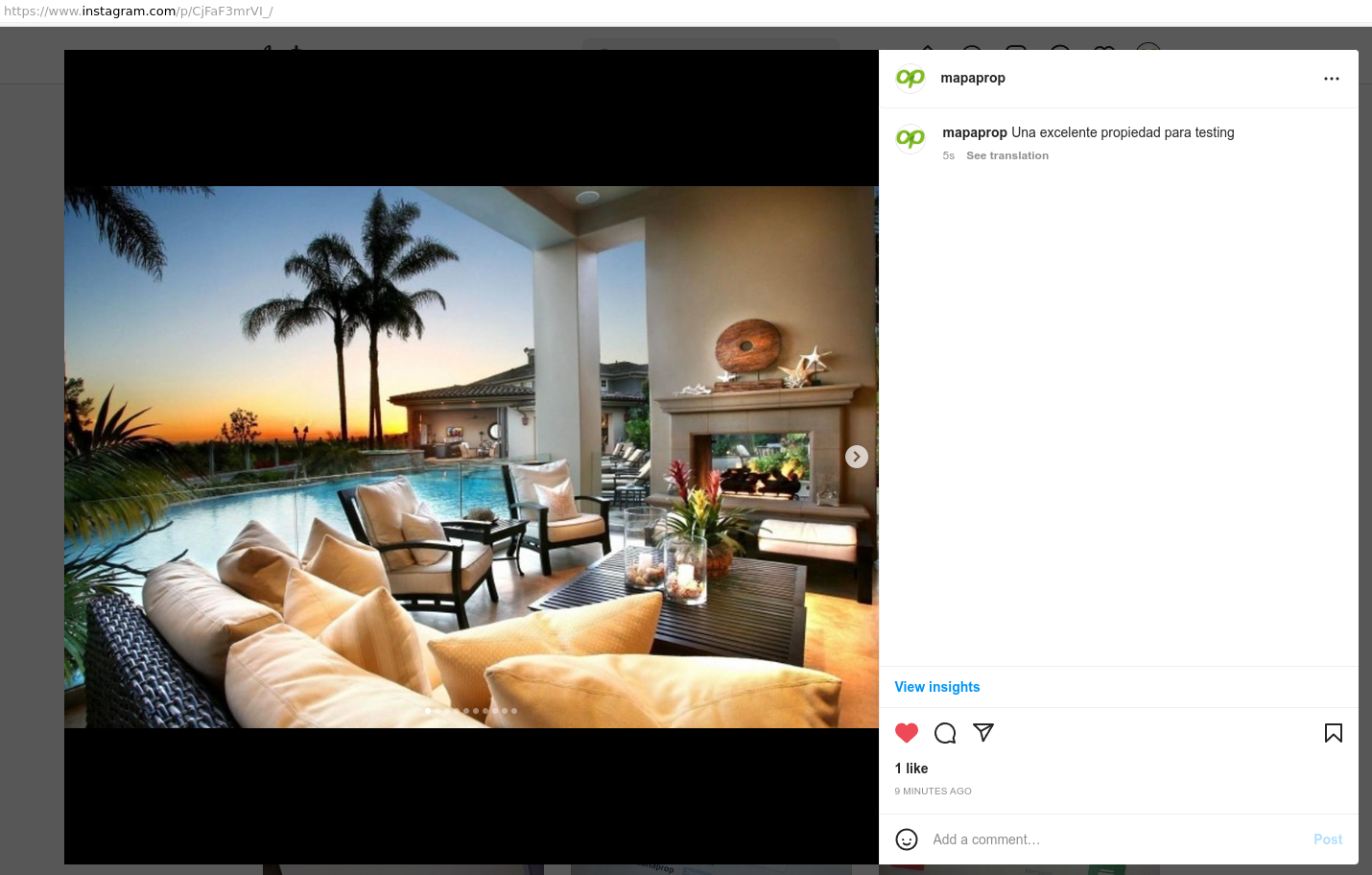
Finally, with the account connected, you'll be able to Publish on Instagram both a gallery of up to 10 photos and a single-photo post. From the same publication screen you can choose to publish on Instagram, on your Facebook Page, or on both networks at once.
Read more at Publish on Instagram
Common issues
"No Facebook Pages found"
If after connecting with Facebook the message "No Facebook Pages found" appears, it means that the Facebook account used doesn't have an associated Facebook Page.
To fix this:
- Create a Facebook Page for your real estate agency from facebook.com
- Link your Instagram Business account to that Facebook Page (from the Instagram app: Settings > Account > Linked accounts > Facebook)
- Go back to Mapaprop > Settings > Instagram and press Restart connection
If you already have a Facebook Page and it doesn't appear in the list, verify that you have full control of the page. In the new Pages experience, under Facebook > Your Page > Settings > Page access you must appear with Facebook access and full control; on a classic Page, under Settings > Page Roles your role must be Administrator.
"Instagram account not compatible"
If you selected a Facebook page but the incompatible account message appears, it means that the Instagram account linked to that page is not a Business/Professional type.
Follow our guide to Verify that your Facebook / Instagram / Meta account is for businesses.
The connection gets stuck at "Processing"
If the screen keeps loading after connecting with Facebook, manually navigate to Settings > Instagram. The system will show the current status of your connection and the steps to follow.