
This guide will teach you how to send a property via email.
Send properties via email
This feature allows you to send a "contact" a link with the "public listing" (printable listing) of the selected property, and includes all its data, such as logo, property QR code, map, main photo and all property details.
When you share a property listing with a contact, the property becomes associated with the contact as "interested". All interested parties for the property can be viewed in Property Contacts of the property, and can also be viewed in the Contact record.
From the property listing, click the Send via Email button
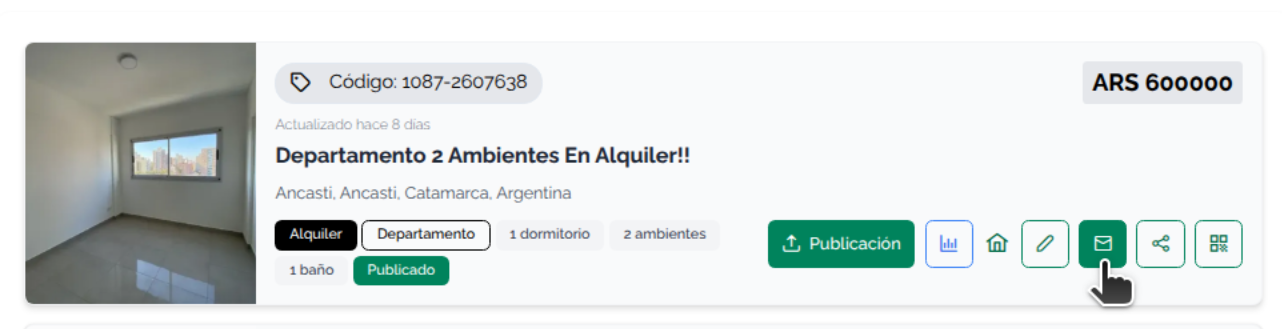
Now you must search for an existing contact to send to or add a new one.
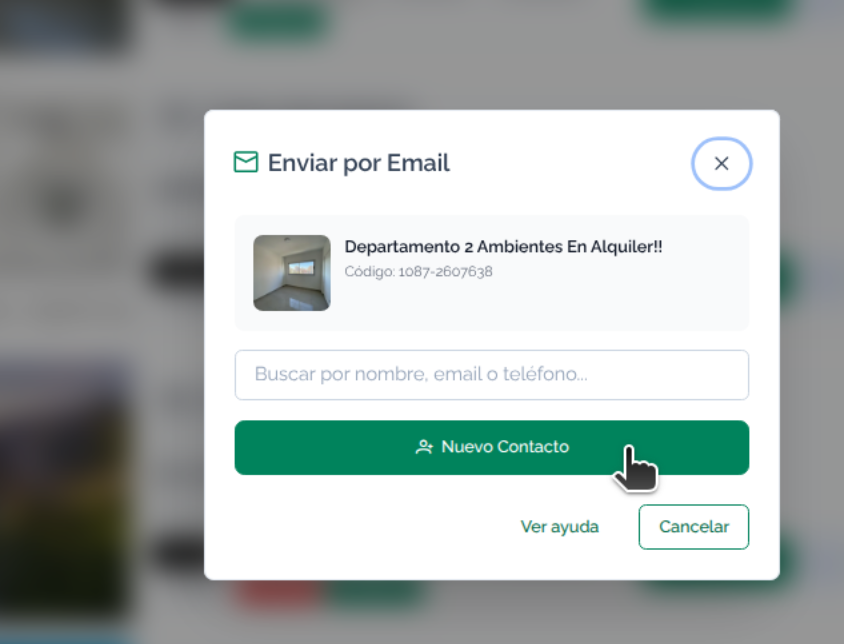
The Search contacts option is simple to use. Search and select it with a click. You can also Add Contact
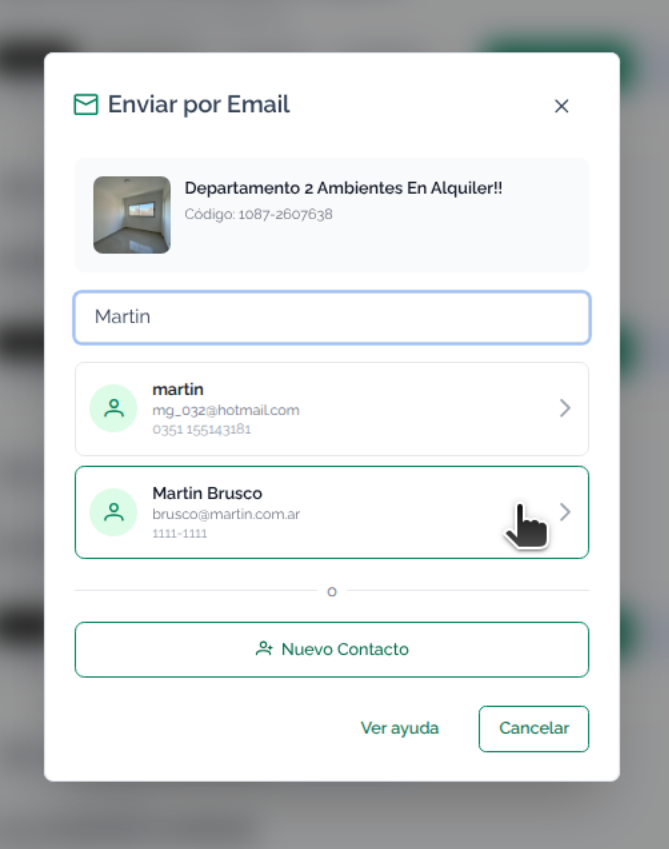
With the contact selected, you will be able to send an email to the contact with a public link to the property
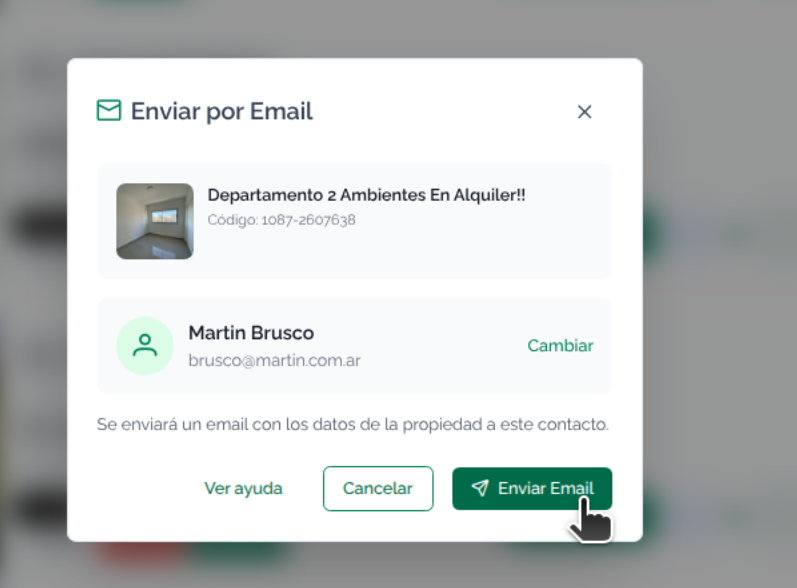
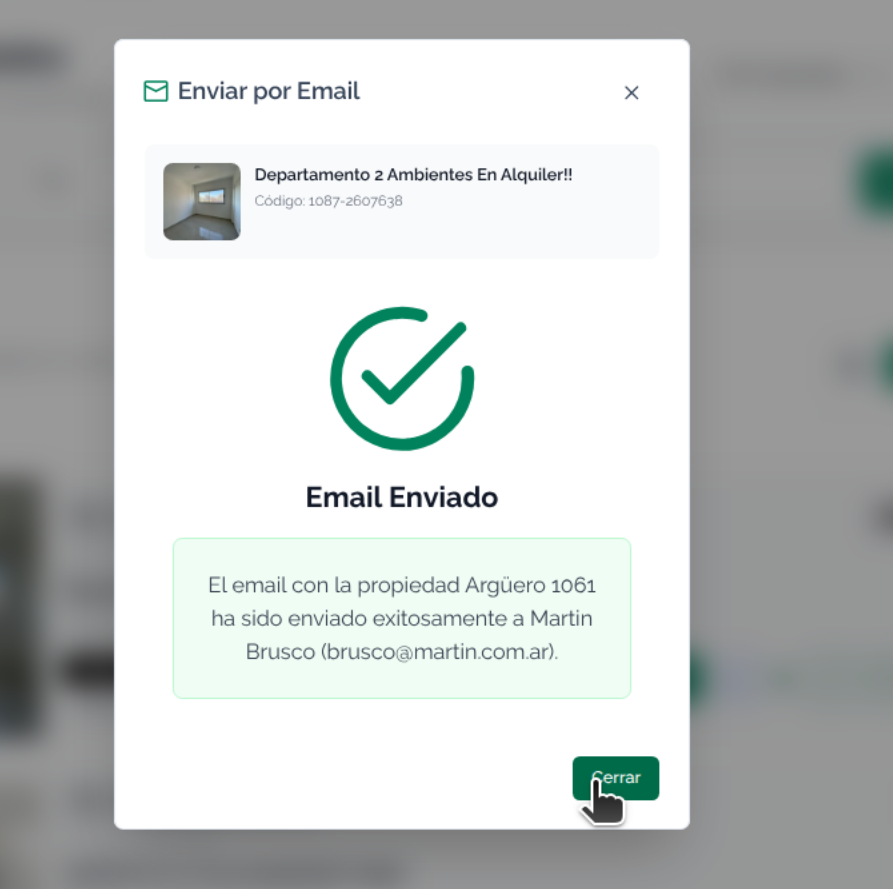
The email has been sent. You can return to the property or view the contact.
The sent email will contain
- The contact information of the Branches for the property.
- The logo uploaded in the My Company section
- A link to the Public Property