
Mercadopago is the only payment system Mapaprop has for Argentina, letting you pay with debit or credit cards, Link, or in cash (Rapipago, Pagofácil, etc.))

Want to know when your payment will be credited? Click here!NOTE To pay in cash, we recommend using Rapipago. There's no need to print a voucher.
When paying with Rapipago, the credit to your Mapaprop account is instant.

1. Access Account Summary
Once in your account summary, press the Pay button
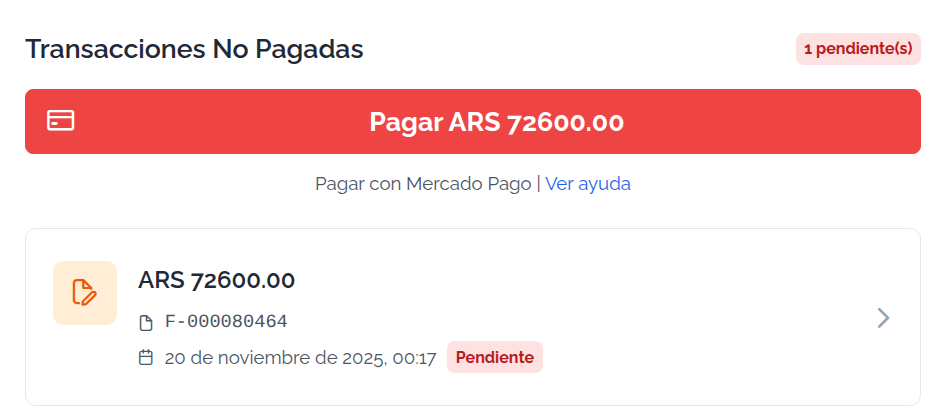
Once you start a payment, avoid interrupting the process, as doing so will remove the option to generate a new payment immediately.
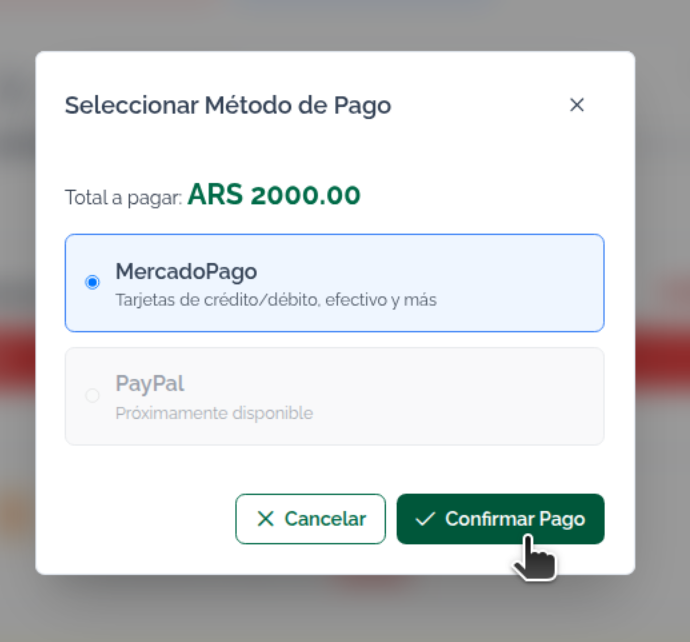
3. Choose your payment method.
Attention!: If your account is blocked, we recommend using a credit / debit card. !TIP You don't need to log in to your Mercadopago account to pay.
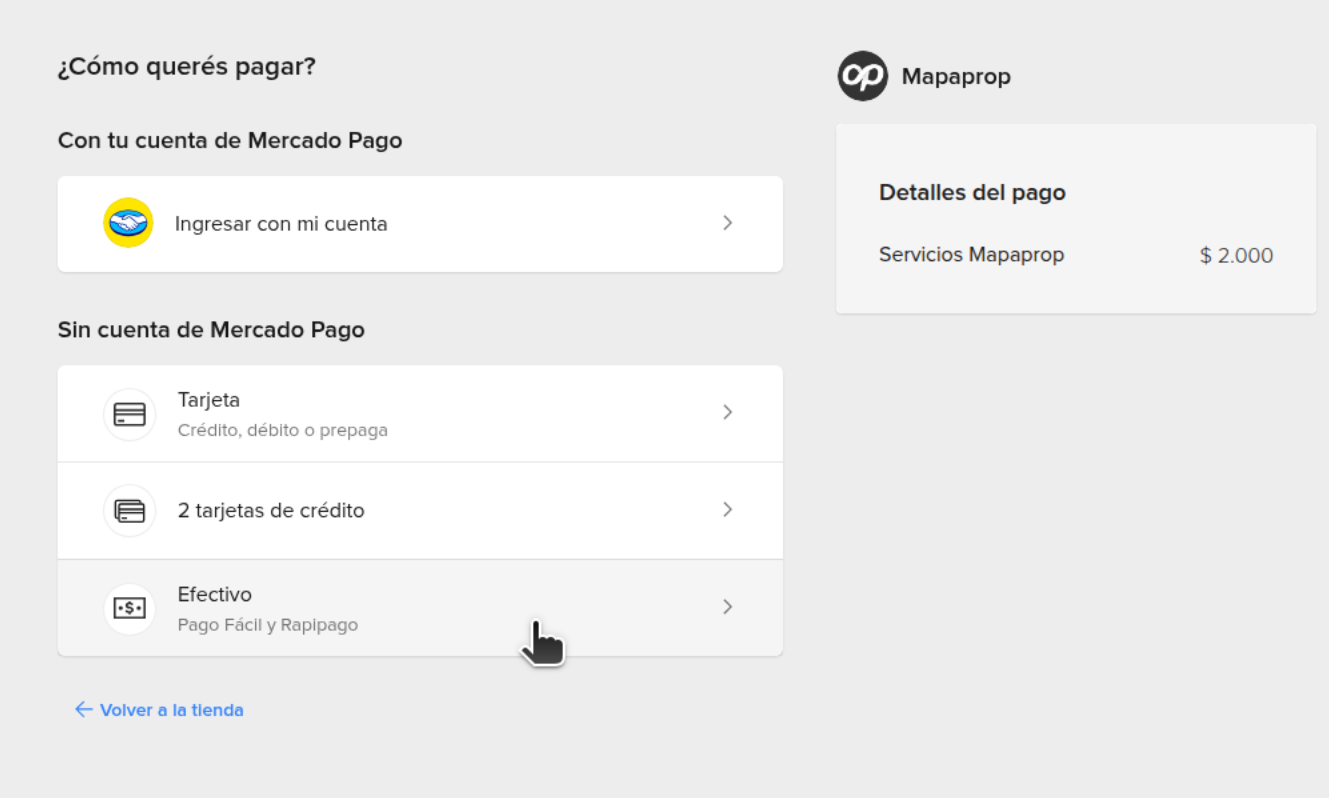
You can pay with
- Money in account (requires logging in to Mercadopago)
- Credit or debit card
- Pay in cash at a teller
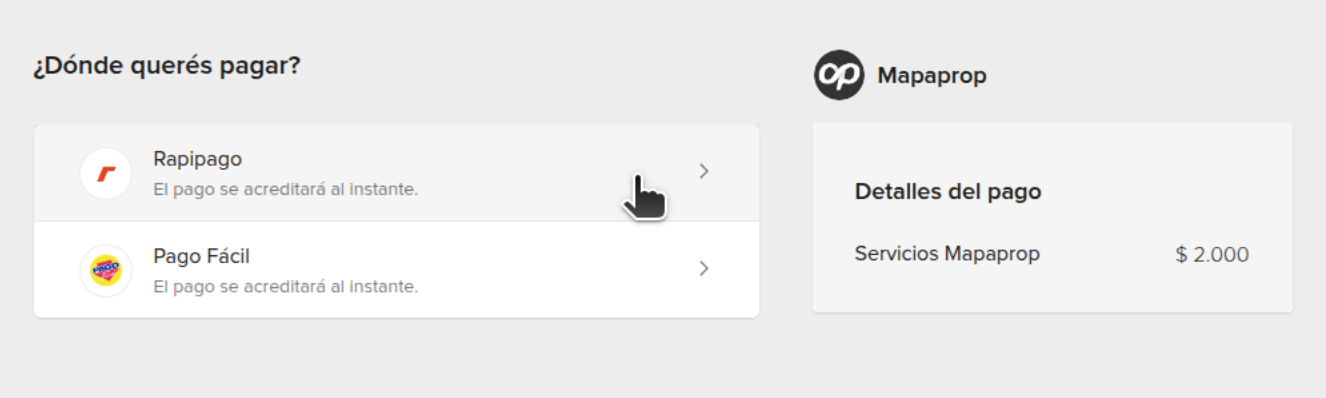
3.1 Cash payment with voucher at a teller
Choose the payment method (we recommend Rapipago)
Add your email address (the payment information and the credit confirmation report will be sent there). Press Pay
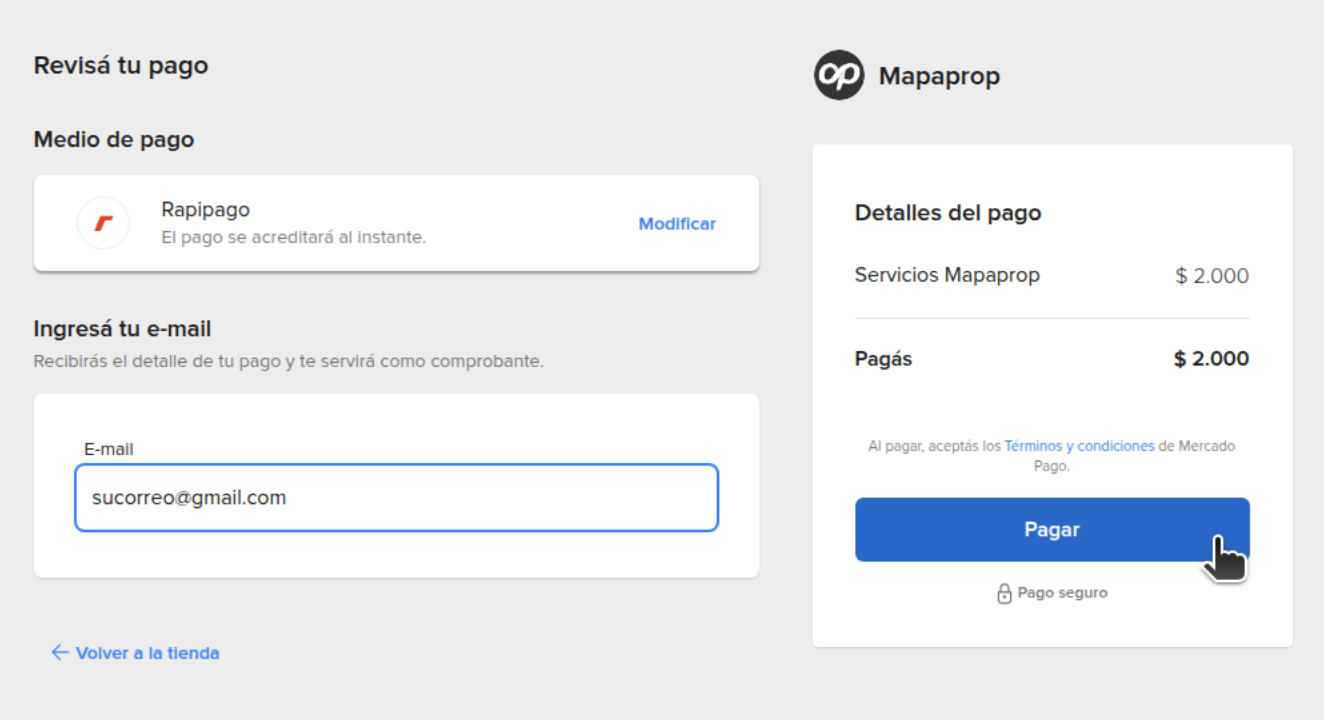
Done, now take note of the numbers and go to Rapipago. Mention Mercadopago and the numbers. The information will also be sent to you by email.
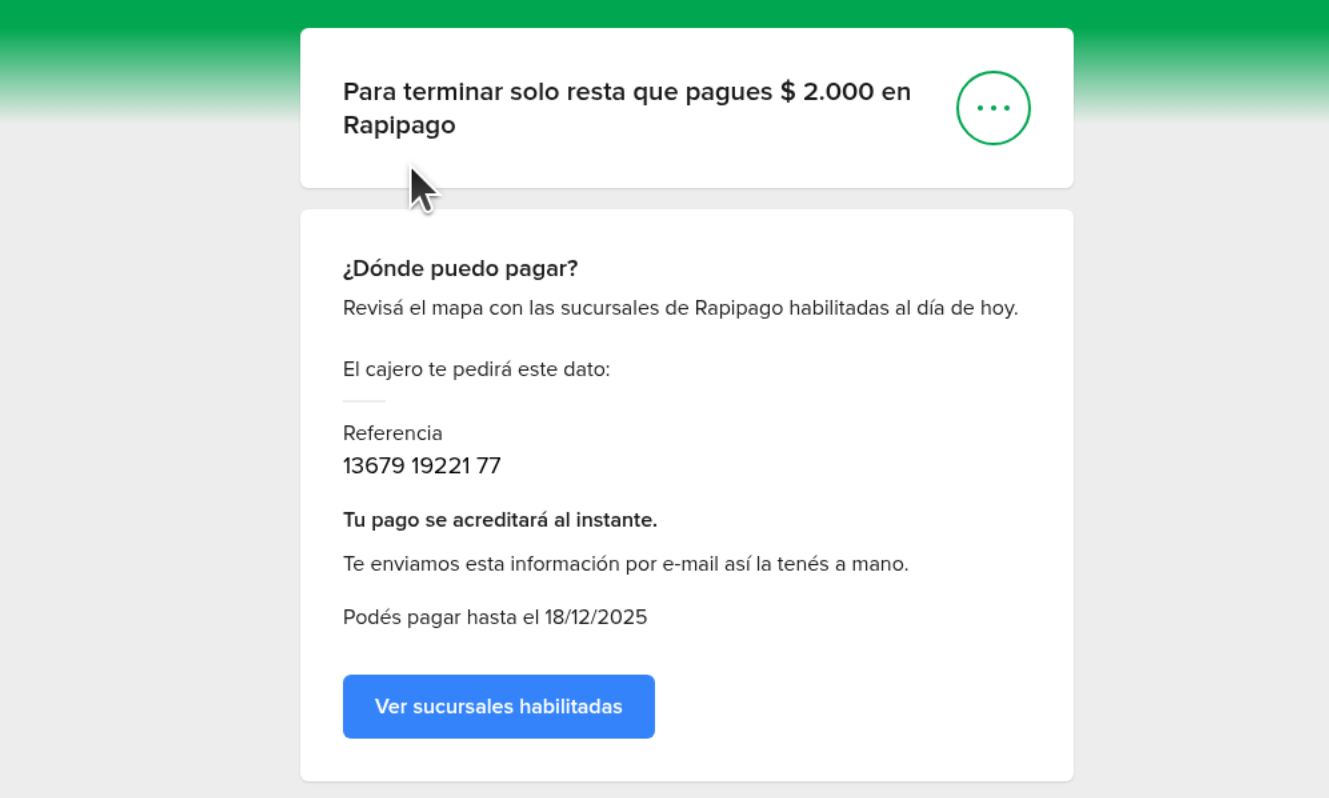
Go to a Rapipago teller, pay, and Mercadopago will then send you an email confirming your payment. Remember there's no voucher printing. When you go back to Mapaprop, you'll see the confirmation of the operation.
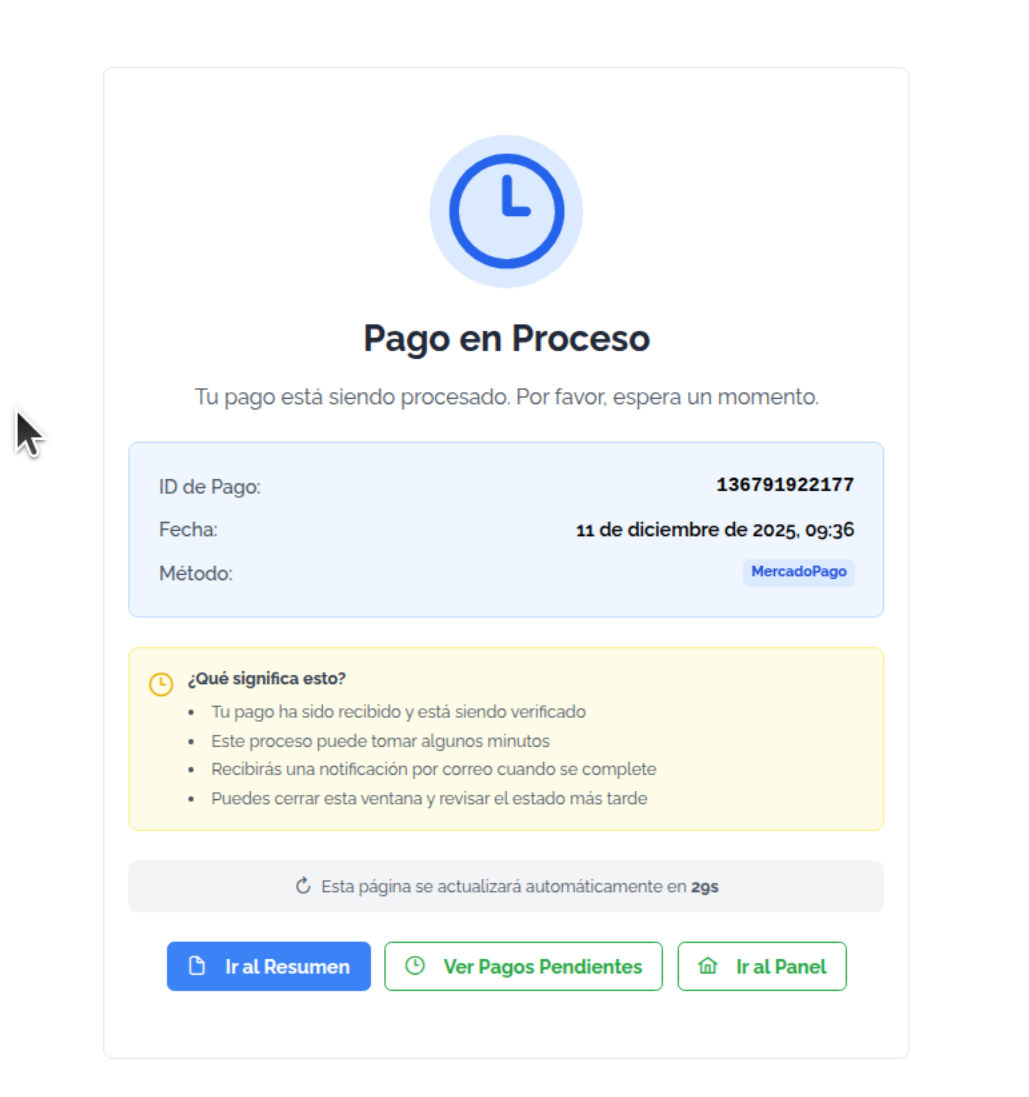
By clicking on the status link, you'll see the account summary > Pending Payments tab, with the status pending, which will change to Approved once your payment is credited.
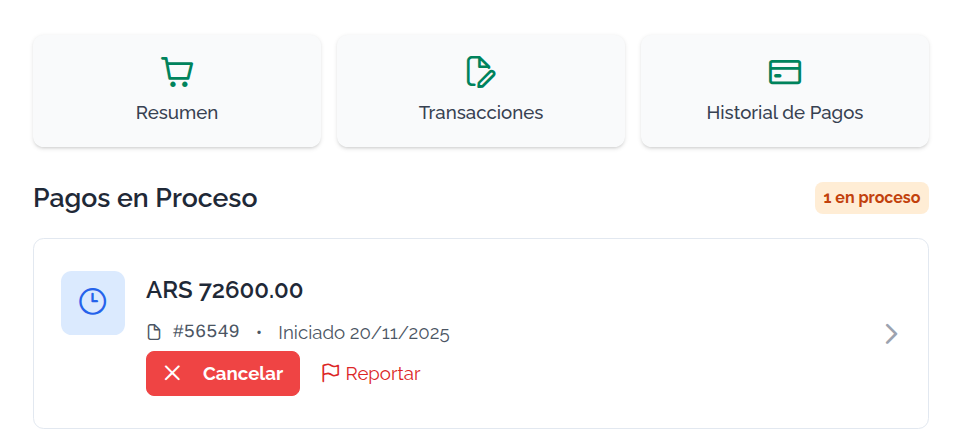
When your payment is credited, Mercadopago will send you an email confirming the credit.
Want to know when your payment will be credited? Click here
3.2 Payment with Credit / debit card
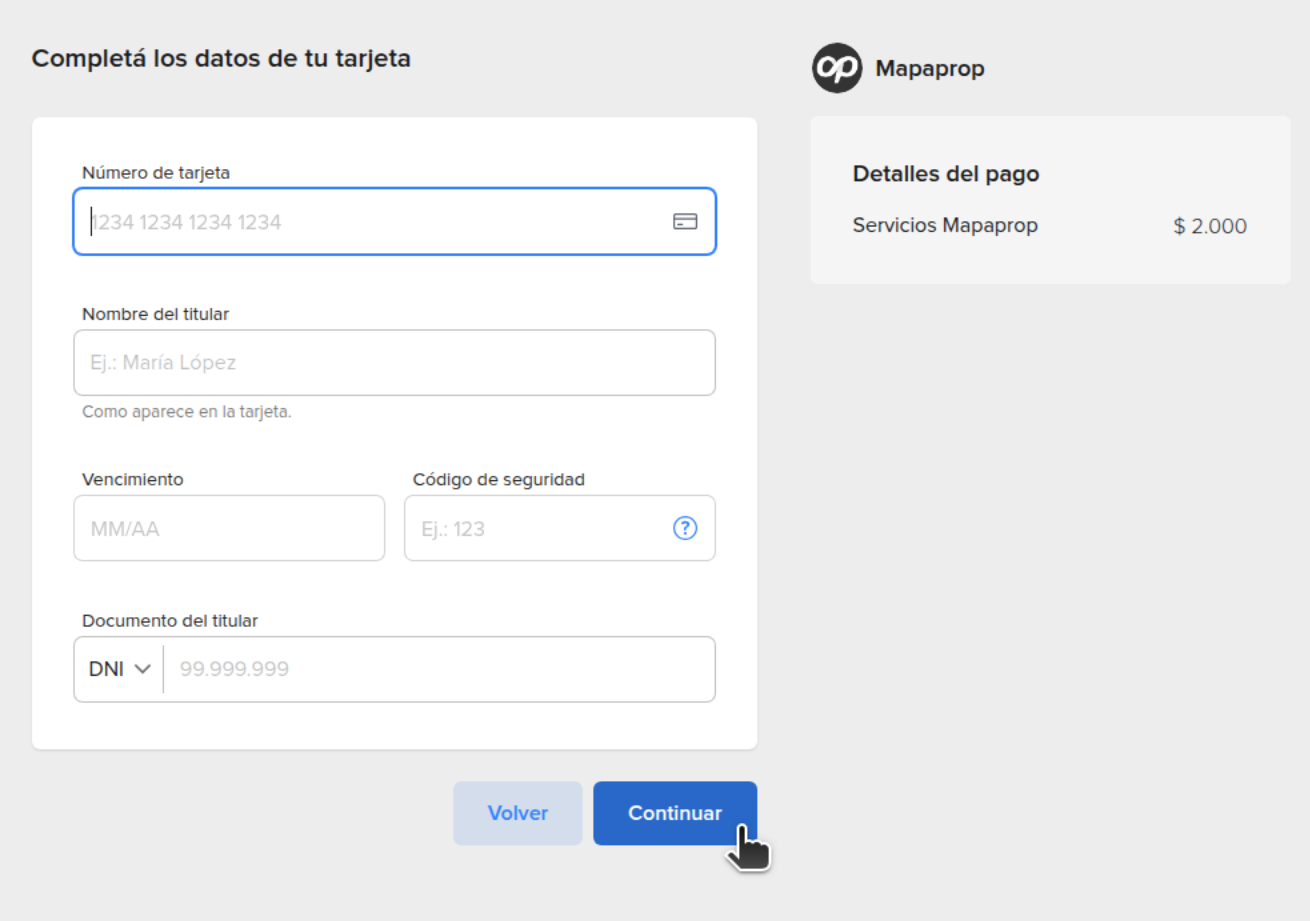
When you choose card, you can enter the card details. The system will automatically detect whether it's debit or credit, and give you the corresponding options.
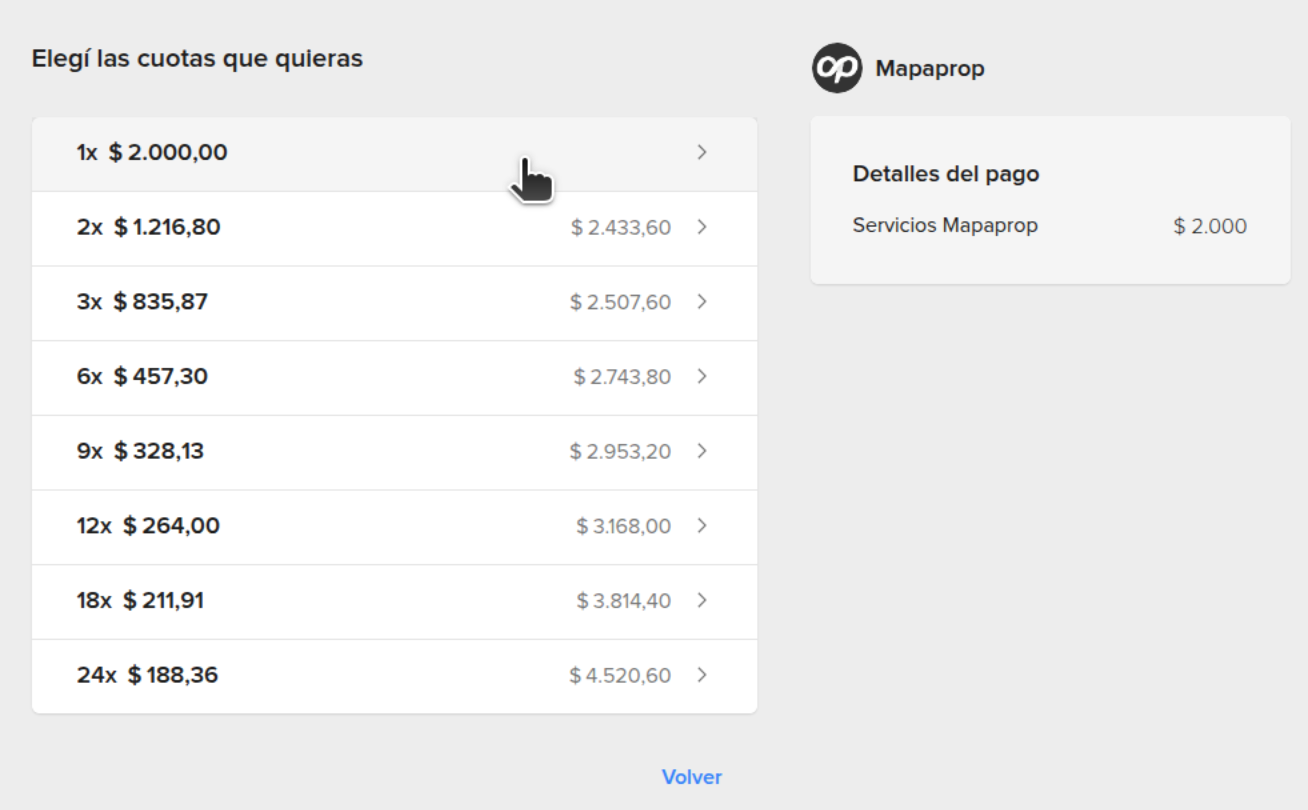
You can choose installments
Now enter your email address, verify, and confirm.
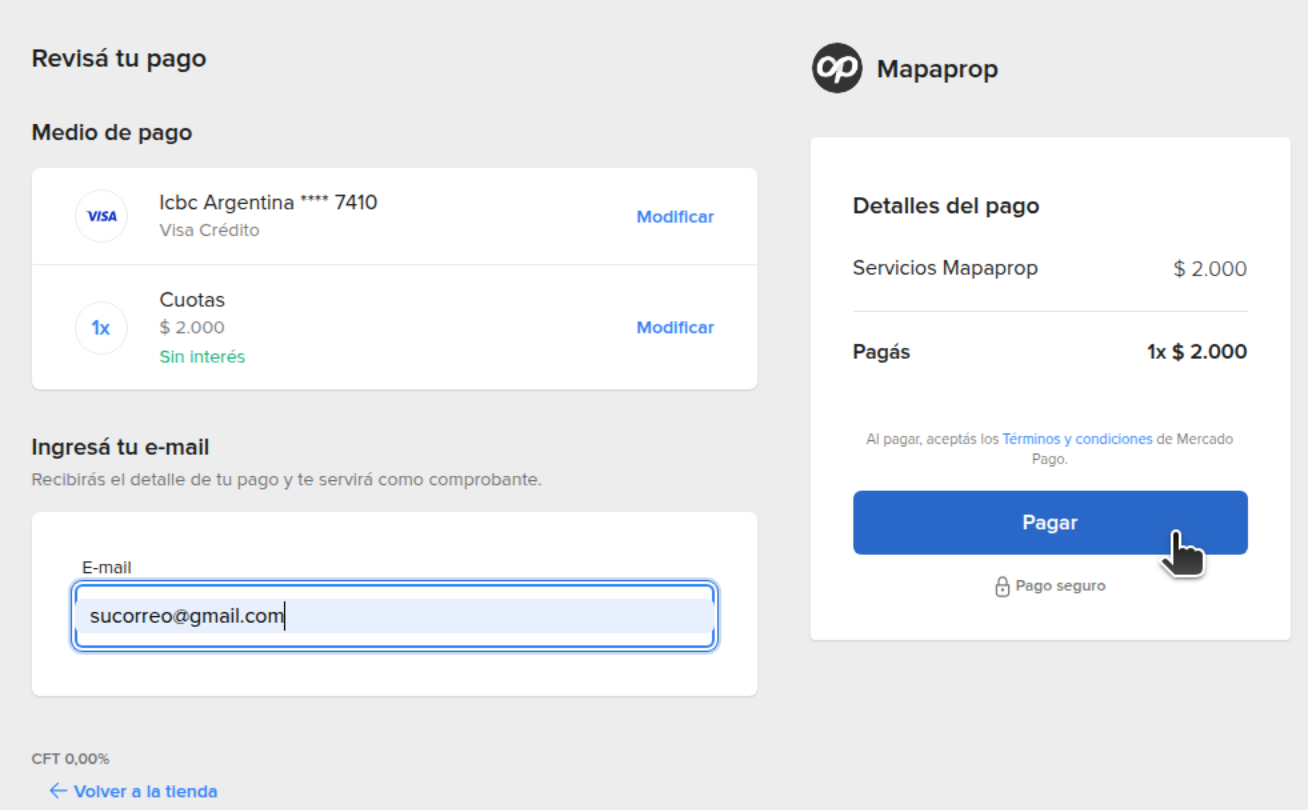
By pressing PAY, the Mercadopago system will confirm your payment and return to Mapaprop.
4. Cancel payment
If you cancel the payment attempt by going back to the store, this option will appear
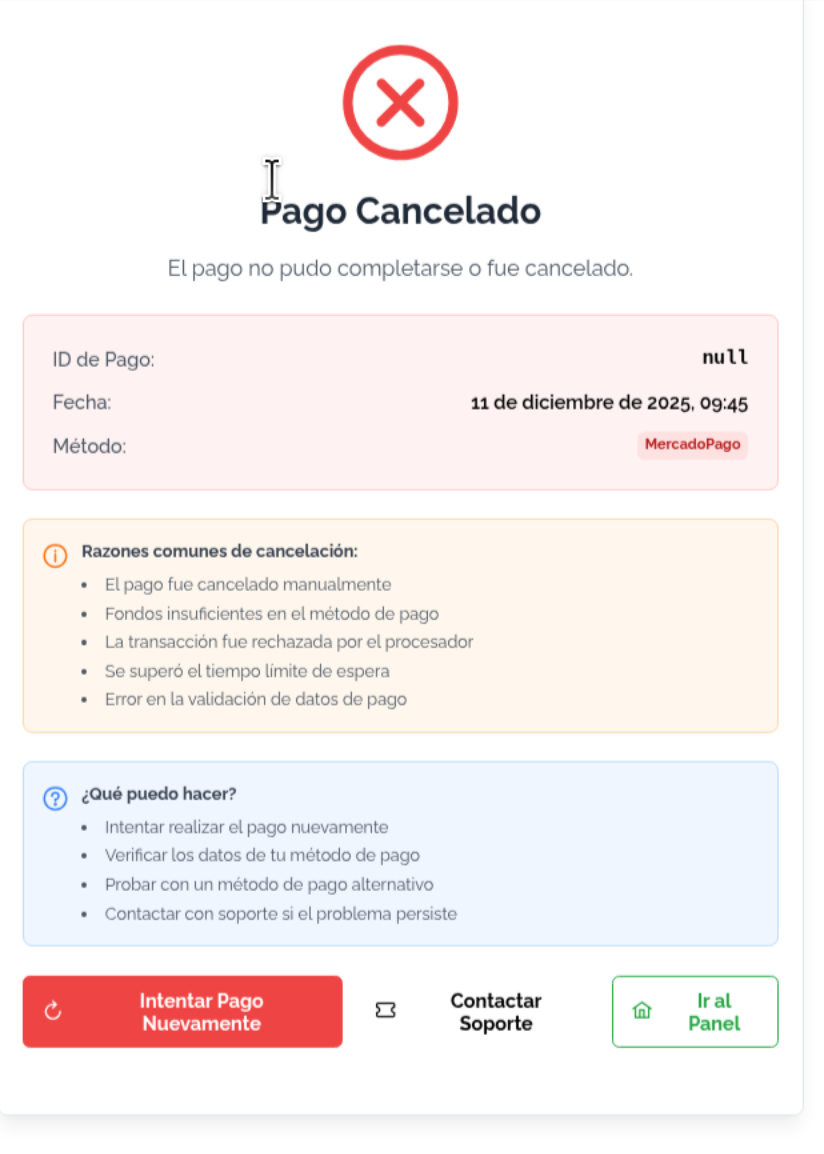
If your payment wasn't completed, you'll need to access Account Summary to see your Pending Payments and start again.
If you want to know the details of Data Deletion, read Data management and deletion rules