
This help article will teach you how to use the Mapaprop property search
Property search
The search provides a Full Fast Search tool: you can type any word or part of it to run the search.
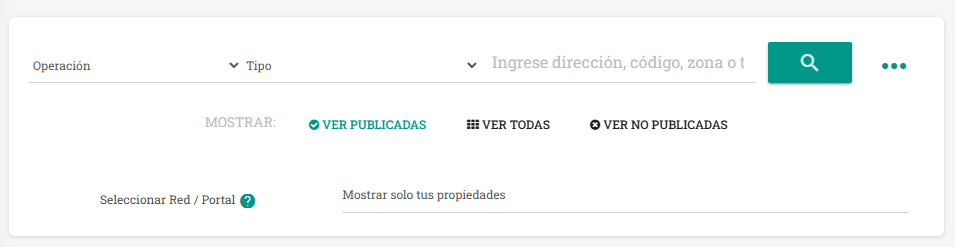
Also, when you press the search button you're offered the options Select Real Estate Networks / MLS / Portal, and Search Across Networks (options available when you Change or cancel your plan to Mapaprop Plus)
When you type text, the search affects these fields:
- titles
- addresses
- zones
- property codes
- operation types
- property types
- Publication status.
The search works by looking anywhere in the text, so if you have a code such as "1500-3268", typing 3268 will already find the result. If you type "San Marttin", exact matches will appear first, then similar ones, then results that contain at least one of the words from your search, and finally results with partial text.
Results
The results list shows a view with tags that provide information about the portals and Real Estate Networks / MLS
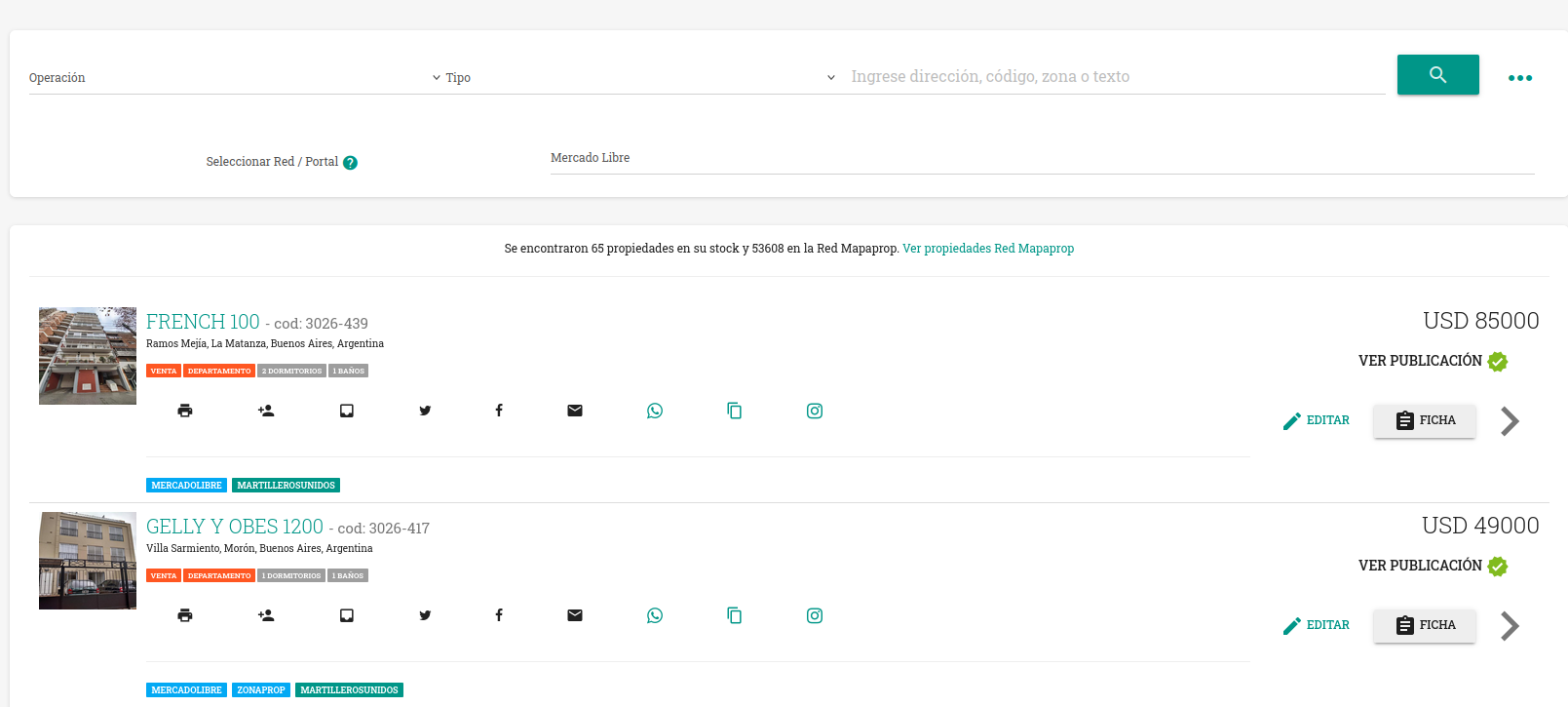
The tags show the Premium portals where the property is published
You can also use the filter to see only the properties published under the chosen option.
Advanced search
Advanced search gives you more options to find the property. Use the "update results" button every time you apply a filter
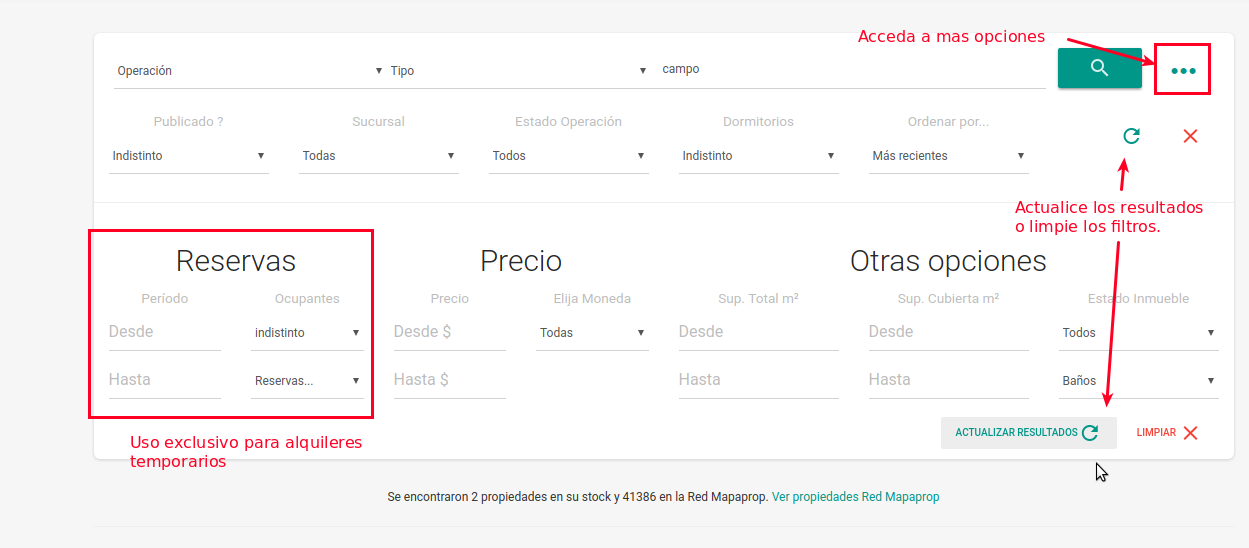
Use the "clear" button to start a new filter
Search simply works.
Some features
- Searches full or partial text
- If you don't use filters, results are filtered by the most recently updated properties
- Properties that are unpublished don't count as updated. (Since August 16, 2024)
- Results are listed according to the filters used
- You can request more results until they run out
- You can open a listing and go back while keeping the results, if you use the back buttons