
Discontinued feature. The "Connect with Facebook" connection described in this help article was discontinued by Meta in January 2019. Today, to publish your properties on your Facebook Page, use the social media connection (Instagram and Facebook): Connect your account. This page is kept only as historical reference.
Attention: At any time you can click on the images to view them enlarged
deprecated feature January 2019 - by FBK's decision
Carefully read the Facebook publishing tips through Connect Accounts below.
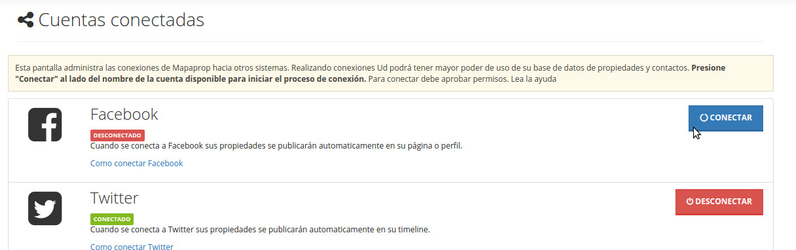
From the connect page, click Connect with Facebook. We recommend publishing on Pages, since doing so on personal Facebook profiles can have consequences.
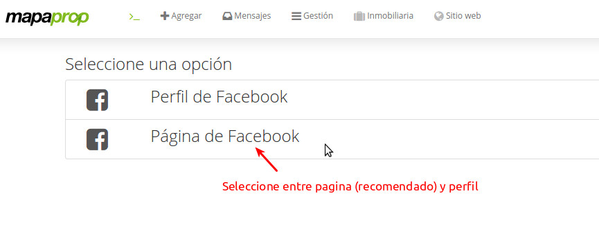
Now choose between page (recommended) and profile
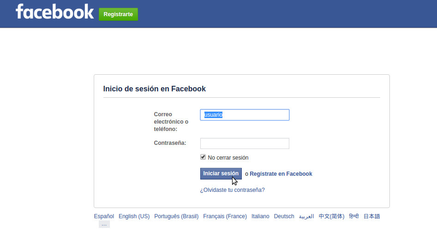
Enter your Facebook credentials
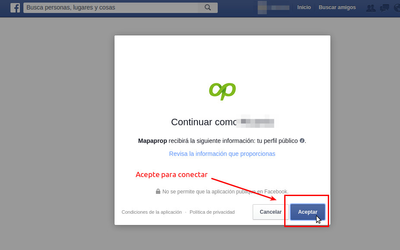
Accept the Mapaprop connection
Accept publishing
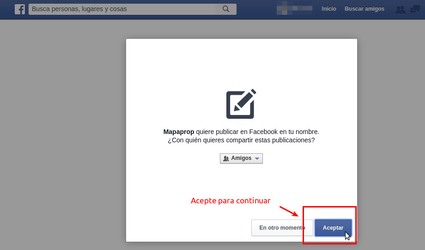
Now accept managing pages
IMPORTANT: Do not change any permission in "Select what you allow", otherwise your page will never be able to connect with Mapaprop again. If this happens, we recommend connecting the page with another Facebook user who is an administrator of it, who does accept all permissions
IMPORTANT: Do not change any permission in "Select what you allow", otherwise your page will never be able to connect with Mapaprop again. If this happens, we recommend connecting the page with another Facebook user who is an administrator of it, who does accept all permissions
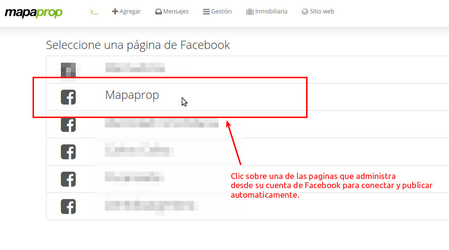
That's it, now your Mapaprop account has been linked to your Facebook Page. If you want to disconnect, click the Disconnect button
Trouble connecting?
Before connecting with Facebook, log out of any open Facebook session using the LOG OUT option. If you have previously connected with Facebook from Mapaprop, disconnect it and on your Facebook account > Settings > Apps, remove Mapaprop from the list.
Tips to keep in mind:
- Avoid including quotes, apostrophes, exclamation marks and other unusual characters in the property title. The same applies to the description.
- Publishing on Facebook is automatic and happens every time you load a new property and click the "publish" button, or every time you click SAVE on a property that's already published
- The first publication of the property on Facebook occurs with the publish button.
- Once the property is published, it's not possible to change the published image, since Facebook stores the publication in its memory along with the image, title and link, so it's recommended to correctly choose the main image before publishing.
- If the property had an error because you didn't follow point 1, the only way to solve the problem is by Unpublishing the property, DUPLICATING it, and publishing again (delete the old property). Facebook will interpret it as a different property and will show the changes there, as long as you followed point 1
- Once the property is published, every time you make a change and click SAVE, or just click SAVE, a new publication will be produced, always with the same image and link since Facebook stored it in memory initially.
- If you want to change the image Facebook shows, you must follow the instructions in point 5
- Old properties are not published automatically; you must edit and save them for them to be published instantly.
- This publication provides a link to the property on Memudoya.com or to your real estate website if you have contracted one.
Duplicating a property does not duplicate contacts, notes, signs or any other relation, so the only other option will be to change the property's zone, property type or operation type
If you make multiple changes to an already published property, we recommend clicking the save button only once to avoid multiple publications of the same property, or unpublishing it and publishing it again once you've finished making the required changes.
If you want to stop publishing, simply click the disconnect button.
When you disconnect a Facebook account, we recommend removing the Mapaprop application from Facebook. To do this, go to Settings > Applications > Mapaprop and remove it from the list. You can then proceed to reconnect
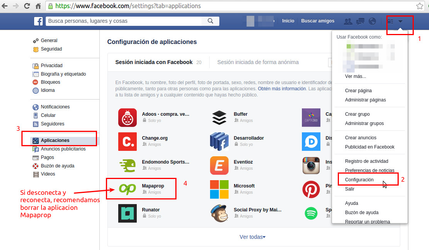
We recommend using Facebook Pages to publish, avoiding personal profiles. This way you'll comply with Facebook's policies. To create a page, click here
⭐ If you have difficulties with this help article, you can report a problem by clicking here
Mapaprop.com | All rights reserved | Follow us on Twitter