
🔥
Not recommended system. Under development.
Zonaprop Import Guide
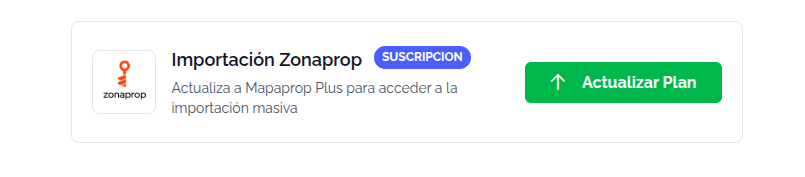
Requirements
- Active Mapaprop Plus, Mapaprop Pro+, or Mapaprop Business account.
- An active Zonaprop account with published properties
- Previously Connect with Zonaprop from Mapaprop
Step-by-Step Import
1. Access the import tool
From the menu or other buttons distributed throughout the application, access "Import properties", where you will see the Zonaprop Import option. Click to access

With all requirements (Subscription and @connect with zonaprop) met, you will see this screen
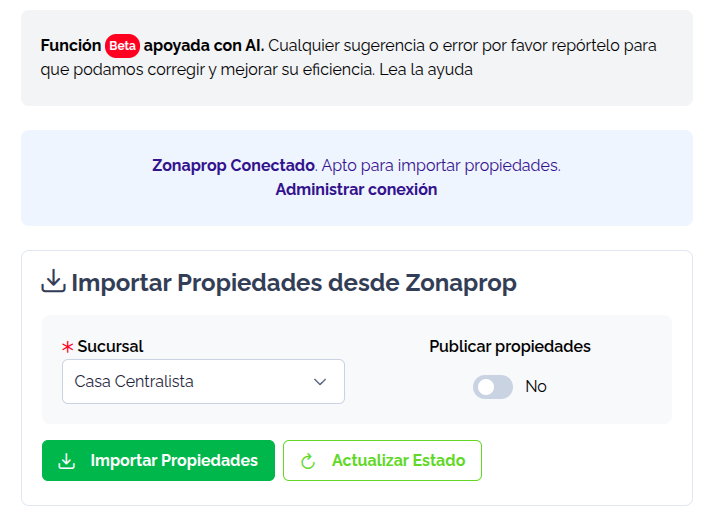
You must select a branch to link the properties. Then click on Publish Properties yes or no, and finally press "Import Properties"
2. Start import
Click the "Import" button to begin the process. Confirm to start the process.
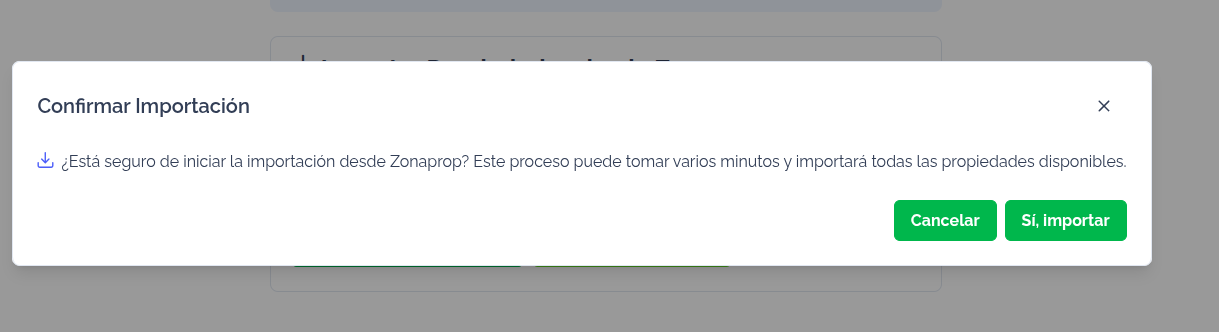
3. Wait for the process to finish
A loading indicator will appear with the message "Operation in process". Do not close this window until the process finishes.
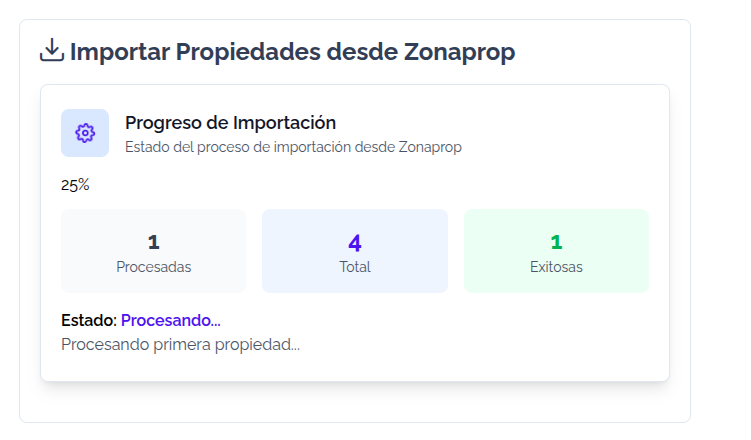
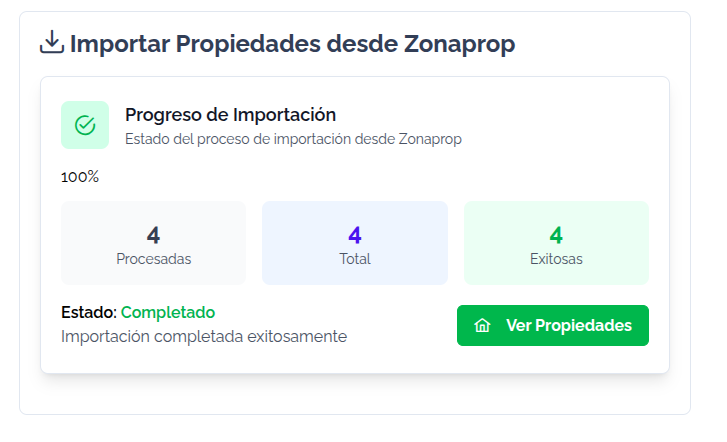
4. Import completed
When the process finishes, you will see a confirmation message.
Important information
- Estimated time: The process can take between 1 and 15 minutes depending on the number of properties.
- Scope: All properties published in your Zonaprop account will be imported.
- Publication: Properties will be automatically imported and published in Mapaprop.
- Notification: You will receive an email when the import is complete.
After the import
- Review your properties in the "Properties" section of Mapaprop
- Verify that the information and images have been imported correctly
- Remember that from your Mapaprop account you performed the action Connect with Zonaprop. This means you can manage publication on Zonaprop from Mapaprop. If you wish to disconnect the account, access Connect with Zonaprop to perform the "Disconnect Zonaprop account" action
Note: Disconnecting the account will not delete already imported properties, it will only prevent future synchronizations.
Common troubleshooting
If the import does not start:
- Verify that your Zonaprop account is correctly connected
- Make sure you have selected a branch
- Try refreshing the page and restarting the process
If the import is interrupted:
- Do not close the window during the process
- If interrupted, wait a few minutes and try again
If properties are missing:
- Verify that the properties are published on Zonaprop
- Make sure the import has finished completely
- Check if you received the import confirmation email
For more information, contact our support team