
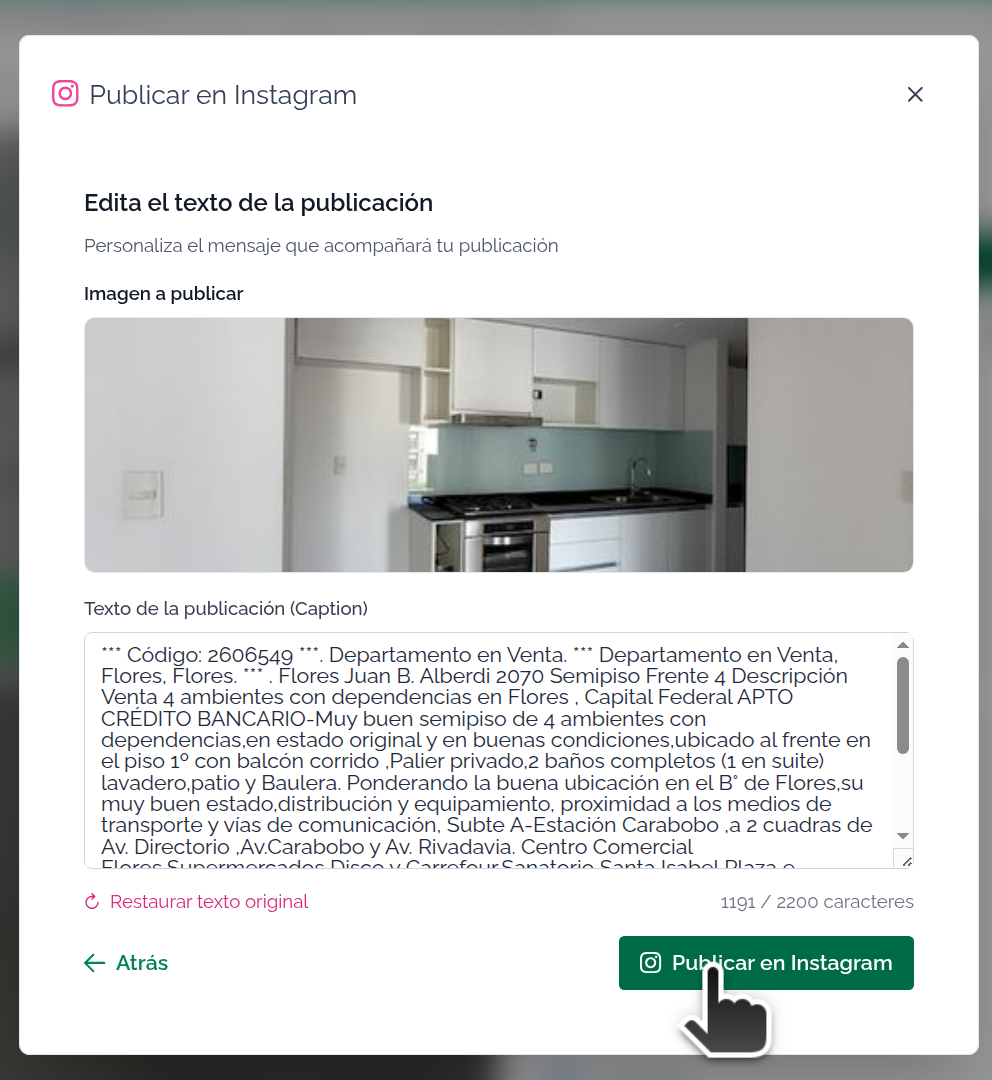
Mapaprop Plus clients have the option to publish through Instagram. The feature depends on Connecting with Instagram.
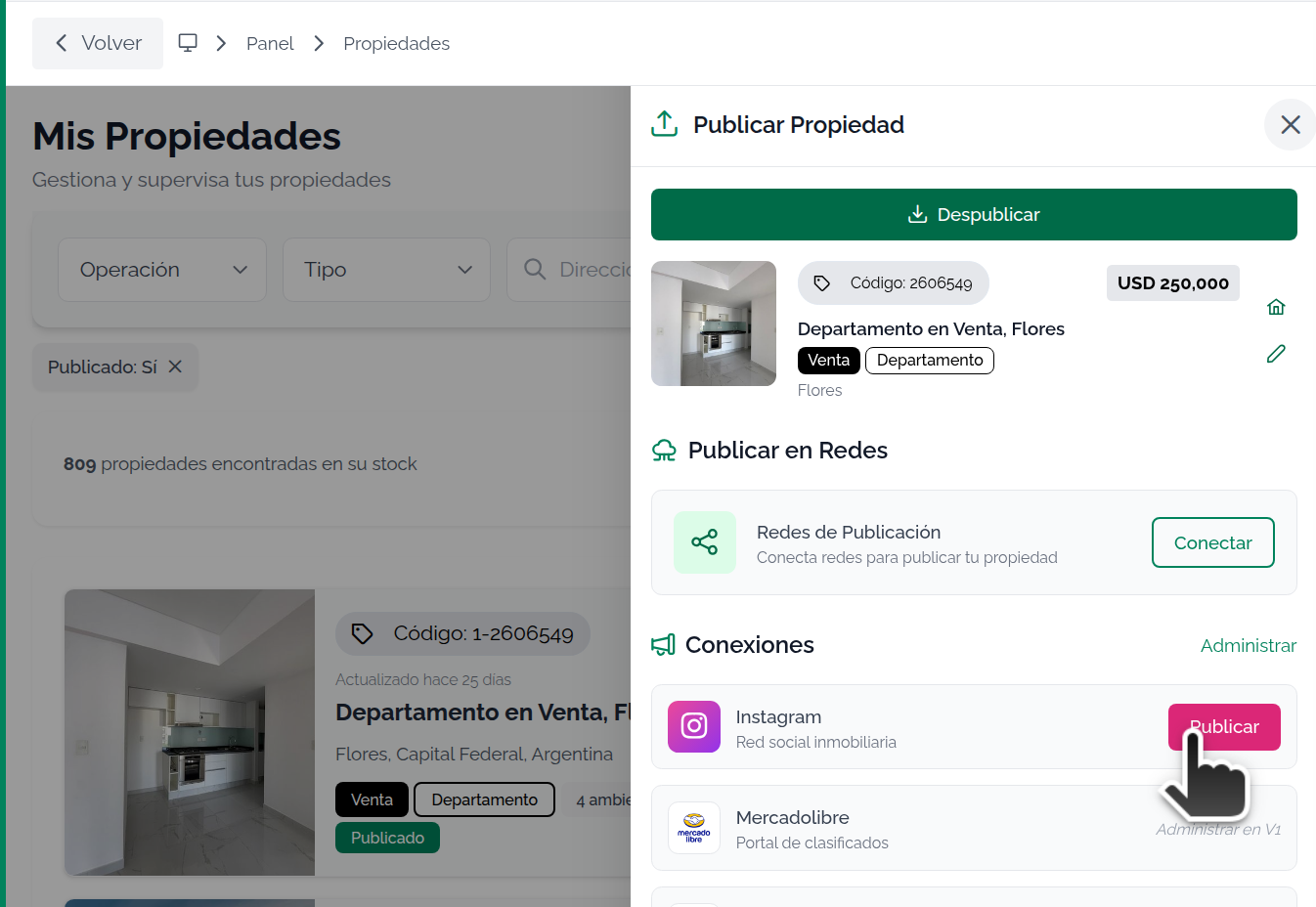
When you publish a property on Instagram, it is NOT LINKED to Mapaprop. Any further action must be done directly on Instagram.
Once you Connect with Instagram you can publish properties directly on Instagram. This publication can be done from 3 screens
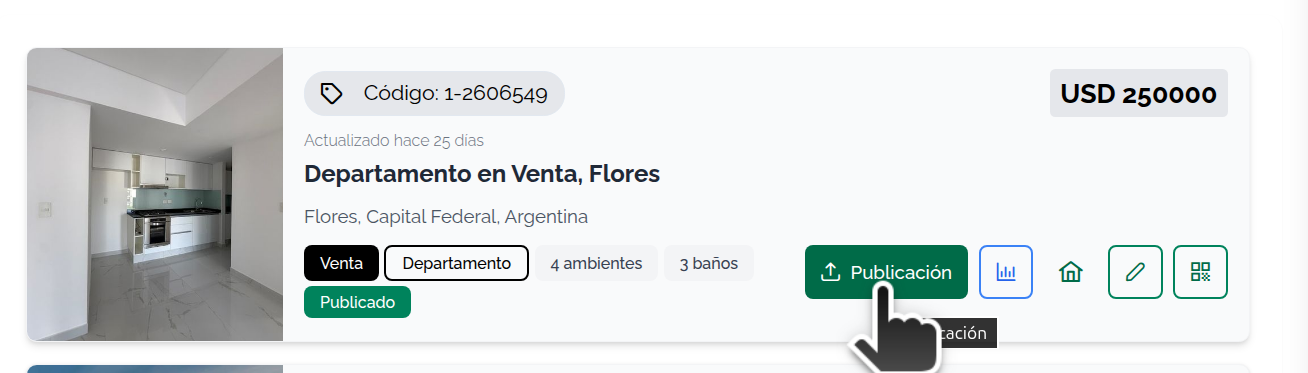
Properties screen
In the properties section we'll see a button with the Instagram icon, as shown in the following image:
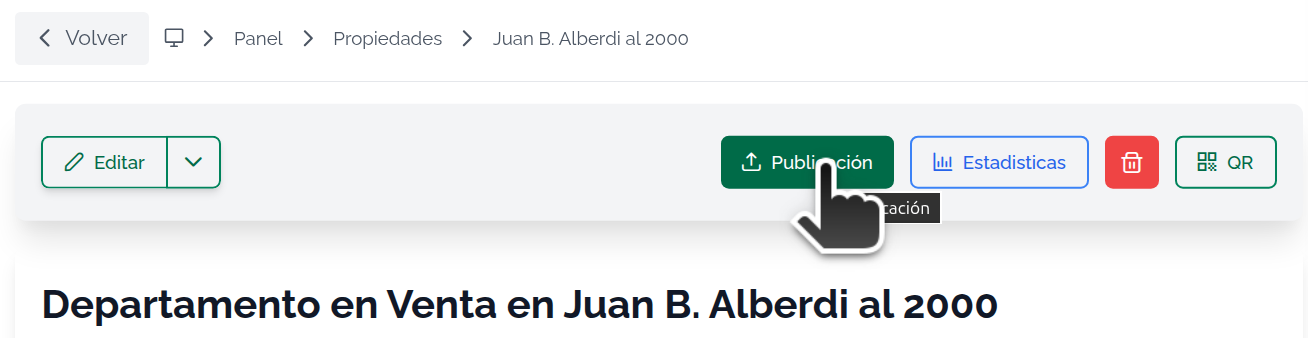
Property record
On the Property record, it's accessed from the quick share bar buttons.
Publication panel
Any of the previous options opens the publication panel
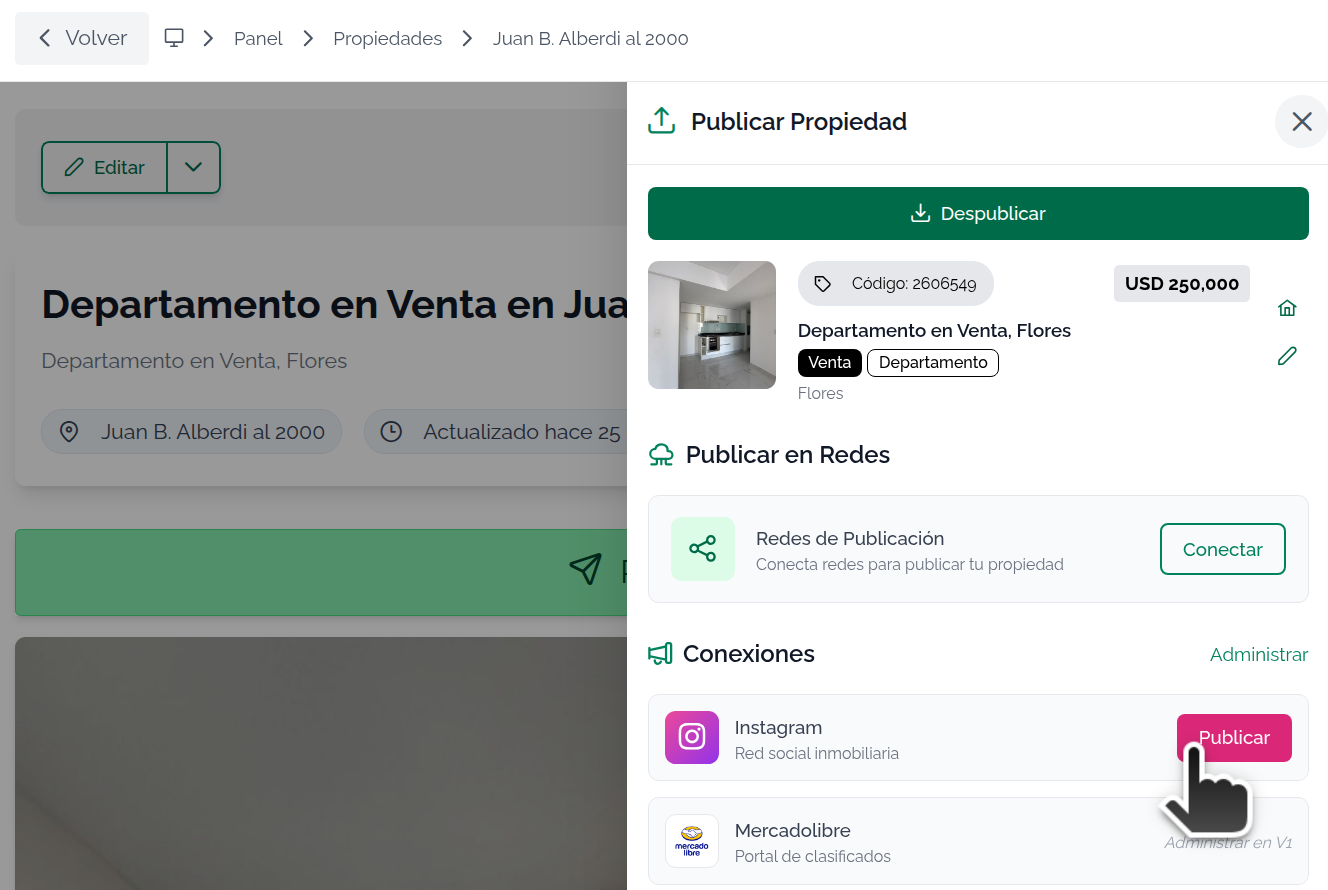
How it works
When you press the publication button, the publication panel will open.
First, choose where to publish. The "Where do you want to publish?" screen offers three options:
- On both networks: Instagram and your Facebook Page.
- Only Instagram: publishes to the Instagram feed.
- Only Facebook: publishes on your Facebook Page.
You can publish on Instagram, on your Facebook Page, or on both networks at once. To publish on Facebook, your account must be connected as an administrator of the Page (see Connect with Meta).
Then choose the type of publication:
- PUBLISH MAIN IMAGE: Publishes the property with the main image
- PUBLISH GALLERY X 10 IMAGES: Publishes the property with an image gallery (the first 10 images)
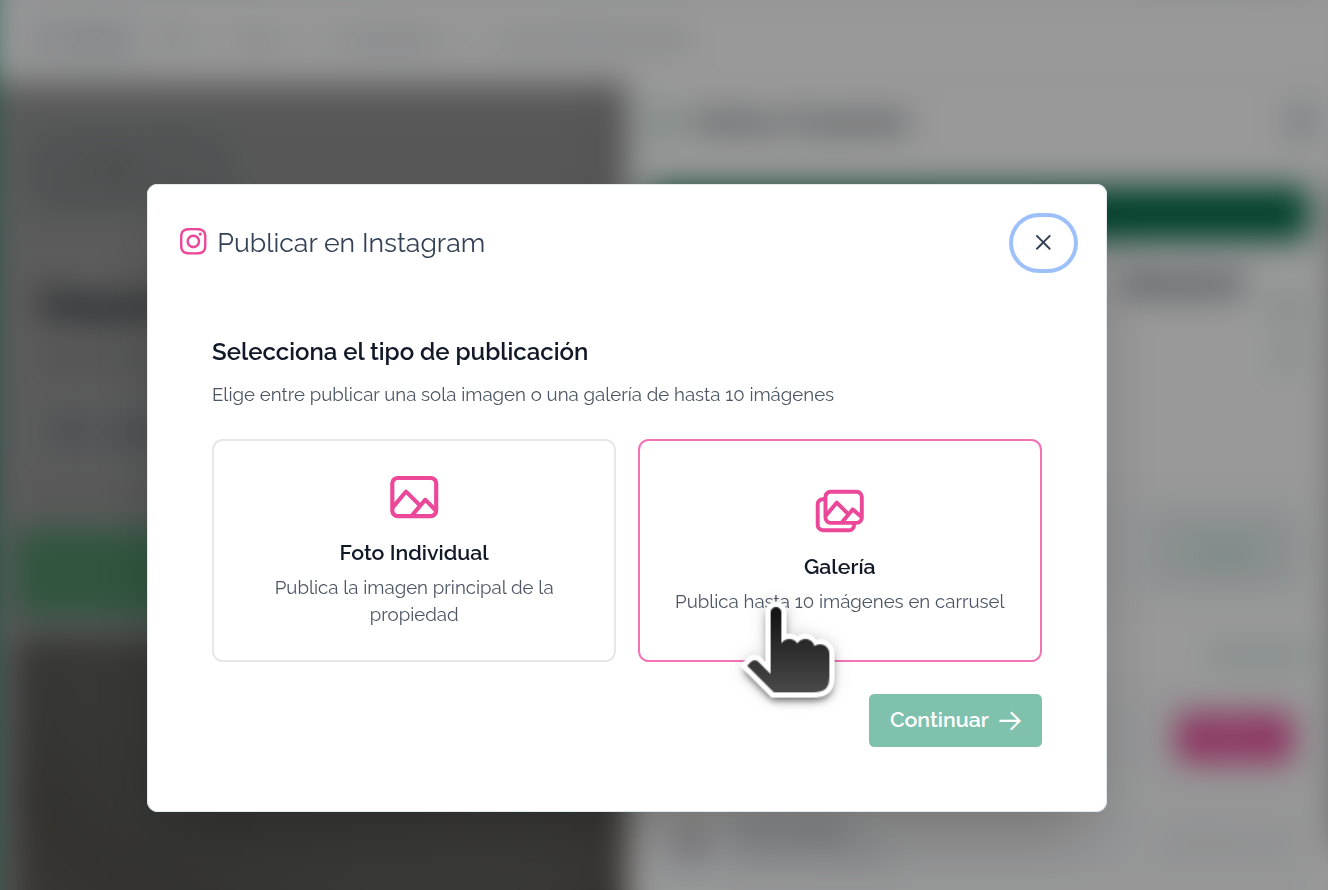
Publish Main Image
If you chose this option, you'll see the image to publish. Click continue
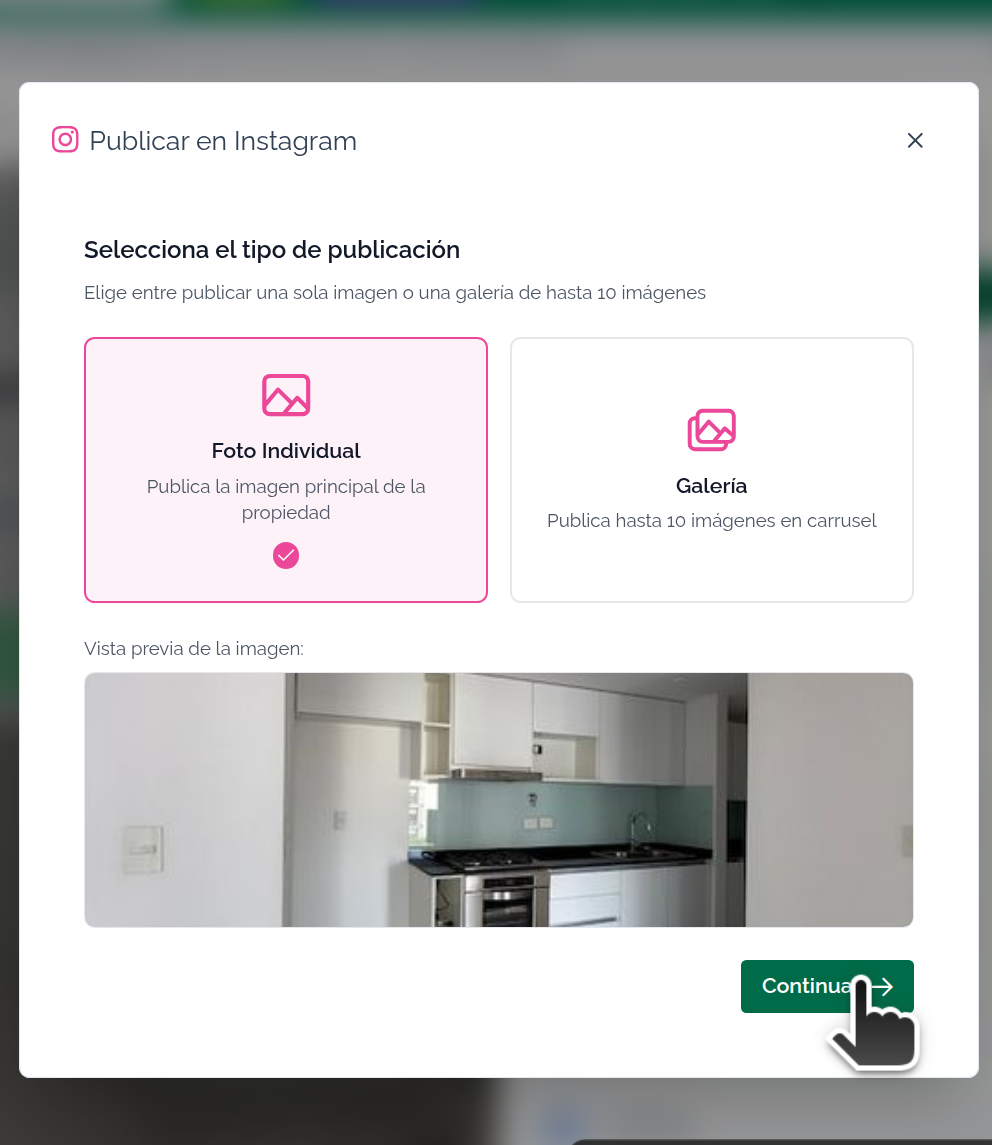
Publish Gallery on Instagram
If you chose this option, another popup window will appear letting you see the first 10 images to publish them
Publishing to Gallery only accepts landscape images.
Click to continue.
Option: Domain selection (For website clients)
After selecting the type of publication on Instagram, and only if you have one or more Mapaprop Website and more than one internet domain for it, you'll be asked to select your domain, otherwise you'll move to the next step (Add text to the publication)
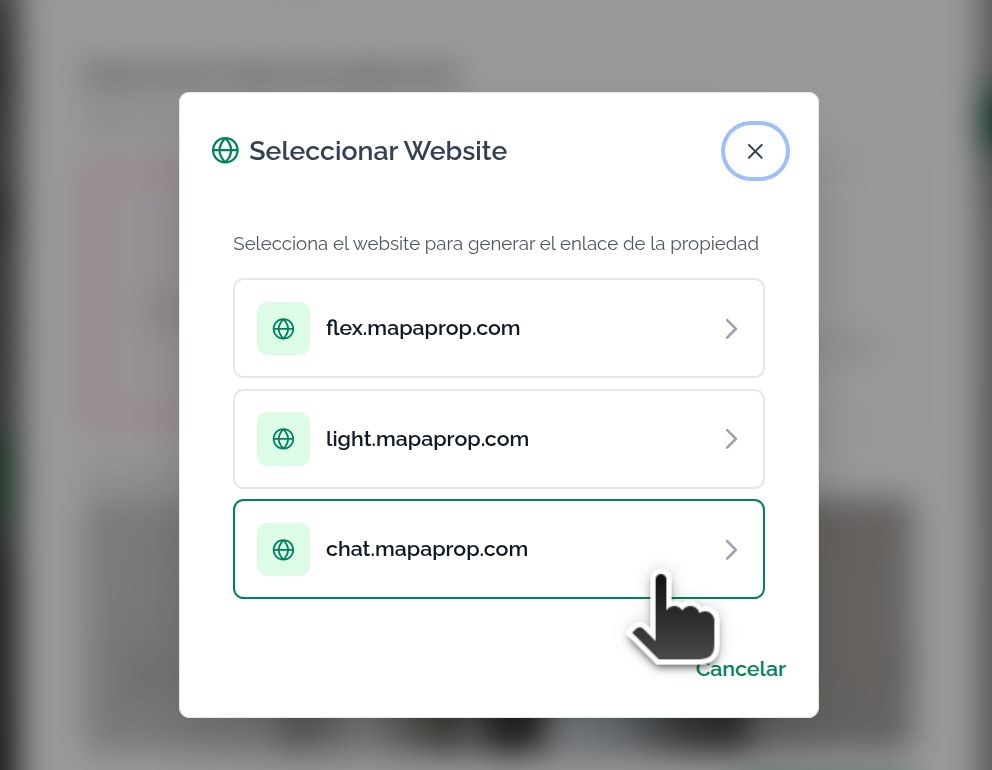
If you have more than one domain, the following option will appear
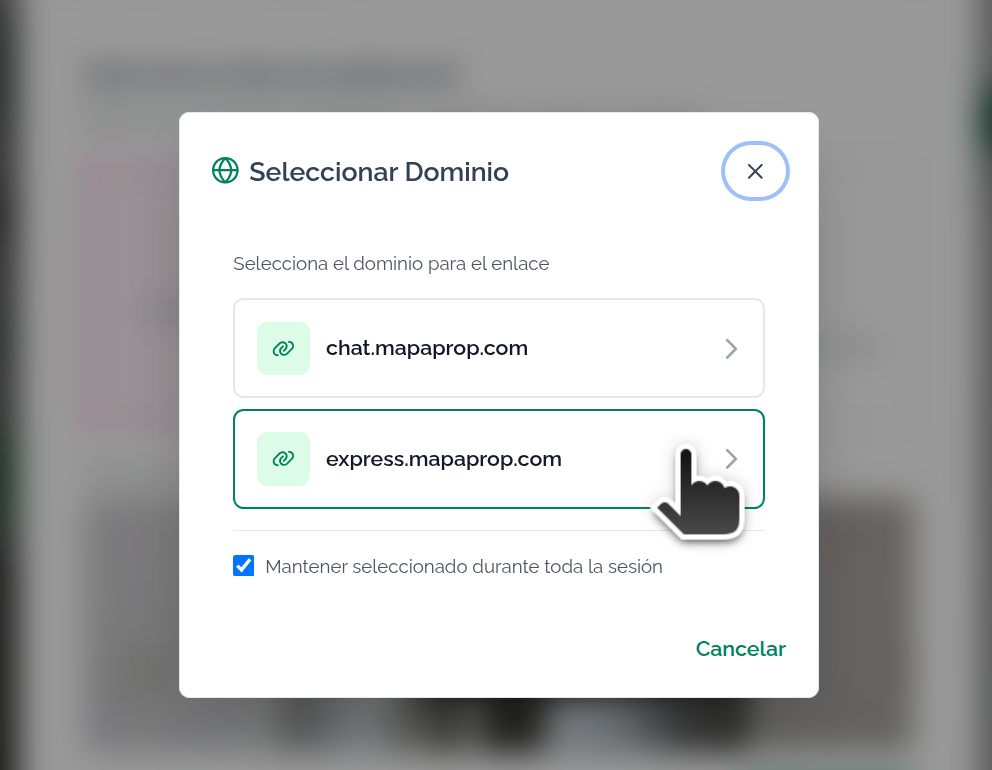
Click on the Domain to continue.
Edit publication text (Caption)
Mapaprop inserts a predefined text into the Instagram publication, which you can edit if you want. There's a character limit.
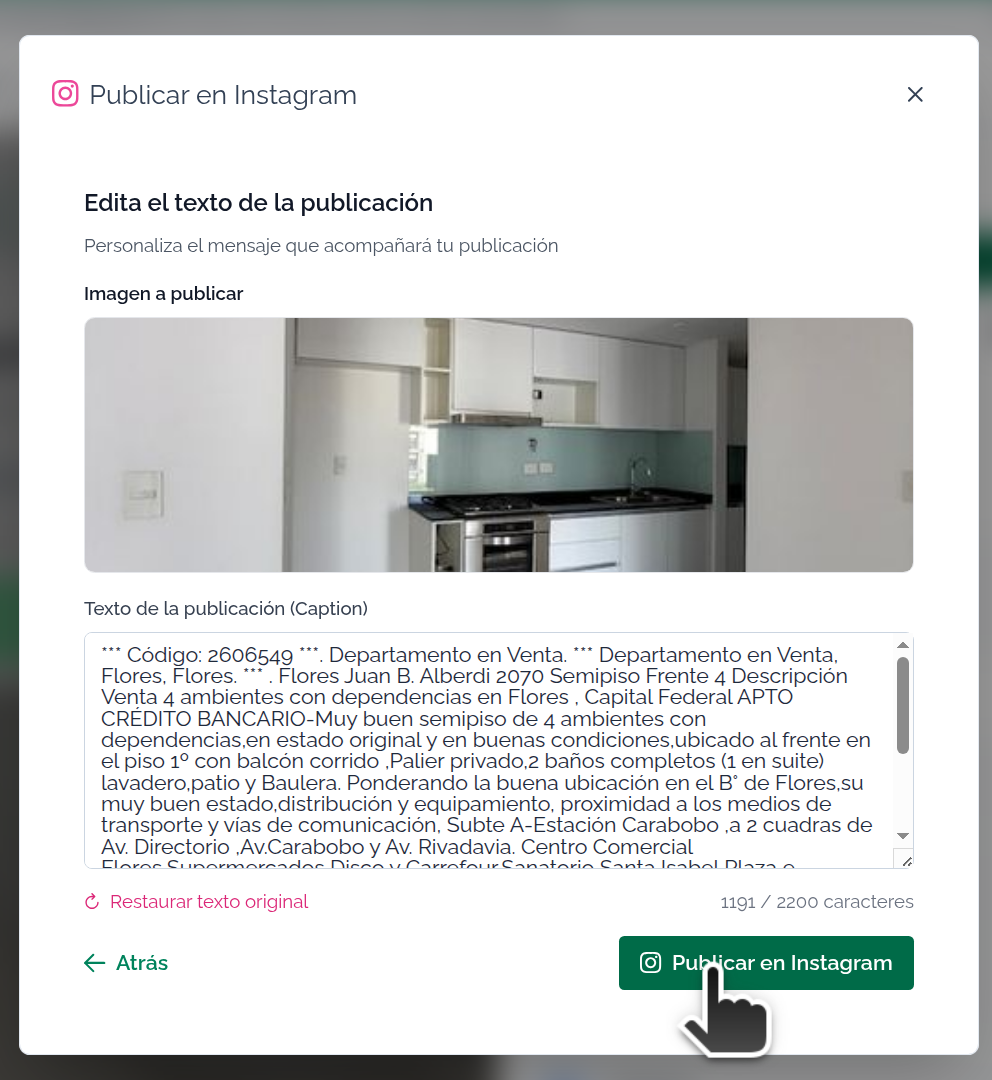
If you want, add your own text (you can include #hashtags). Keep in mind that texts cannot add up to more than 2200 characters
Finally, we press the PUBLISH button
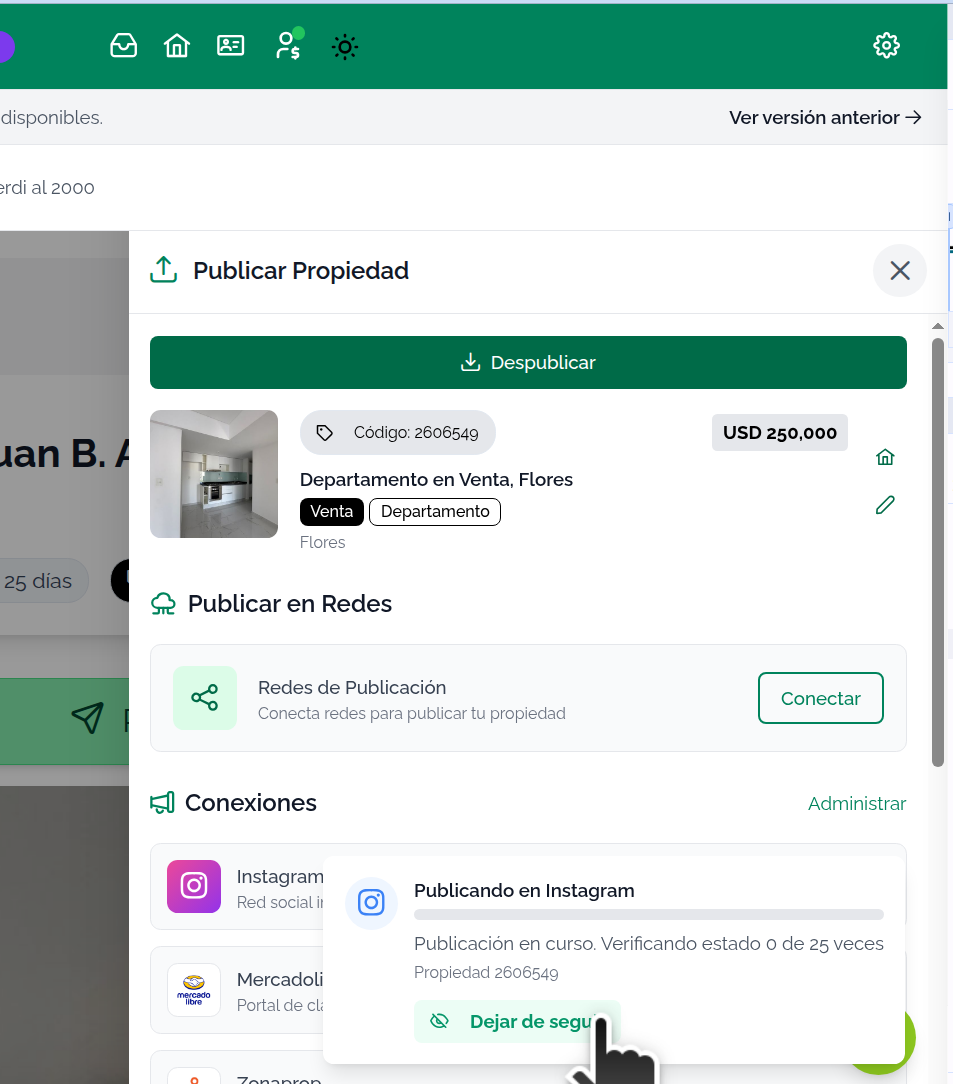
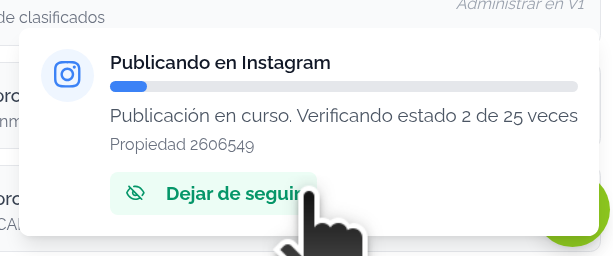
When starting the publication, a process begins that can take several seconds. You'll see a message at the bottom right for the active task. You can…
- leave the page while the message remains active
- stop following it, the task will remain active until it publishes
- wait for it to finish
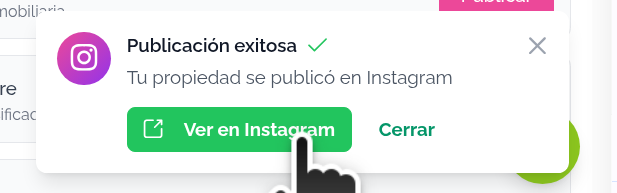
When the publication is finished you'll see this message. From the button you can view the publication on Instagram.
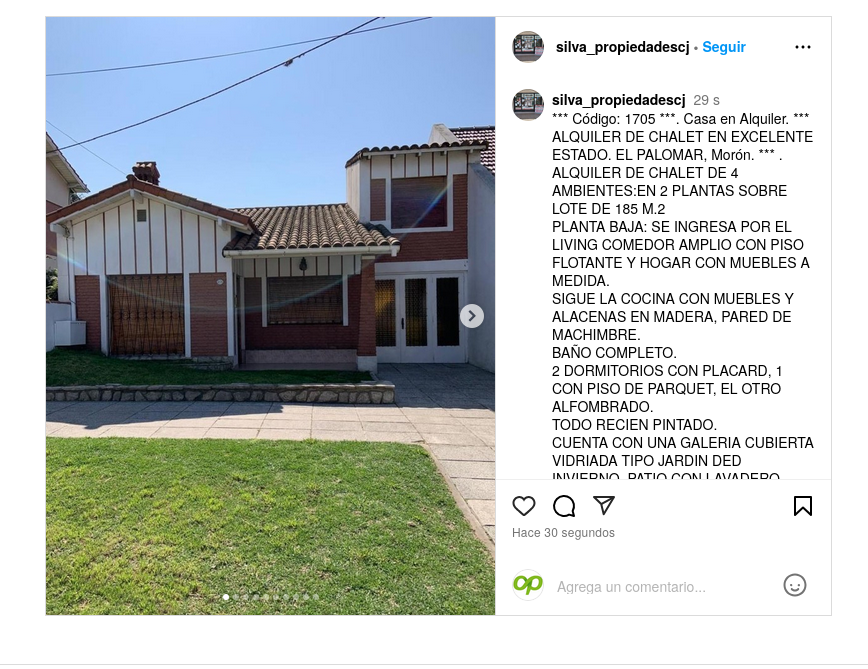
You can check your Instagram account to see the publication.
Publish on your Facebook page
You can now publish directly on your Facebook Page by choosing the "On both networks" or "Only Facebook" option on the publication screen, with no manual steps. Your Facebook publication also includes a link to the property.
Manual method (alternative): if you prefer, you can also share your Instagram publication on the Facebook page linked to the Instagram account.
To do so, go to the Instagram post and use the Share on Facebook option
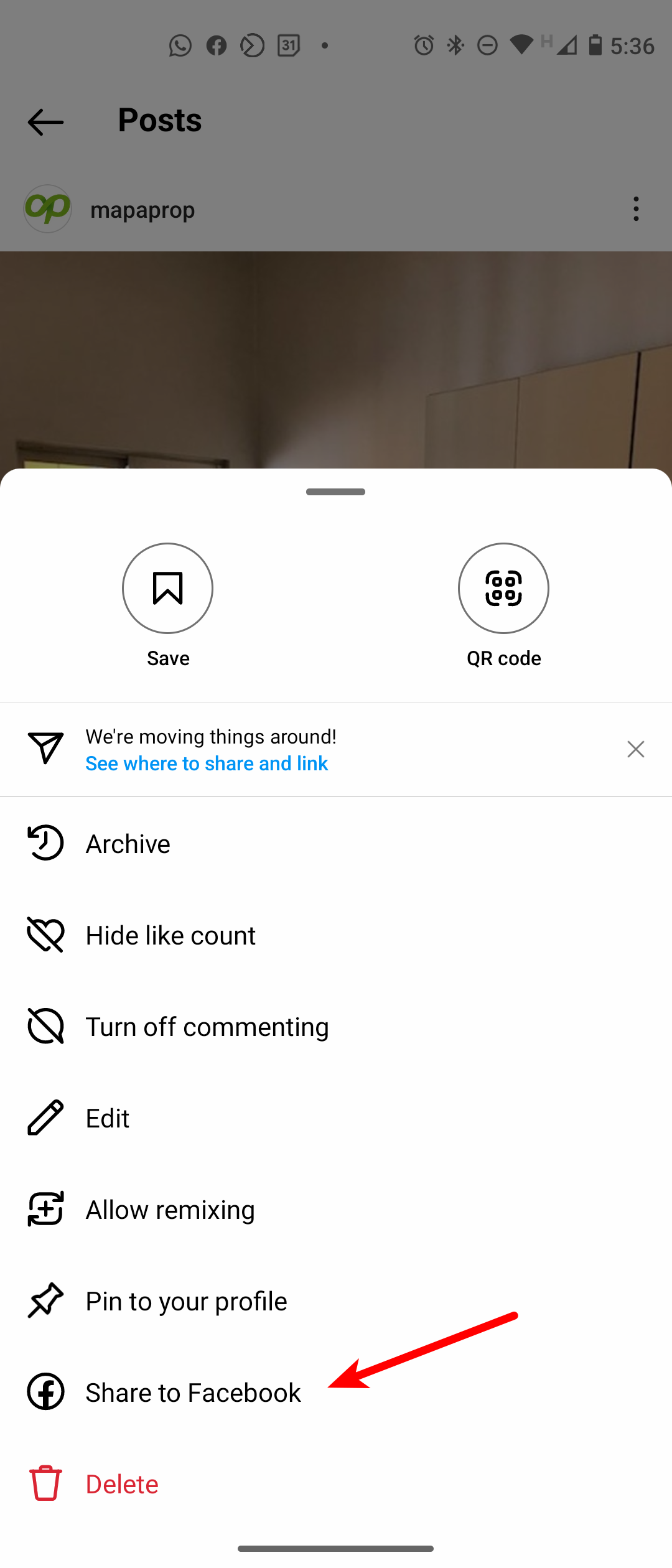
With that option, you'll be able to publish on the Facebook page linked to your Business profile.
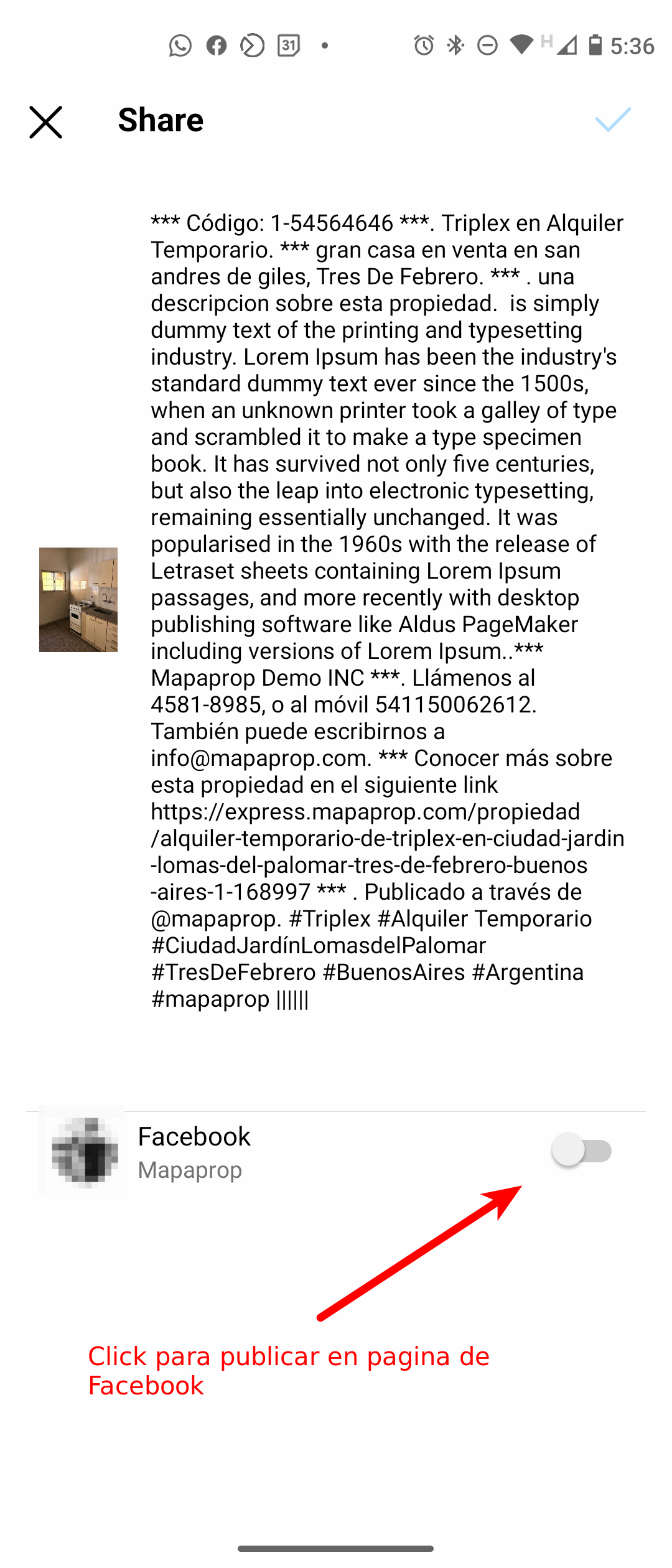
Finally the publication will be available on your Facebook page, with exactly the same content
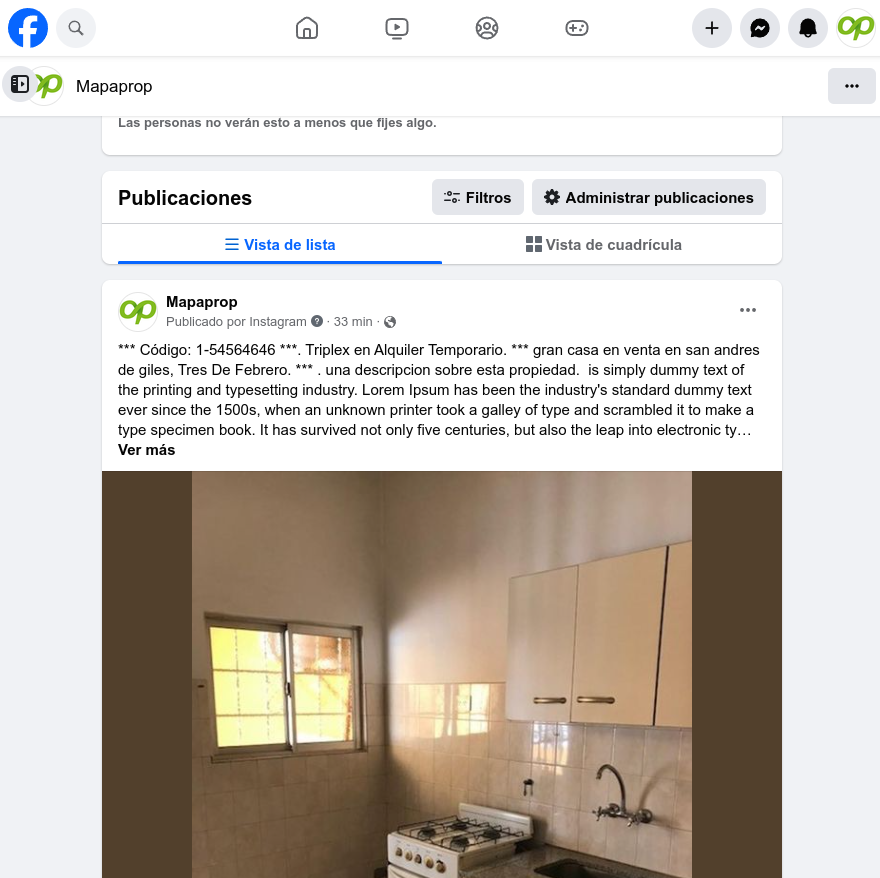
Sharing on Facebook pages.
We recommend reading this article How can I publish on my Facebook page from Mapaprop
Common problems
Instagram publication shows an error: Cannot generate carousel