"I Want to Sell" Form
Activate the property lead capture form on your website so interested owners can contact you directly.
Overview
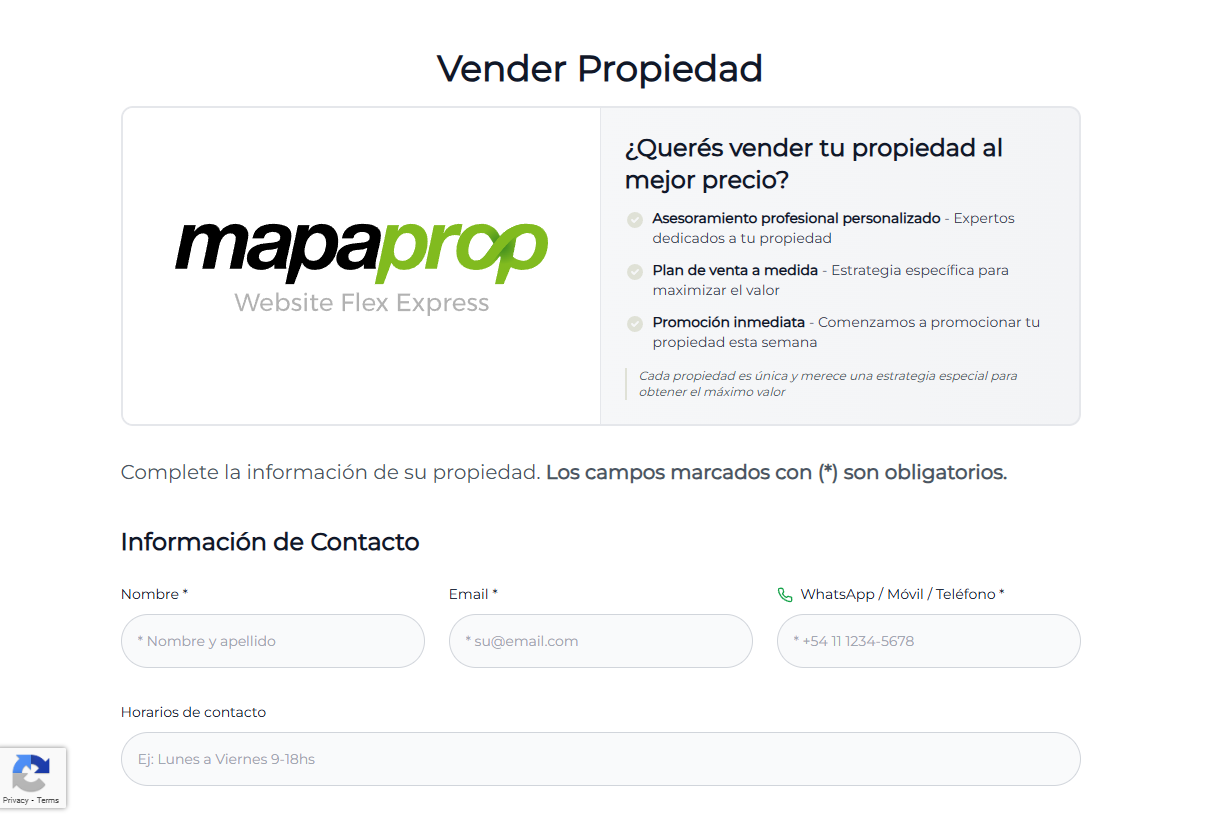
The "I Want to Sell" Form is a lead capture tool that lets property owners fill in detailed information about their property directly from your website. The system automatically processes this data, creates the contact in your CRM and sends you all the information by email.
Availability: This feature requires the Pro+ or Business plan. If you're on another plan, you'll be offered an upgrade when you try to activate it.
Available since: September 2025
What does this form do?
Main features
| Feature | Description |
|---|---|
| Automated lead capture | Owners fill in their property's data without manual intervention |
| Automatic CRM creation | Contact registered with the "OWNER" + "INTERESTED" tags |
| Email notification | You receive all the information in your registered inbox |
| File attachments | Allows uploading 1 image + 1 PDF (up to 5MB each) |
| Complete data | 30+ fields of information about the property |
| Antispam protection | Automatic, no setup required |
Benefits for your business
- 24/7 lead capture: You receive requests even outside business hours
- Structured data: Organized information ready to process
- Fewer calls: Owners load the information themselves
- Qualified leads: Only people who really want to sell contact you
- Time savings: You don't need to do preliminary phone interviews
Activating/deactivating the form
Activate the form
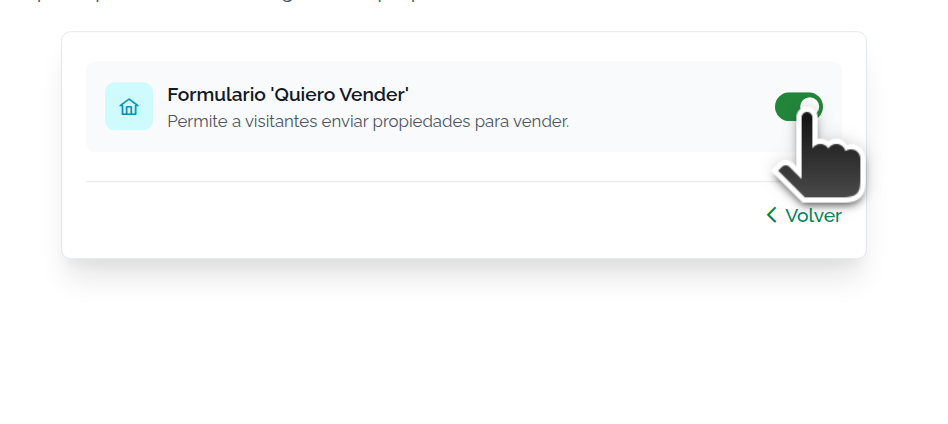
- Click the toggle on this page
- The system checks that you have the Pro+ or Business plan
- If you don't have access, a modal opens to upgrade your plan
- If you have access, the form is activated immediately
- The "SELL" button automatically appears on your website
Button location on the site:
- Main navigation menu
- Site footer
- Accessible from all pages
Note: Activation is instant. There's no waiting time and you don't need to republish.
Deactivate the form
- Click the toggle to turn it off
- The "SELL" button disappears immediately from the site
- The form is no longer publicly accessible
- Previous requests remain in your CRM
Important: Deactivating doesn't delete contacts already captured.
Information captured by the form
Required fields (marked with ✳️)
These fields are required to submit the form:
| Field | Description |
|---|---|
| First and last name ✳️ | Seller's personal information |
| Email ✳️ | Main contact email address |
| Phone ✳️ | Contact phone number |
| Property type ✳️ | House, Apartment, Commercial space, Office, Land, Warehouse, Country house, Farm, Other |
| Operation ✳️ | Sale, Rent, Temporary rent, Sale/Rent |
| Land surface ✳️ | Total land measurement in m² |
| Full address ✳️ | Exact location of the property |
Contact information
| Field | Description |
|---|---|
| First and last name | Personal information |
| Email address | Main email |
| Phone | Contact number |
| Contact hours | Preferred time slots (Morning, Afternoon, Evening) |
Basic property information
| Field | Description |
|---|---|
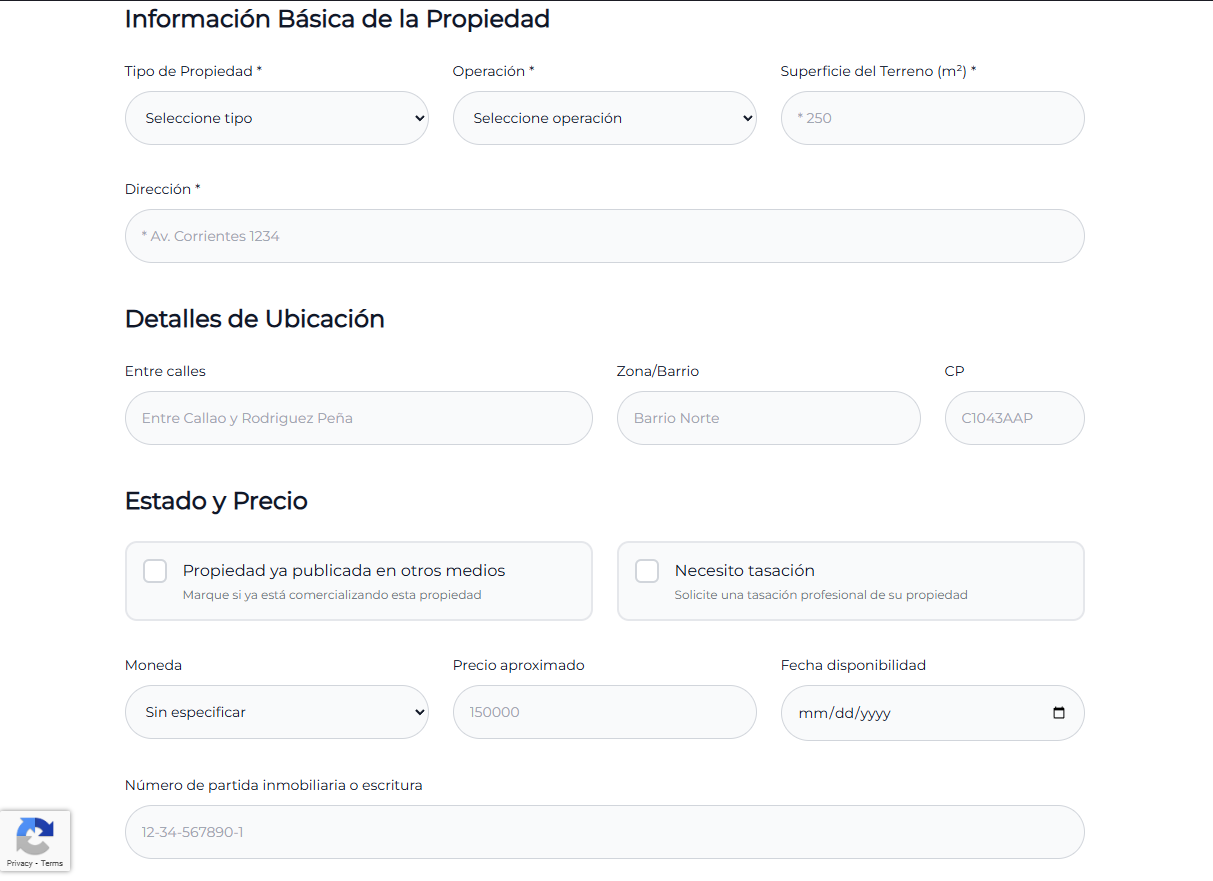
| Property type | House, Apartment, Commercial space, Office, Land, Warehouse, Country house, Farm, Other |
| Operation | Sale, Rent, Temporary rent, Sale/Rent |
| Land surface | Total land measurement in m² |
| Full address | Exact location of the property |
Location details
| Field | Description |
|---|---|
| Cross streets | Nearby street references |
| Zone/Neighborhood | Sector or neighborhood where it's located |
| Postal code | Location's zip code |
Status and price
| Field | Description |
|---|---|
| Property already published | If it's advertised elsewhere (Yes/No) |
| Appraisal request | If it requires a professional valuation (Yes/No) |
| Currency | Currency for the price (Pesos, Dollars, Euros) |
| Approximate price | Estimated value of the property |
| Availability date | When it will be available for the operation |
| Cadastral parcel number | Legal cadastral identification |
Property features
| Field | Description |
|---|---|
| Covered surface | Built square meters |
| Age | Years since construction |
| Property condition | Excellent, Very Good, Good, Fair, Needs Renovation, Under Construction |
| Bedrooms | Number of rooms |
| Bathrooms | Number of full bathrooms and toilettes |
| Rooms | Total livable spaces |
| Additional features | Garage, Pool, Garden, Security, etc. |
Description and files
| Field | Description |
|---|---|
| Detailed description | Complete information about the property |
| Attach image | JPEG, PNG, GIF, WebP (up to 5MB) |
| Attach PDF | Related documents (up to 5MB) |
File limits:
- 1 image (5MB maximum)
- 1 PDF (5MB maximum)
What happens when an owner submits the form
Automatic system flow
1. Owner fills in the form
- Fills in all required fields
- Attaches an image and/or PDF if applicable
- Clicks "Submit"
- The anti-spam filter validates it's not spam
2. The system processes the information
- Validates all data entered
- Saves the attached files
- Prepares the notification email
3. The contact is created in your CRM
| Action | Detail |
|---|---|
| Automatic registration | New contact in CRM / Clients |
| Tags assigned | "OWNER" + "INTERESTED" |
| Contact notes | All property details |
| Attached files | Image and PDF linked to the contact |
4. You receive a notification email
The email includes:
- Complete owner information
- All the property information
- Attached files
- Direct link to the contact in your CRM
5. Confirmation to the owner
The system automatically sends an email to the owner confirming that you received their request.
How to manage received requests
View captured contacts
- Go to CRM / Clients
- Filter by tags: "OWNER" + "INTERESTED"
- You'll see all owners who submitted the form
- Click any contact to see complete details
Information available in the contact
When you open a captured contact, you'll find:
- Personal information: Name, email, phone, preferred hours
- Automatic notes: All the structured property information
- Attached files: Image and PDF uploaded by the owner
- History: Date and time of the request
Recommended actions
Within the first 24 hours:
- Review the information: Read notes and attached files
- Contact the owner: Use the registered phone or email
- Schedule a visit: If the property is of interest
- Update status: Add notes about the conversation
Tips for better conversion:
- Respond quickly (ideally within 2 hours)
- Mention specific details the owner shared
- Offer a free appraisal if they requested one
- Explain your process and next step
Antispam protection
The form is protected with an automatic anti-spam filter, which:
- Automatically detects bots and spam
- Works invisibly for real users
- Doesn't require the user to complete challenges
- Blocks malicious automated submissions
You don't need to configure anything: Protection is active automatically.
Frequently asked questions
Why can't I activate the form?
This feature requires the Pro+ or Business plan. If you try to activate it with another plan, a modal opens offering you an upgrade. You can see the plans in Manage Plan.
How many requests can I receive?
There's no limit on requests. You can receive all that come in at no additional cost or restrictions.
Are contacts created automatically in the CRM?
Yes. Each form submission automatically creates a new contact with:
- "OWNER" + "INTERESTED" tags
- All the property notes
- Linked attached files
What happens if the owner submits very large photos?
The system has a 5MB limit per file. If the owner tries to upload larger files, the form shows an error message and won't allow submission until they reduce the size.
Does the owner receive any confirmation?
Yes. The system automatically sends an email to the owner confirming that you received their request and that you'll contact them soon.
Can I customize the form fields?
Currently the form fields are predefined to capture all the necessary information about a property. Field customization will be available in future updates.
Does the form work on mobile devices?
Yes. The form is fully optimized for mobile devices. Owners can fill it out from phones or tablets without problems.
How do I find requests in my CRM?
Go to CRM / Clients and filter by the "OWNER" + "INTERESTED" tags. All contacts captured by the form have these tags.
What happens if I deactivate the form?
The "SELL" button disappears immediately from the website. Visitors can no longer access the form. Contacts already captured remain in your CRM unchanged.
Can I see usage statistics for the form?
Currently you can see how many contacts you captured by counting those with the "OWNER" + "INTERESTED" tags in your CRM. Detailed conversion statistics will be available in future versions.
Does the form integrate with Express API?
Yes. Since October 2025, the form is also available for clients using Express API, allowing lead capture on external websites.
Use cases
Case 1: Agency focused on lead capture
Situation:
- Active digital marketing strategy
- Social media ads driving traffic to the site
- Need to capture properties constantly
Setup:
- Form activated permanently
- "SELL" button highlighted on the site
- Form promoted on social media
Expected results:
- 5-15 monthly requests (depending on traffic)
- Automated lead capture without prior calls
- Database of interested owners
Case 2: Traditional agency
Situation:
- Lead capture mainly through referrals
- Few online leads
- Wants to explore digital lead capture
Setup:
- Activate the form as a trial
- Mention it on business cards
- Include the link in email signature
Expected results:
- 2-5 monthly requests
- Lead capture complementing traditional methods
- Gradual improvement of online presence
Case 3: One-time lead capture campaign
Situation:
- You need to capture properties in a specific area
- Temporary marketing campaign (1-2 months)
- Budget allocated for ads
Setup:
- Activate the form during the campaign
- Drive ads to a landing page with the form
- Mention free appraisal
Expected results:
- 10-30 requests during the campaign
- High concentration of leads in the target area
- Measurable ROI on the ad investment
Tips to maximize lead capture
Promoting the form
- On your site: Make sure the "SELL" button is visible
- On social media: Post regularly about your appraisal service
- In ads: Drive traffic to the form in lead capture campaigns
- In your email signature: Include a direct link to the form
- On business cards: Add a QR code that leads to the form
Quick response
- Notifications: Set up email alerts to respond quickly
- Timing: Contact within the first 24 hours
- Weekends: Review requests received on Saturdays/Sundays
- Follow-up: If you can't reach them, try 2-3 times before giving up
Effective conversion
- Personalization: Mention specific details about their property
- Professionalism: Explain your experience and process
- Urgency: Offer to visit soon to evaluate
- Value: Highlight free services (appraisal, advice)
Some screenshots