
Note: You can click on the images at any time to view them enlarged
Managing several websites under the same account
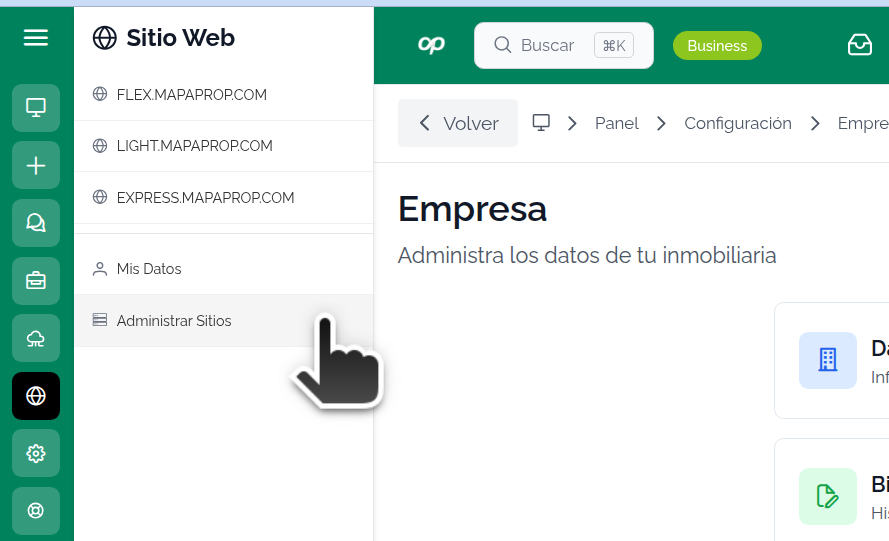
Through your Mapaprop account you can manage more than one real estate website: there's no limit.
This feature gives you more flexibility and options, such as:
- Handling different brands and/or internet domains on websites that are independent from one another.
- If you have more than one Branch and want to separate the properties of each one into different websites,
- Separating businesses or operation types by website. For example: sales and rentals on one side, short-term rentals on another; industrial warehouses on one side, houses and apartments on another, etc.
Activate an Extra Website
To activate an Extra website, you must be at least a subscriber of Mapaprop Pro+.
An extra website on your Mapaprop account has an additional cost. Check the Mapaprop Plans at https://www.mapaprop.com/planes. The service is called Mapaprop Website+. If you have questions, you can contact websites@mapaprop.com
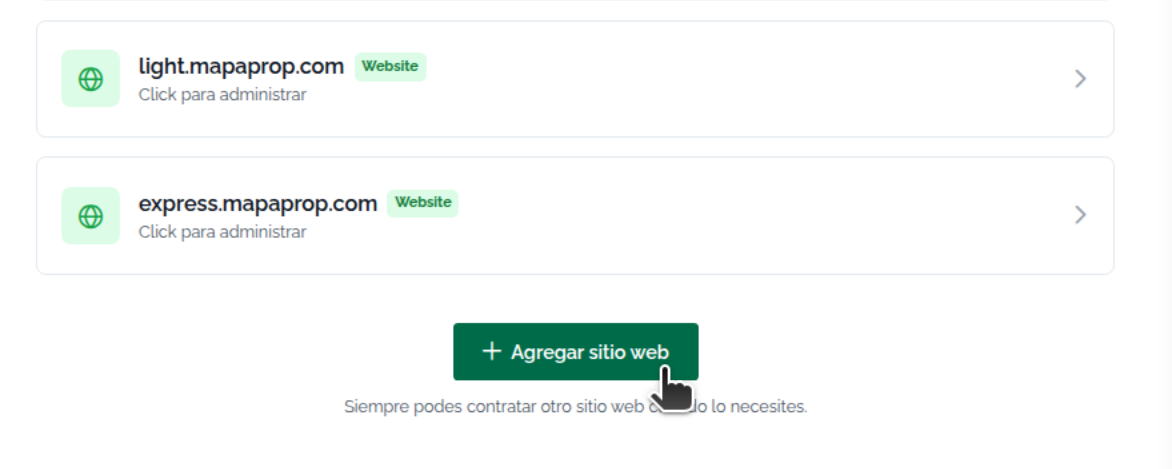
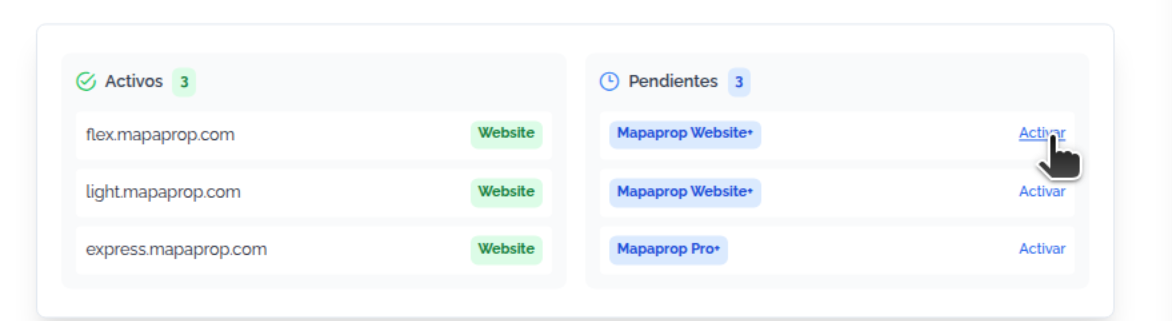
Once the purchase is confirmed, you can start the activation on the Website screen
An additional website (Website+) can also be connected to your Express API token from Settings > API Token, to serve and query its properties and content via API. See Express API Token.
Manage website
To manage one of the websites, click on its domain, within Menu > Website > Domain...
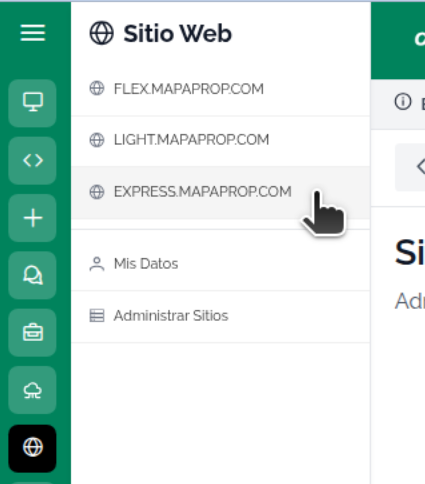
Once you click on the domain, you'll enter the Website Console.
You can also access it from Manage Websites
Manage Website
From there you can operate it. Press the function buttons to access them, for example Featured properties...
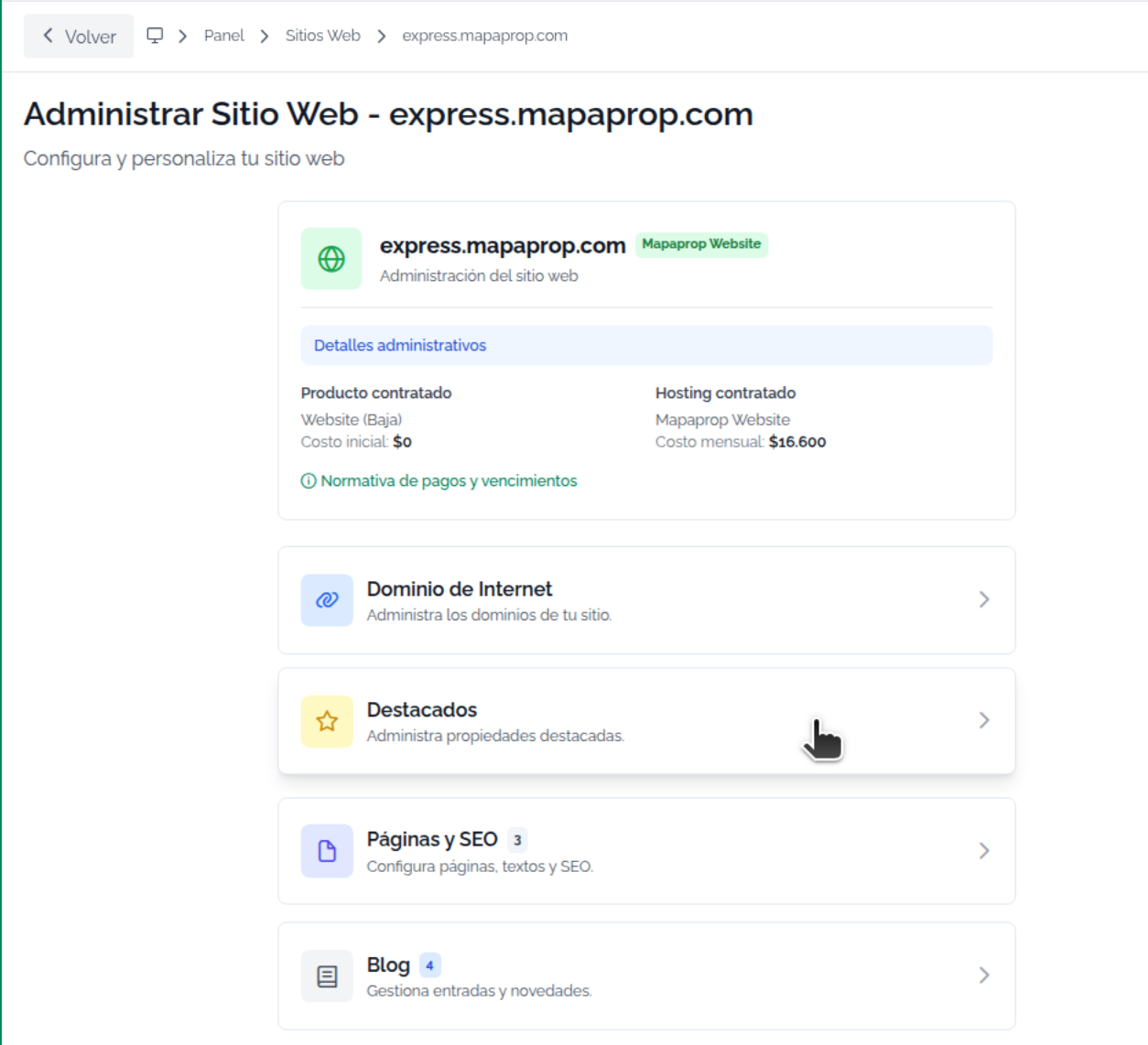
Multi-site allows you to:
- Have as many websites as you want, managed separately from the same Mapaprop account
- Publish featured listings individually on each website
- Configure which branch or branches publish on each website.
- Feature properties from one or all Branches.
- Manage sections separately for each website
- Manage SEO keywords and descriptions for each website.
- Add and track search engines (Google, Bing) independently for each website.
The main usefulness of keeping several websites on the same account generally has to do with the need to manage branch properties separately. For example:
You can configure one website (website-1) to show properties from branch-1 and a second website (website-2) to show properties from branch-2. But you can also show, on a third website (website-3), properties from branch-1 + branch-3, leaving out the properties from branch-2.
This feature exists even for accounts with a single website and is managed from edit configuration.
Keep in mind:
- Configuring featured listings is independent from the website x branches configuration: if you need to show a featured listing from another branch that isn't configured to be shown on this website (from edit configuration…), it's possible. How? When adding a featured listing on website-2 (which may have been configured to show only properties from branch-2), the properties available to select are all those entered into the Mapaprop account. That is: properties from branch-1, branch-2, branch-3, etc.