
Note: You can click on any image at any time to view it enlarged.
This help will teach you how to feature a property on MemudoYa.
Position your property in the top results of MemudoYa.com
It is possible to feature a property instantly in the MemudoYa.com property search engine.
Featuring the property means that it will be positioned in the first place of search results for a zone determined by you. When a visitor to MemudoYa.com searches for properties in that zone, the first visible result will be yours.
To learn about the payment regulations for Featured charges on MemudoYa.com, click here
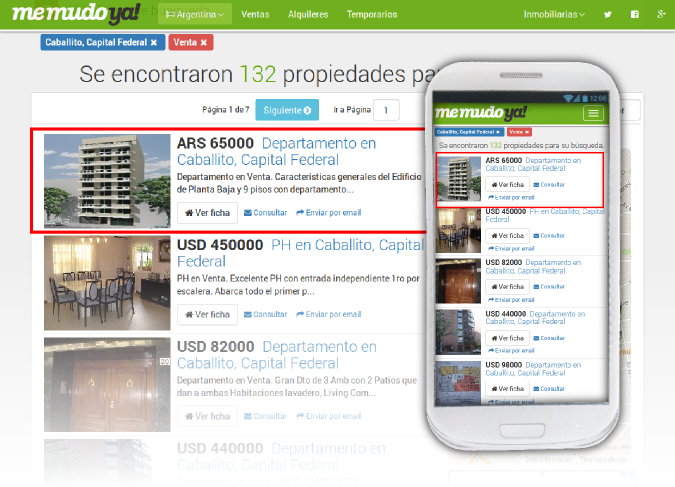
The following are the aspects to consider:
- The price is per calendar day, regardless of what time you feature the property.
- The time zone that governs the beginning of the calendar day is UTC. Depending on your country's time zone, the start and end time of the featured listing will vary.
- You can feature the property for several days (there is no limit).
- Only one property can be promoted per zone per day. If that space is reserved, the zone will not be available to you that day.
- The cost is charged to your Mapaprop Account Summary.
Depending on your Mapaprop account's country of origin, that will be the country where you can publish featured listings on MemudoYa.com, and also the currency in which you can Pay to feature a property on MemudoYa.com.
The steps to feature a property are very simple:
- Access the Featured screen and press the Feature Property button
- Select the property to feature
- Select the zone where the featured listing will be included
- Select the publication date for the featured listing
- Confirm the purchase
1- Access the Featured screen
You can access the feature a property screen from various buttons in the system:
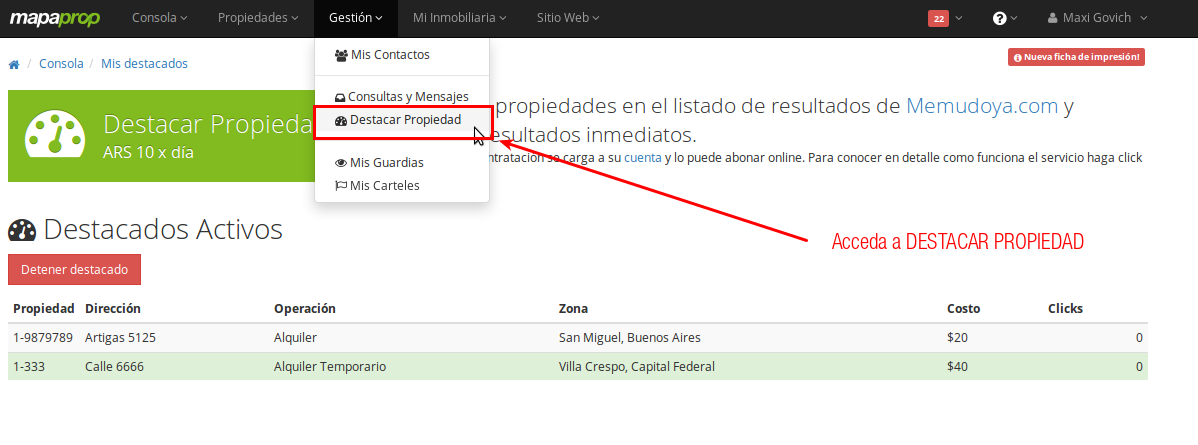
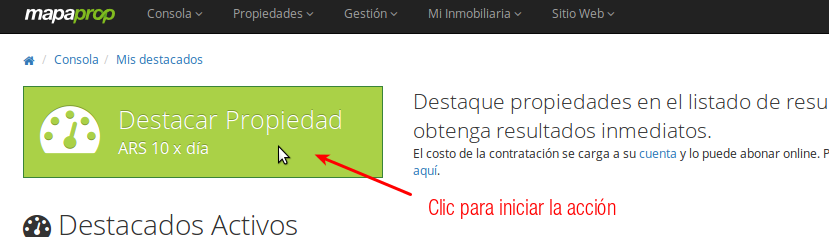
The function is simple; it displays a main button to initiate the Feature Property action and a lower list with the list of current featured properties. Press the Feature Property button to start the action:
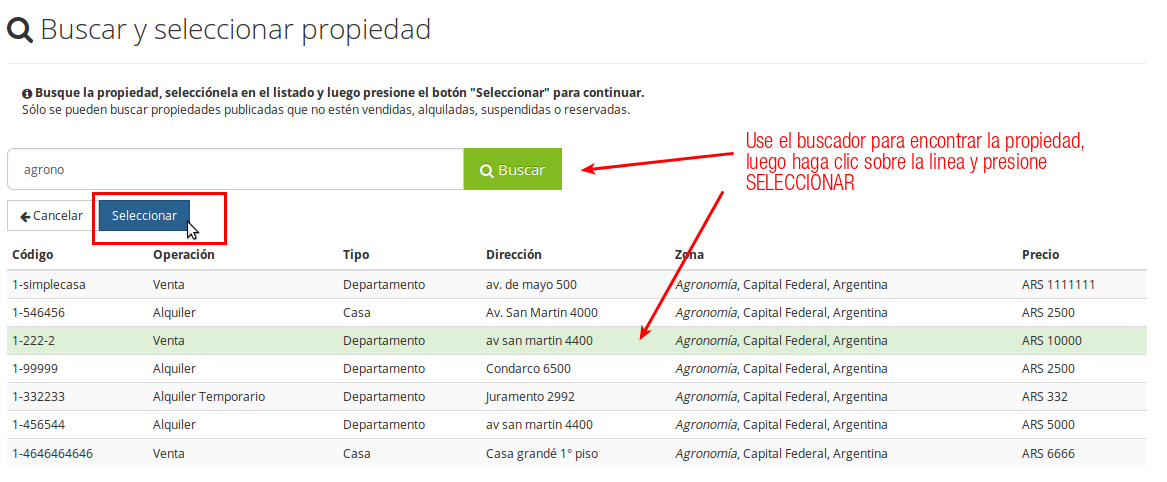
2- Search for and select a property
Search for and select a property from your database, click the Select button:
3- Search for and select the zone where you will feature the property
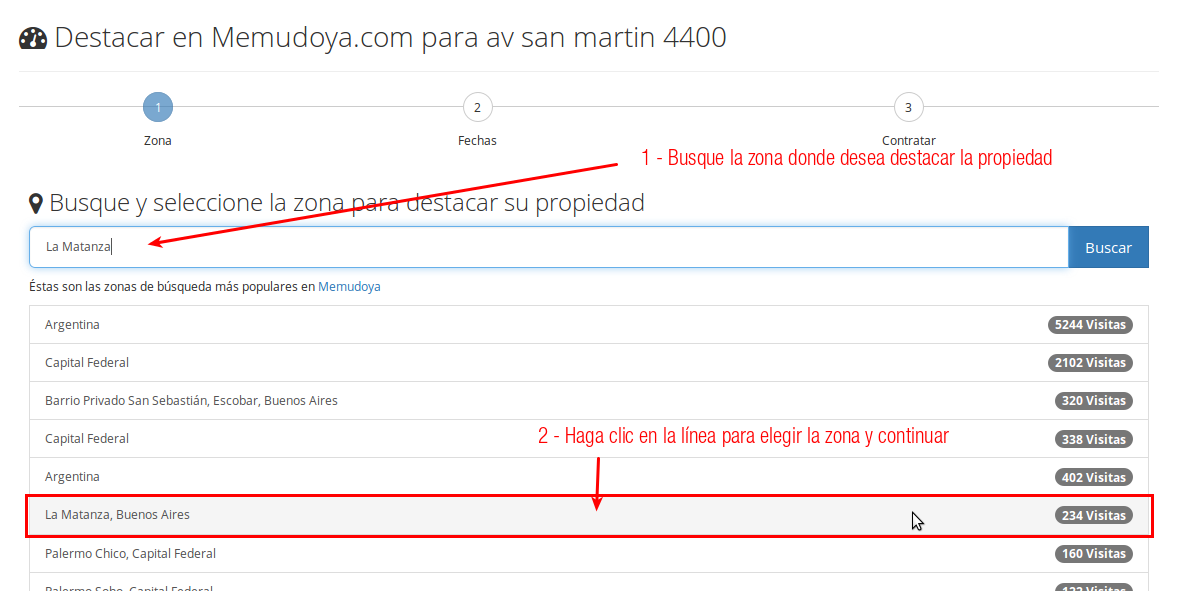
Now you must use the search to choose a zone where you will position your property in the first result.
It is possible to choose any zone in your country of origin to position the property in the first position of the results list. There are no restrictions.
Search for and select a zone, then click on the line to continue:
4- Search the calendar and click on the days you want to feature the property
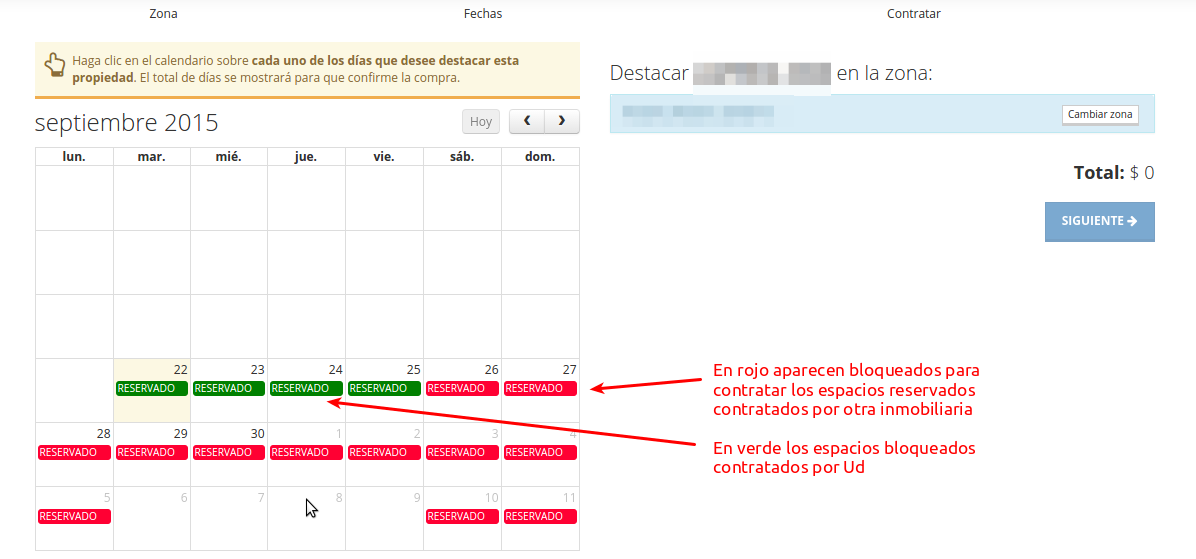
It is time to choose the days you will feature the property in the previously selected zone. Use the calendar controls to search for the day or days to feature. Then click on each day to reserve the publication of the featured listing. If there is a space reservation, you will see the Reserved label.
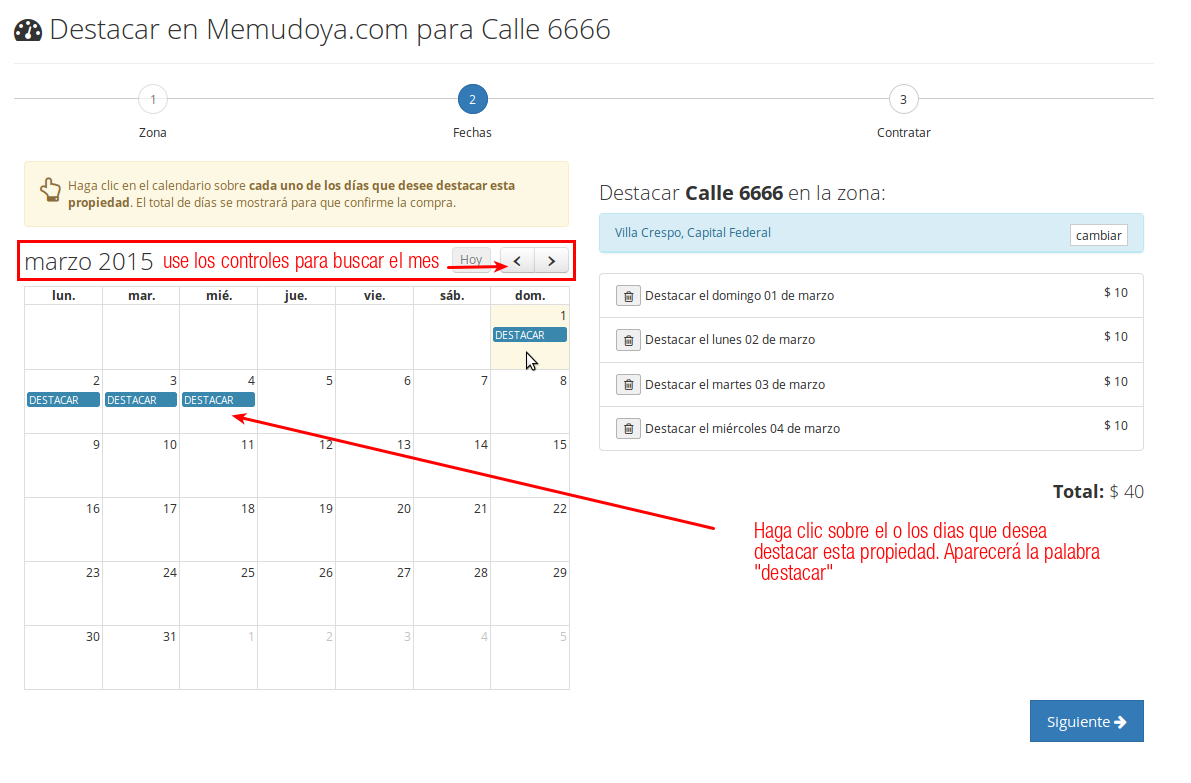
On the right, a list will appear with the selected days, individual amounts, and the total amount. Press Next to continue. At this point, it is possible to change the zone and remove reserved days from the purchase detail buttons.
In some cases, days with reservations may appear. If the reservations are red, they are days contracted by another system user. If the reservations are green, the reservations have been previously contracted by you.
There are no day limits for featuring a property
5- Review the selection and confirm the purchase
Finally, review the purchase and press Contract to begin featuring your property:
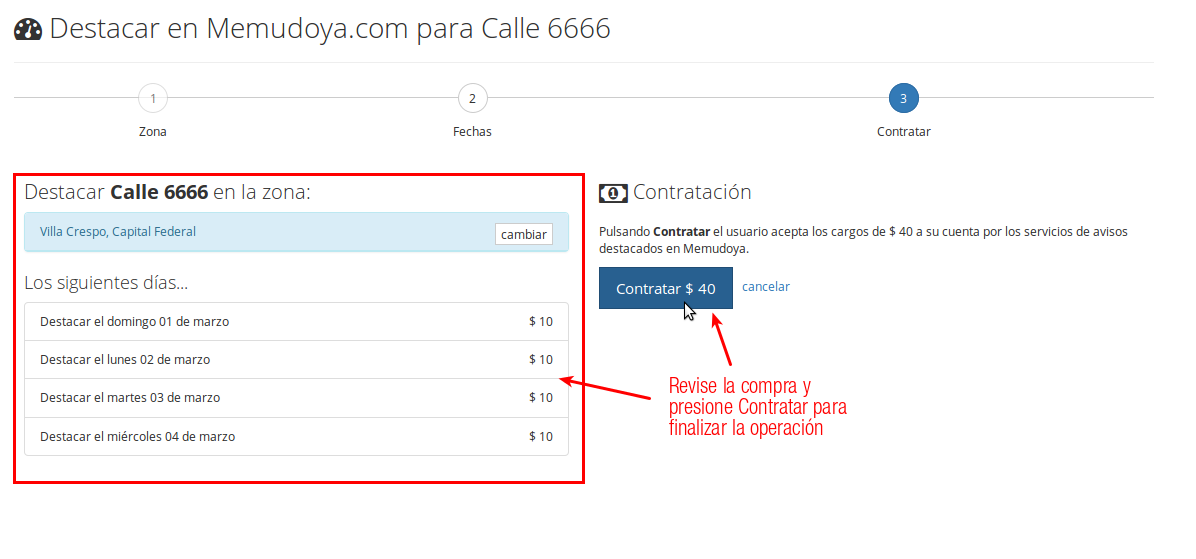
At this point, it is possible to change the zone or cancel the operation. Press Contract to complete the purchase:
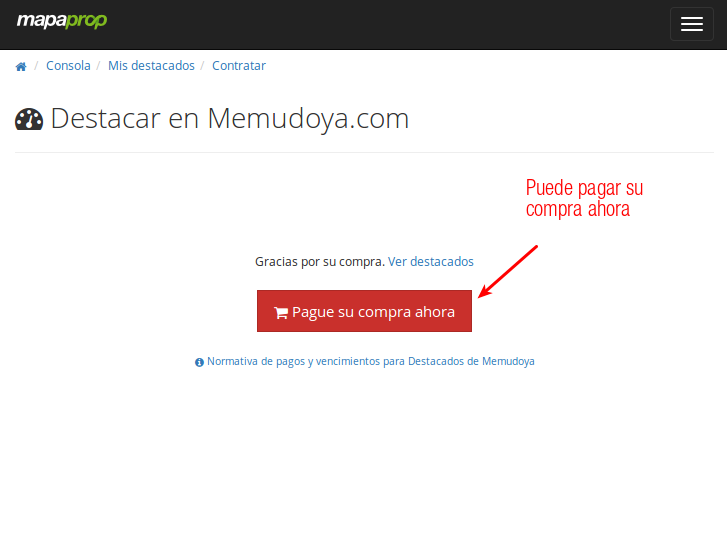
Attention
You can Pay for the purchase at this very moment. It is important that you read the payment and due date regulations for Featured charges on MemudoYa.com. Avoid account blocks.
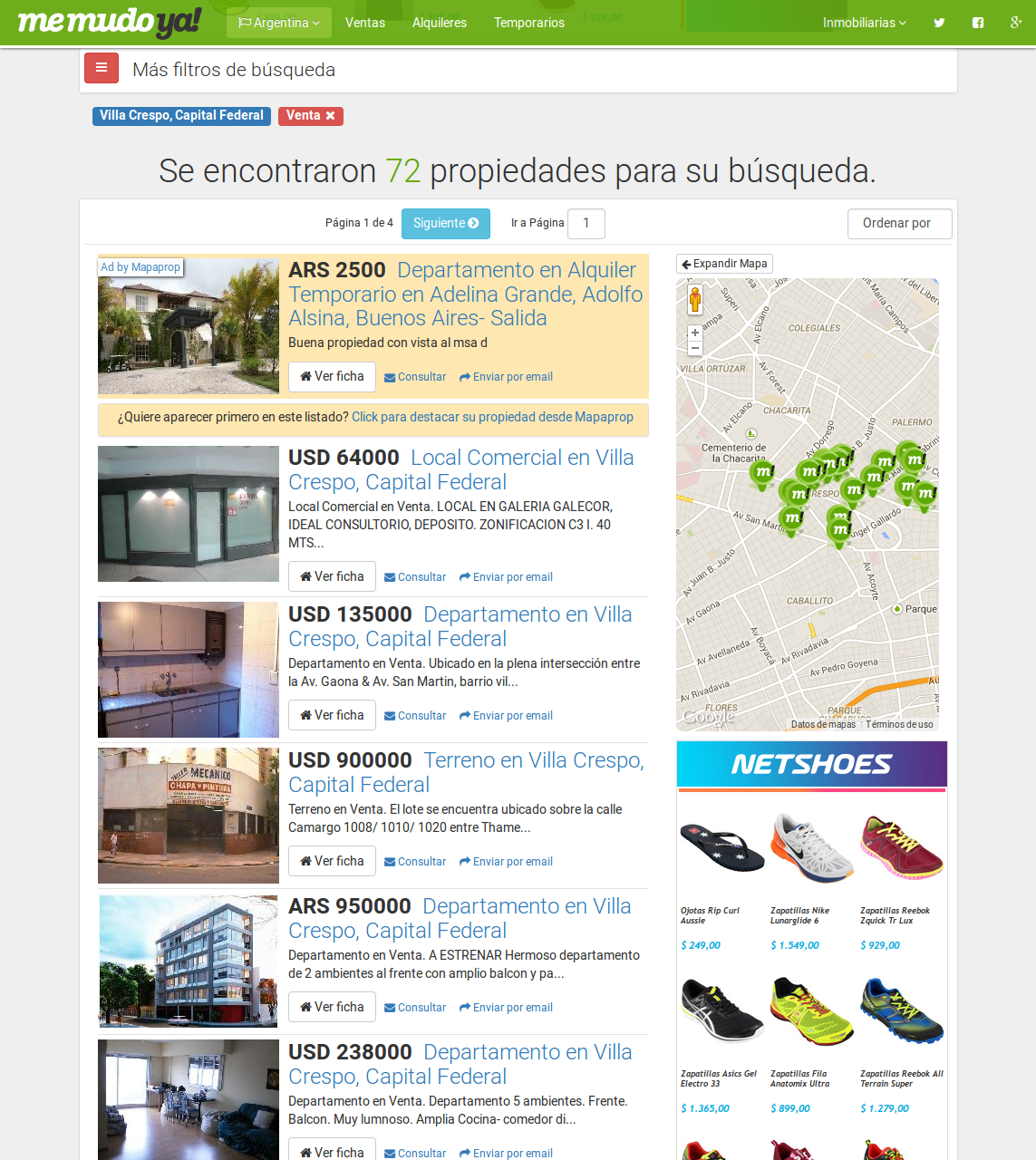
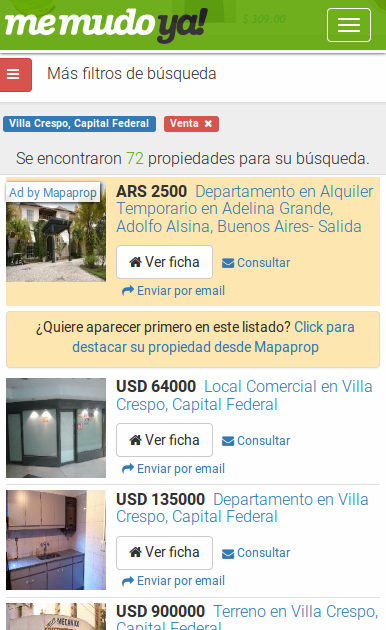
Now the property will be featured in the first position of the list for the zone you selected. If you chose the present day, the property will be displayed instantly:
To learn about the payment regulations for Featured charges on MemudoYa.com, click here.
Support
If you have difficulties with this help, you can report a problem by clicking here
Mapaprop.com | All rights reserved | Follow us on Twitter