
Attention: You can click on the images at any time to view them enlarged
Allowing file downloads from a page
Your website's management system doesn't allow attaching files directly to the system. To use a feature like this, you'll need to use a cloud file system, such as:
The steps for this operation are as follows:
- Upload your file to a cloud account
- Get the URL of your file
- Create text on a page of your website
- Insert a link in the text
- Save the page to see the download link
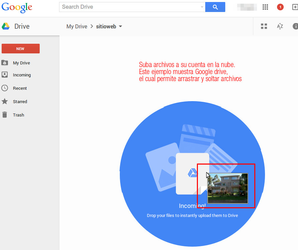
Upload your file to a cloud account
From an account on a cloud file system, upload the file you want to publish
Get the URL of your file
Find the way to get the link to your file. In Google Drive's case, it's with the other mouse button
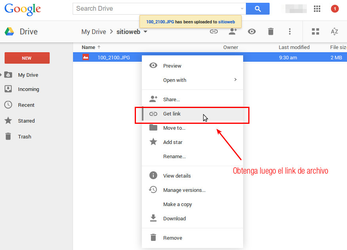
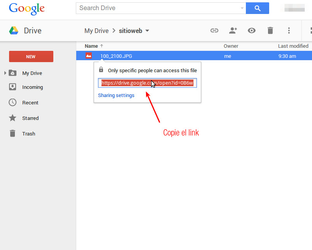
Click get link and then copy the URL shown
Create text on a Create page of your website
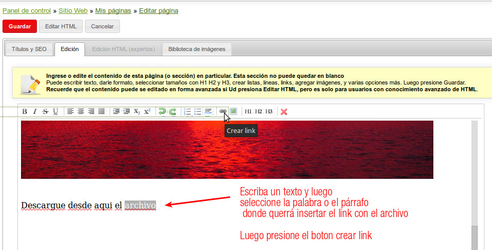
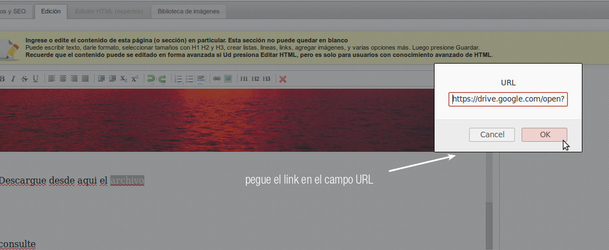
Write a text referencing the file, then select the portion of text where you want your website's visitors to click. Finally, click the How to insert links button
Insert a link in the text
With the insert link button, you can paste the URL of the file uploaded to the cloud. Click OK and then save the page.
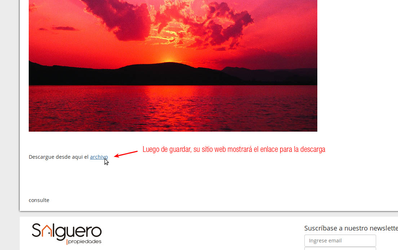
Save the page to see the download link
Once you click the save button, your website will show the text with the inserted link
If you want to know more, see the help article How to insert links!WARNING If you have difficulties with this help article, you can report a problem by clicking here