
Since February 1, 2024 there is a native blog system, so we consider that the functionality sought in this article is no longer necessary. Go to Blog > manage posts to learn about the features. However, we keep this article as a reference to understand how to build a navigation system between pages.
Mapaprop Websites does not offer a direct "blog" or news post feature. Despite that, you can easily adapt the system to have this functionality, keeping the following points in mind.
The concept is related to Building a navigation system between pages and would work as follows:
- Create a Create page that "shows in the menu", called Blog or News. It will be the page that contains the news list.
- Create a news item (Create page) with the specialized content, which does not show in the menu
- After creating the news item, Edit page Blog or News, using the Edit page tool, or the HTML Editing tool. To follow a traditional structure, it should form a visual list of news items. You can make it simple or complex. It all depends on your ability to edit text using the Edit page tool or to create HTML templates using HTML Editing: Write the same title as the news item, How to insert links to the news page. You can also use the Image library and a text that gives a preview of the news item. Finally separate the news item with a visual dividing line and repeat the scheme for a second news item using the same format. You can copy and paste and then change it.
This system's only drawback is that it does not have an automatic news list, but it indexes each page perfectly as a news post in the sitemap reported to Google, which lets Google know your content and index it to show it as a search result, all under yourdomain.com/page/blog
Other systems, such as sending a redirect to an external system, are not recommended, since it would be outside your domain, for example blog.yourdomain, and would not be included in your sitemap.
1 Create a Blog page
A blog page would be the page where you list the news items you'll be creating over time. You'll need to edit it manually to show each new news item in the list. You'll have to do this every time you create a news item or post.
To create the Blog page, you must create a page that shows in the menu and name it as you wish. Don't forget to use keywords and SEO Description
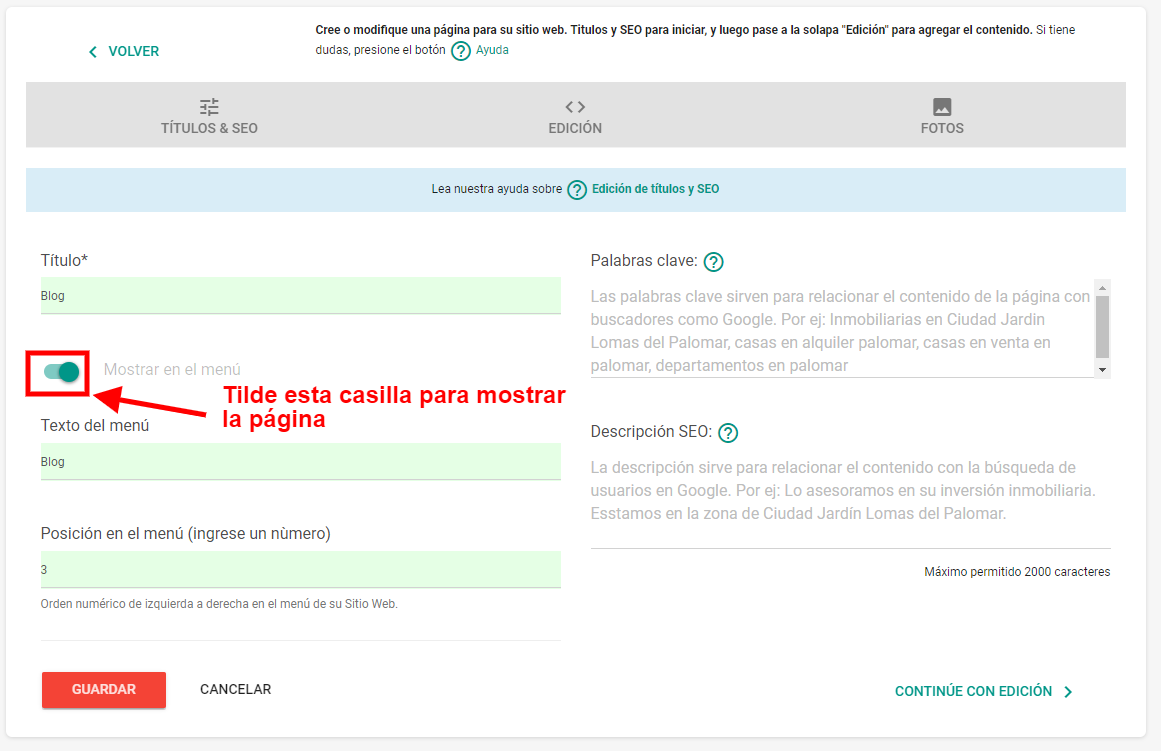
Save the page to continue with step 2. Keep in mind the URL of the blog page. It will usually be /page/blog
2 Create a page for a news item
The news or post page is where each of the news items you want to communicate is shown. This is the page where you should put the most effort.
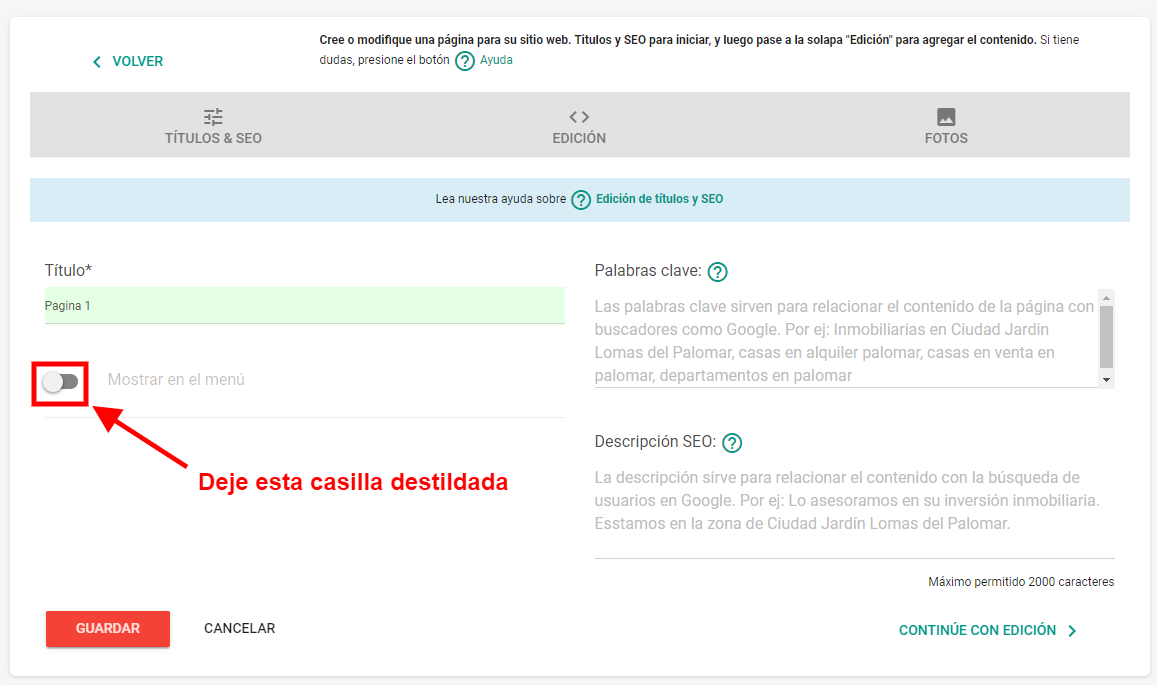
To generate it, you must Create page and leave the Show in menu checkbox unchecked so that it does not appear in the website menu.
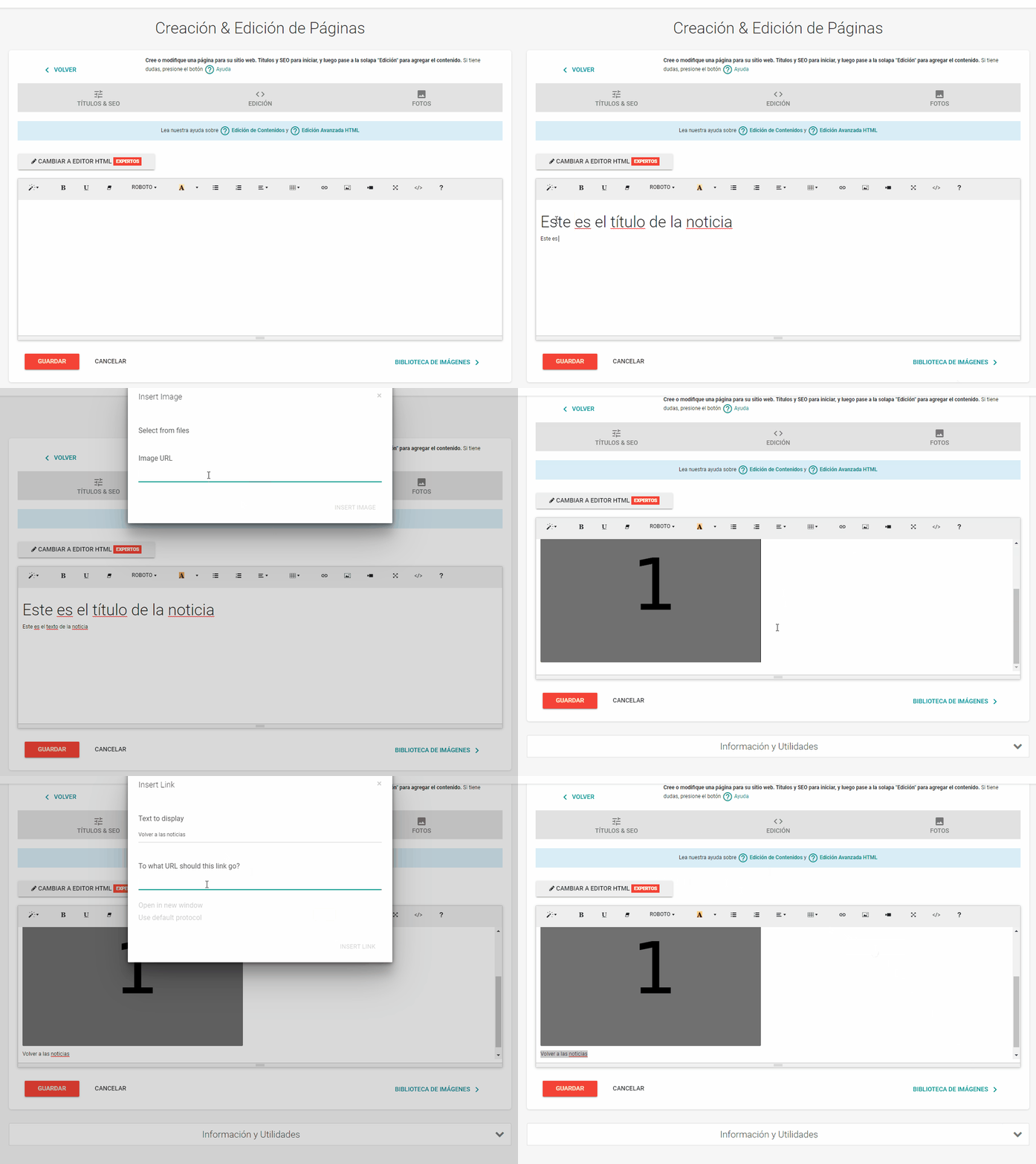
Create your content using our Content editing tool or the HTML Editing tool
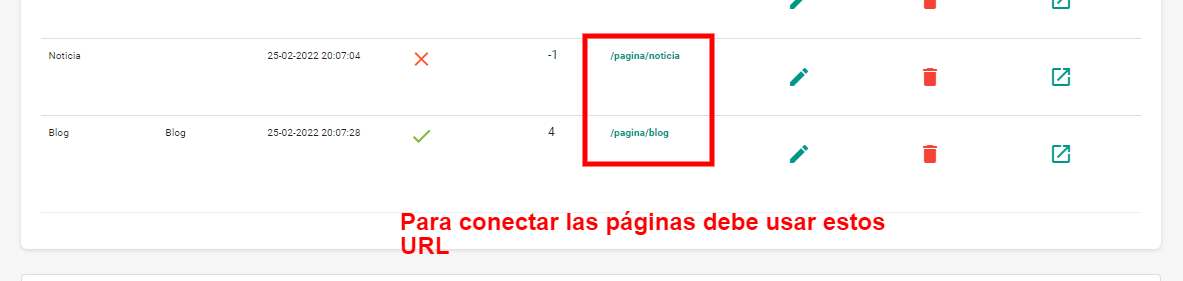
Remember that after creating the content for the news item or post, you must save it and take note of this page's URL. You can get the URL from the Manage pages or sections list.
Then you must go back to the BLOG or NEWS page to list it and allow visitors to your website to access the content.
3 List the news item on the Blog page
So now we have the "Blog" page and the news item page. Now you need to connect them. To do this, go to the Blog page (the one shown in the menu) and add links to each of the news items.
To edit the content of the BLOG page, you can use the traditional editor or the HTML editing tool
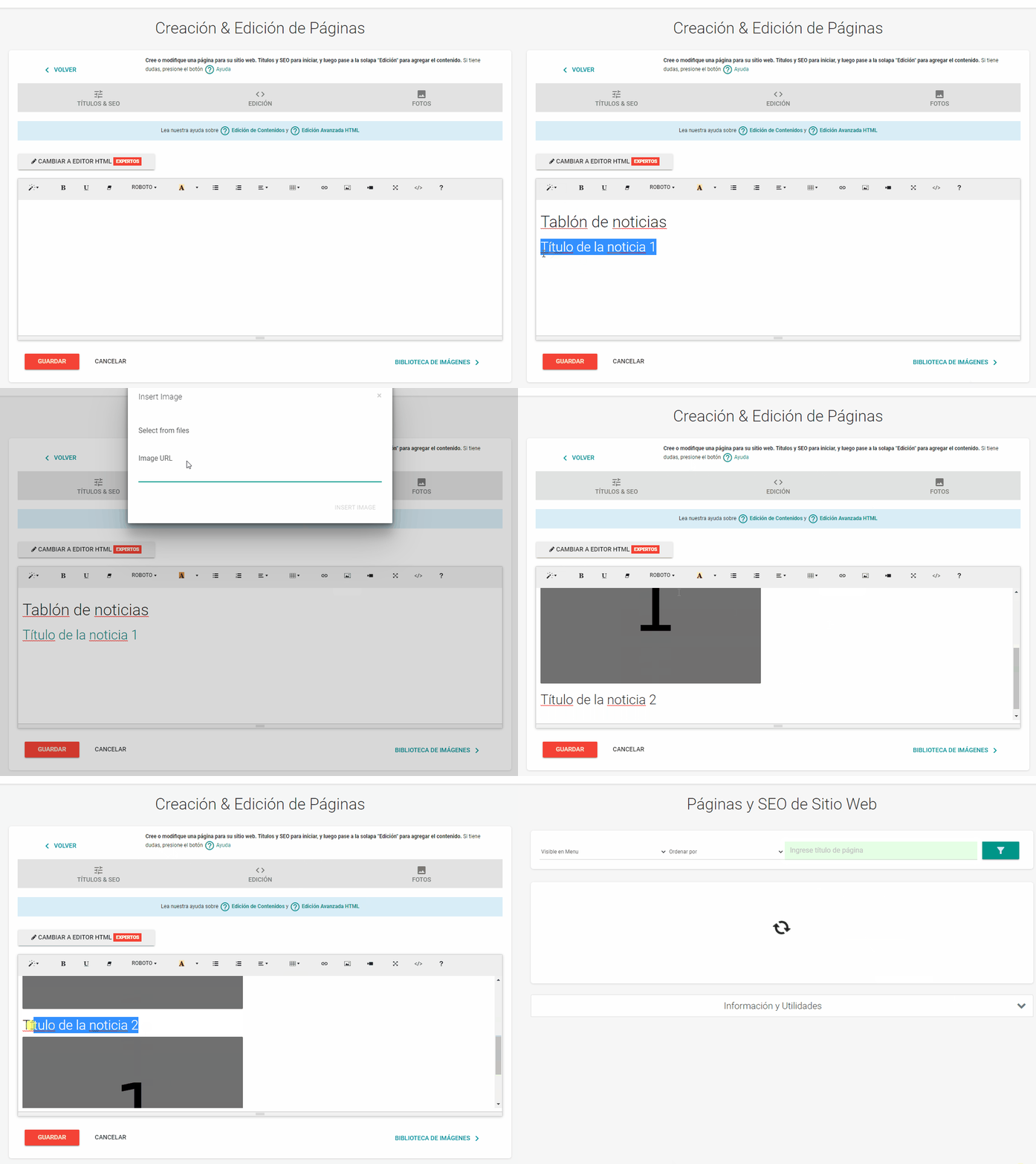
Keep possible designs for your news list in mind by searching the internet.
Related help
This page is a simple example using the Mapaprop editor; you can perform more advanced actions using HTML Editing