
This help article will show you how to validate the domain and set up your email administrator account.
Final Validation
1-Once you have received confirmation from soporte@mapaprop.com to activate your email, go back to Zohomail.com
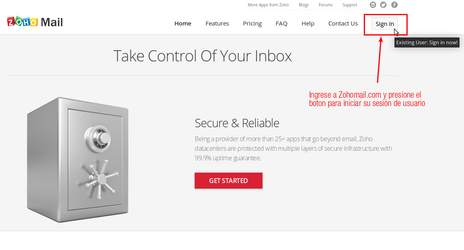
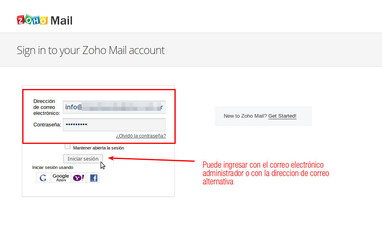
2-Enter your username and password
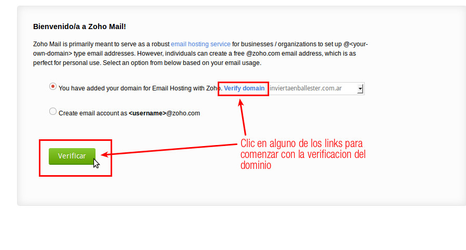
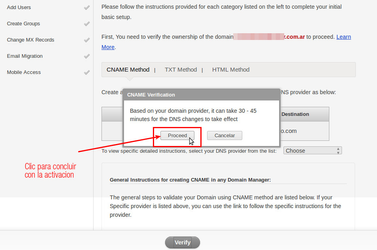
3-The process will guide you back to the same screen you entered during Zohomail > Domain verification. Click Verify.
4-Click the VERIFY button
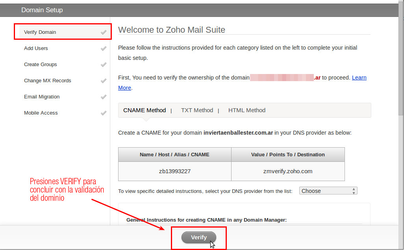
5-Click PROCEED to finish
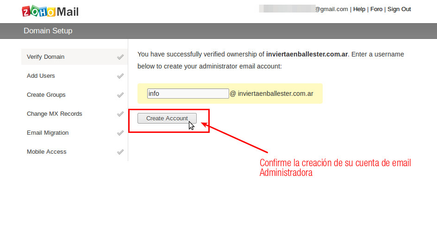
6-Now confirm your administrator account registered initially (e.g. info@yourdomain.com)
7-The process has finished. We recommend finishing the tutorial by clicking NEXT repeatedly to enter your mailbox. Even so, if you understand English, read the tutorial.
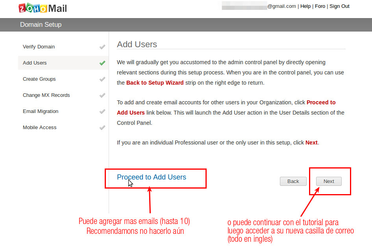
8-Once the tutorial is finished you can proceed to Zohomail > Mailbox settings
⚠ Note: Zohomail is not a Mapaprop service, and Mapaprop provides no guarantee regarding this service, nor owns it, nor manages it. The owner of the Zoho account is you, and you are free to use it with Mapaprop or any other hosting provider.