
⚠ Attention: this help article requires some advanced knowledge; use it for your own benefit and at your own risk.
index of this help article
Create advanced links to deliver search results
This help article will teach you how to create advanced urls to then build links that can be applied wherever you want, directing to specific search results for your website
A URL is an internet address. In this case we'll teach you how to use internet addresses for your site, created specifically so that when they are entered in the internet browser or used as links, they deliver property results according to a logic determined by you.
Introduction
When you do a traditional search on your website, pressing the search button of your search engine without selecting any filter, it will return all the properties on your website as a result.

These results, which are visible in the browser as photos and text, in a listing, have a specific internet address (url), which contains parameters that can be edited in an advanced way to get different results
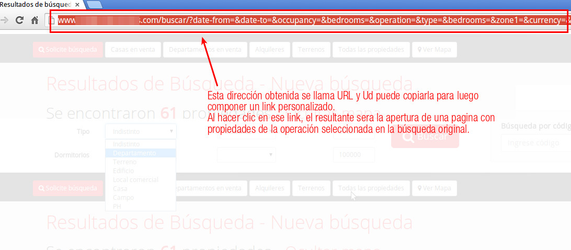
Simple usage mode
The simplest way to get customized urls is by doing customized searches. Select different options in the search filters and then press the Search button. See the example in this image
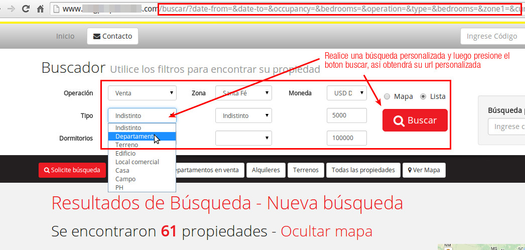
When you press the search button you'll get a url; copy it and use it as a link to show results from your website on your own site or on third-party sites.
Advanced usage mode
As we mentioned, copying the url of a given search result lets you build a link to show those same property results through a button or a link on your website or on third-party websites.
Important: For every URL you build to display property listings, you must provide the parameter &view=list&page=0 at the end of the URL; otherwise it will cause problems in the property list view
http://flex.mapaprop.com/buscar/?operation=&type=&bedrooms=&zone1=¤cy=&priceFrom=&priceTo=&view=list&page=0
For this case, the url is made up of a large number of parameters (surely unknown and hard to understand for you), which define which results are to be shown. Let's do a brief analysis.
Main URL: There is a main url, which is your website's address preceded by http:// and followed by a slash "/"
http://www.sudominio.com/
Search function (/buscar/?): Then there is a determination of the search function, defined by "/buscar/?"
http://www.sudominio.com/buscar/?
Search parameters: Finally there are precoded functions (parameters), which allow you to define the results to display
http://www.sudominio.com/buscar/?operation=&type=&bedrooms=&zone1=¤cy=&priceFrom=&priceTo=&view=list&page=0
For this case, we can already see that there is a base URL and then a large number of parameters that we still don't know (highlighted in bold)
In the next section, we'll begin to analyze these parameters to understand them and finally manipulate them to our liking, in order to get the results we want.
Search parameters
As we mentioned before, there is a base URL (internet domain preceded by http:// and followed by /buscar/?)
http://www.sudominio.com/buscar/?
and then a large number of parameters that we still don't know.
operation=&type=&bedrooms=&zone1=¤cy=&priceFrom=&priceTo=&view=list&page=0
Analysis of the parameters
Let's do a brief analysis of these parameters to get to know them and then be able to change them.
To begin, we can see that there is a character that repeats constantly, and it is "&". This character is a divider or concatenator (adder) of parameters: it lets you define the start of a new parameter.
operation=**&type=&bedrooms=&zone1=¤cy=&priceFrom=&priceTo=&view=list&**page=0
To understand it better, if I have a url like the following...
http://www.sudominio.com/buscar/?operation=&type=&view=list&page=0
It defines, after /buscar/?
- an operation type: operation=
- a property type: type=
- a view type for the results: view=list
- a results page number: page=0
All these parameters are concatenated with a "&" which allows you to insert parameters consecutively and thus build the search URL.
Remember that for any parameter to work you must always place /buscar/? before them
Now that we understand how a search URL is composed, let's see how to change the parameters to get URLs that show property listings with different results
http://www.sudominio.com/buscar/?operation=&type=&bedrooms=&zone1=¤cy=&priceFrom=&priceTo=&view=list&page=0
For this case let's analyze the parameters that make up the URL, after the domain (preceded by http://)
/buscar/?operation=&type=&bedrooms=&zone1=¤cy=&priceFrom=&priceTo=&view=list&page=0
It defines
- an operation type: operation=
- a property type: type=
- a number of bedrooms: bedrooms=
- a zone 1: zone1=
- a currency type: currency=
- a price from: priceFrom=
- a price to: priceTo=
- a view type for the results: view=list
- a results page number: page=0
All these parameters are concatenated with a "&" which allows you to insert parameters consecutively and thus build the search URL.
Now let's try changing this url to get a different result. For example, if I want to define a different number of bedrooms I'll change the url, specifically the bedrooms parameter, entering a new value, for example "1"
example 1: "bedrooms=1"
If you paste this URL into your browser's address bar, the result will be a listing containing all properties that have been defined with 1 bedroom
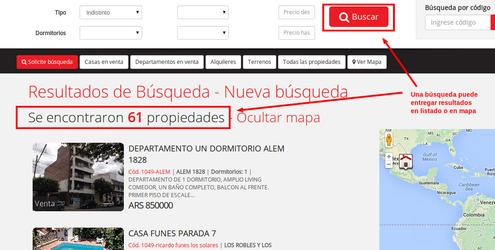
Now, if I want to define a specific operation (sale, rental or temporary rental) I'll change the operation parameter by adding a new value, for example 1 (sale)
example 2: "operation=1"
If you paste this URL into your internet browser's address bar, a page will be shown with results of properties with operation type 1 only (sale, operation=1), but also with 1 bedroom (bedroom=1).
Some usage examples
Important: For every URL you build to display property listings, you must provide the parameter &view=list&page=0 at the end of the URL; otherwise it will cause problems in the property list view
The minimum parameter to deliver a listing result is the following (defined as a url).
http://flex.mapaprop.com/buscar/?**view=list&page=0**
Where view-list defines a listing and page=0 defines a results page number. Both parameters are located after the url /buscar/? and separated by the & character
Map results
The minimum parameter to deliver a map result is the following (defined as a url)
http://flex.mapaprop.com/buscar/?**view=map**
For this case, view-map defines a result shown on a map. For this case, it will show all the properties on the website.
Results for a specific zone
The parameters to deliver results by zones relate to the zone coding based on zone1=&zone2=&zone3. This URL will deliver properties from all zones
http://flex.mapaprop.com/buscar/?zone1=&zone2=&zone3&view=list&page=0
Remember to always add the parameter &view=list&page=0 at the end of the URL !NOTE To get zone codes, we always recommend using the simple method of building urls, mentioned earlier in this tutorial. Use the search engine selecting your zones and press search, then copy the code.
http://flex.mapaprop.com/buscar/?zone1=16&zone2=&zone3=&view=list&page=0
Remember to always add the parameter &view=list&page=0 at the end of the URL
Now let's try to get results for a single zone2= for Argentina, Bariloche (600), dependent on zone1= Rio Negro (16), which would give the parameter zone1=16&zone2=600&zone3= This URL will deliver properties from the Bariloche department, Río Negro
http://flex.mapaprop.com/buscar/?zone1=16&zone2=600&zone3=&view=list&page=0
Remember to always add the parameter &view=list&page=0 at the end of the URL
http://flex.mapaprop.com/buscar/?zone1=16&zone2=600&zone3=5059&view=list&page=0
Remember to always add the parameter &view=list&page=0 at the end of the URL
For cases with the operation type "Temporary rentals" there is an option to manage bookings. Bookings block results: if you search between an arrival date and a departure date, only results for properties available to rent will be shown.
The parameters date-from=&date-to= allow you to build a URL that shows results of properties available between dates, for example...
http://flex.mapaprop.com/buscar/?date-from=05-06-2014&date-to=15-06-2014&view=list&page=0
Remember to always add the parameter &view=list&page=0 at the end of the URL
Occupancy results
For cases with the operation type "Temporary rentals" there is an option to manage the number of occupants.
The occupancy= parameter allows you to build a URL that shows results of properties available for a given number of people, for example...
http://flex.mapaprop.com/buscar/?occupancy=4&view=list&page=0
Remember to always add the parameter &view=list&page=0 at the end of the URL
Number of bedrooms results
For all cases there is an option to manage the number of bedrooms.
The bedrooms= parameter allows you to build a URL that shows results of properties available with a given number of bedrooms, for example...
http://flex.mapaprop.com/buscar/?bedrooms=2&view=list&page=0
Remember to always add the parameter &view=list&page=0 at the end of the URL
Currency type and specific price results
In all cases, you can search within a specific price range. For some countries, you can also choose the currency type.
The parameters priceFrom=&priceTo= allow you to build a URL that shows results of properties within a given price range, for example...
http://flex.mapaprop.com/buscar/?priceTo=10000&priceFrom50000&view=list&page=0
Remember to always add the parameter &view=list&page=0 at the end of the URL
For some countries, there is an option to show properties in various currencies. In that case, the currency= parameter will be used to show results in a specific currency, for example...
The parameters priceFrom=&priceTo= allow you to build a URL that shows results of properties within a given price range, for example...
http://flex.mapaprop.com/buscar/?currency=USD&priceTo=10000&priceFrom50000&view=list&page=0
Remember to always add the parameter &view=list&page=0 at the end of the URL
Results for a specific property type
The type= parameter allows you to build a URL that shows results of properties of a specific type (e.g. "office"), for example...
http://flex.mapaprop.com/buscar/?type=7&view=list&page=0
Remember to always add the parameter &view=list&page=0 at the end of the URL
Parameter types
This is a detail of the different existing parameters. Remember that using "&" will let you concatenate parameters.
| Parameter | Value | Usage example | Description |
|---|---|---|---|
| date-from= | date from | date-from=05-05-2014 | Defines an availability search start date (temporary rentals) |
| date-to= | date to | date-to=05-05-2014 | Defines an availability search end date (temporary rentals) |
| status= | Property status | status=1 | Defines a Property status according to the status table |
| occupancy= | Maximum occupancy for the property | occupancy=2 | Defines the number of people a temporary rental allows to host. |
| bedrooms= | Property bedrooms | bedrooms=2 | Defines the number of bedrooms a property has. |
| branch= | Property branch | branch=1912 | Defines a branch for the shown properties according to the branch code |
| zone0= | Property country - Zone 0 | zone0=1 (Argentina) | Defines a country for the property according to the country table |
| zone1= | Province - State - Zone 1 | zona1=16 (Rio Negro) | Defines a province / state for the property according to the available zones. Use the simple method to get this code |
| zone2= | Municipality - Department - Area - Zone 2 | zona2=600 (Bariloche) | Defines a zone within the province / state according to the available zones. Use the simple method to get this code |
| zone3= | Neighborhood - Locality - Commune - Town - Zone 3 | zona3=5059 (San Carlos de Bariloche) | Defines a zone within zone 2 according to the available zones. Use the simple method to get this code |
| priceFrom= | Price from | priceFrom=10000 | Defines a minimum price value to show results |
| priceTo= | Price to | priceTo=50000 | Defines a maximum price value to show results |
| currency= | Currency | currency=USD | Defines a currency for a price range search |
| operation= | Operation | operation=1 | Defines an operation type for the property according to the operation table |
| type= | Property type | type=7 | Defines a property type for the property. Use the simple method to get this code |
| view=list | List view type | view=list | Defines a way to show the results: list. Use it together with &page=0 |
| view=map | Map view type | view=map | Defines a way to show the results: map |
| page=0 | Listing page number | page=2 | Defines a page to start showing the results from. Always start with ZERO (0) |
Property status
The Property status is defined according to the following model
| Parameter | Value | Tips |
|---|---|---|
| status=1 | Excellent | |
| status=2 | Good | |
| status=3 | Needs renovation | |
| status=4 | Project | use it to list planned developments |
| status=5 | Brand new | use it to list finished developments |
| status=6 | Under construction | use it to list developments under construction |
| status=7 | Bad | |
| status=8 | Fair | |
| status=9 | Very good |
Property countries
The country parameters allow you to list properties according to the options available in Mapaprop
| Parameter | Value | Tips |
|---|---|---|
| zone0=1 | Argentina | use it to list properties from Argentina |
| zone0=2 | Spain | use it to list properties from Spain |
| zone0=3 | Uruguay | use it to list properties from Uruguay |
Property branch
The branch parameters let you list properties according to their code. Each branch has a unique code in your Mapaprop account. Get this code to build a URL from the branch editing screen in Mapaprop
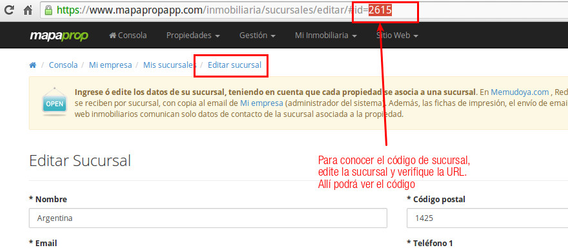
Property operation
The country parameters allow you to list properties according to the options available in Mapaprop
| Parameter | Value |
|---|---|
| operation=1 | Sale |
| operation=2 | Rental |
| operation=3 | Temporary rental |
⚠ If you have difficulties with this help article, you can report a problem by clicking here
Mapaprop.com | All rights reserved | Follow us on Twitter