
This help article will teach you how to create more email accounts.
Managing email accounts
Only with the administrator email account, which you created during Zohomail > Setting up a Zoho Mail account, can you access the Control Panel to create more email accounts.
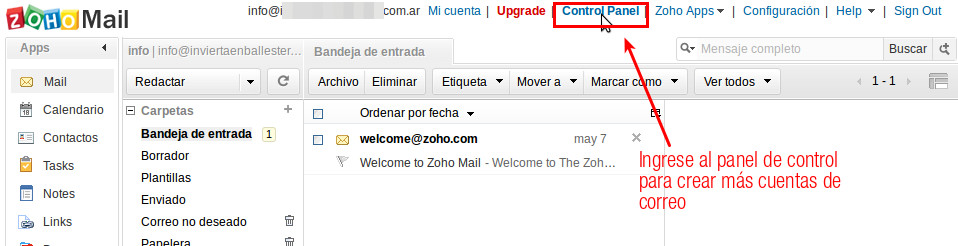
Click to access the control panel
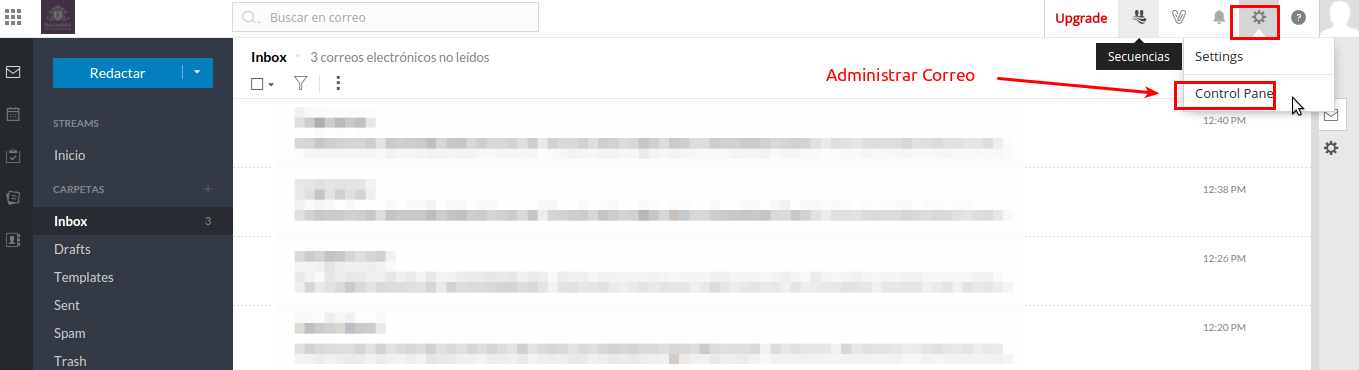
The new version of Zohomail has a different access point, as shown in the image above (Click to access the control panel)
At first glance you'll see the administration console. The language is generally English. Some buttons and text may be in Spanish if you changed the language.
To create more users (email accounts), click the USER DETAILS link
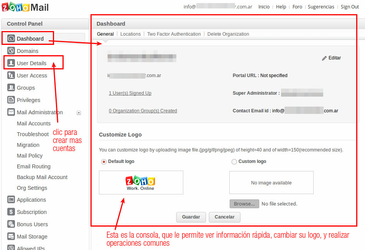
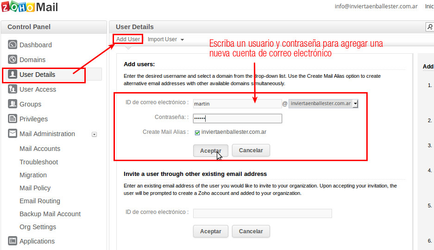
Click the User Details link to access the users view, and then Add User to create more users
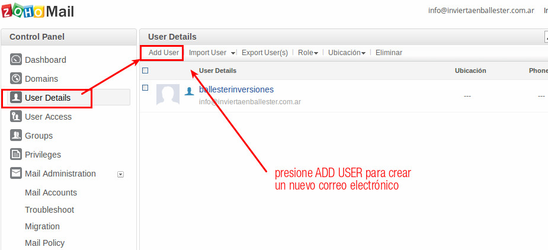
Now you can enter a username and a password, then click Accept
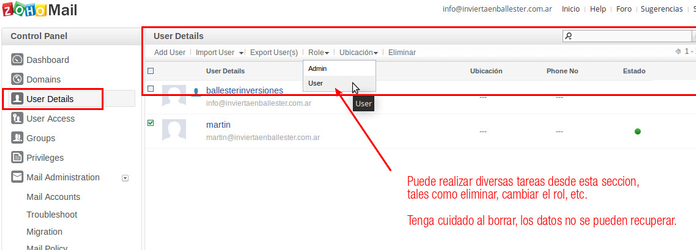
Now the new account appears in User Details, next to the administrator account. You can create up to 10 email accounts. From this screen you can perform various actions, such as assigning admin privileges, deleting the account, etc.
⚠ Attention: Zohomail is not a Mapaprop service, and Mapaprop does not provide any warranty regarding this service, nor is it the owner or administrator of the service. The Zoho account owner is you, and you are free to use it with Mapaprop or any other hosting provider.