
This help article will teach you how to set up your email client to download all incoming emails to your computer or mobile device
- POP Download
- IMAP Download
- Recommendations
- Zoho Tutorials (in English)
- Reading email from outlook.com
- New! App to read email from Android or Iphone
Downloading Email via IMAP
Downloading via IMAP is the most recommended option for use on smartphones. To enable the download, go to:
Settings > Mail > Email Forwarding > Access POP
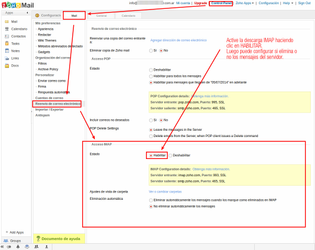
💲 Attention: To download email under POP or IMAP, you must subscribe to a paid account with Zoho.com
Incoming Server Settings:
Incoming Server Name: imappro.zoho.com Port: 993 Requires SSL: Yes
Outgoing Server Settings: Outgoing Server Name: smtp.zoho.com Port: 465 Requires SSL: Yes Requires Authentication: Yes
User Name: your Zoho mail address (e.g. info@yourdomain.com)
Email Address: your Zoho mail address (e.g. info@yourdomain.com) Password: your email password
How to set up the most popular email clients with IMAP:
Outlook | Thunderbird | Apple Mail | General
Downloading Email via POP
POP download is enabled by default for all email accounts, you don't need to do anything special, except configure your email client. For specific POP download settings, go to:
Settings > Mail > Email Forwarding > Access POP
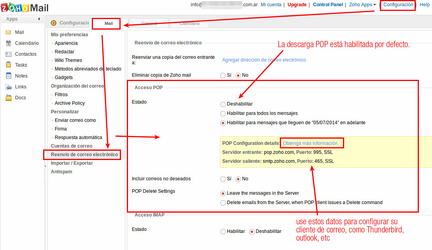
For the new ZohoMail design, access to the settings is shown in the image below
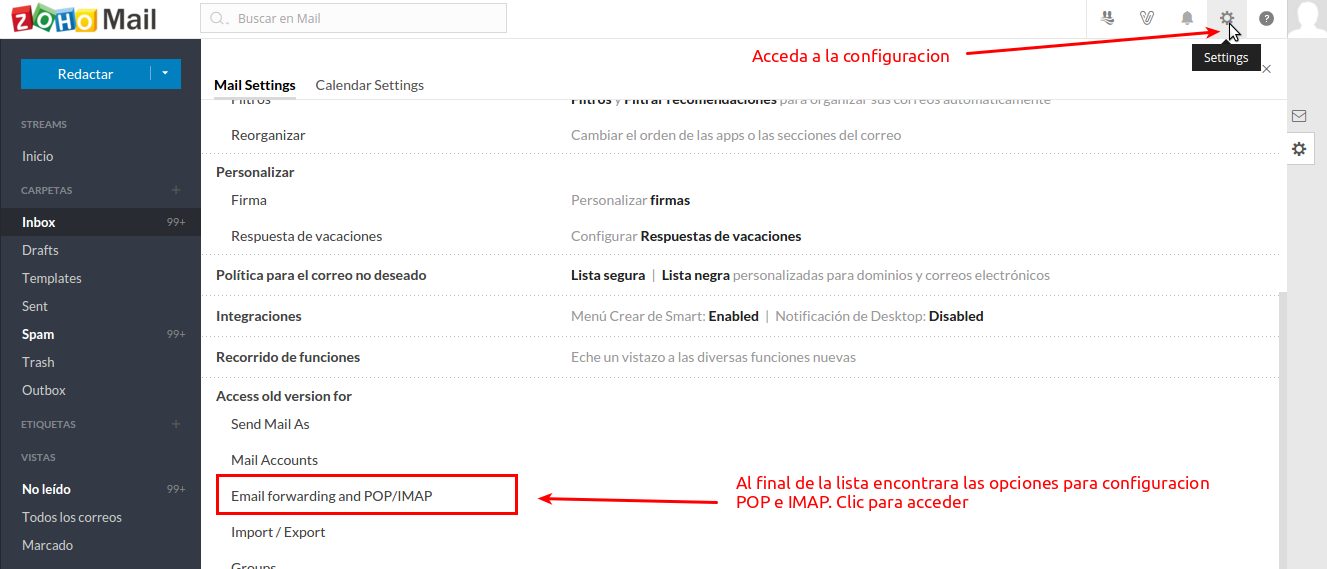
Attention:
To download email under POP or IMAP, you must first enable and set permissions from your ZohoMail account, as shown in the image above
Incoming Server Settings:
Incoming Server Name: poppro.zoho.com Port: 995 Requires SSL: Yes
Outgoing Server Settings:
Outgoing Server Name: smtp.zoho.com Port: 465 Requires SSL: Yes Requires Authentication: Yes
User Name: your Zoho mail address (e.g. info@yourdomain.com)
Email Address: your Zoho mail address (e.g. info@yourdomain.com) Password: your email password
How to set up the most popular email clients with POP:
Outlook | Thunderbird | Apple Mail | General
Recommendations
To download email to your computer, Mapaprop always recommends using IMAP over POP, using the Thunderbird software

Links to Zoho Tutorials (in English)
- Setting up in Thunderbird - click to view
- Setting up in Outlook under POP - click to view
- Setting up in Outlook under IMAP - click to view
- Setting up in Blackberry - click to view
- Setting up in Iphone, Ipad - click to view
- IMAP Access - click to view
- POP Access - click to view
- Import emails via IMAP (for Gmail) - click to view
Reading and sending email from outlook.com
It's possible to use Outlook.com to receive email from zoho.com. To do so, you must add the Zoho address from user name > account settings > Your email accounts, using the Add a send and receive account option
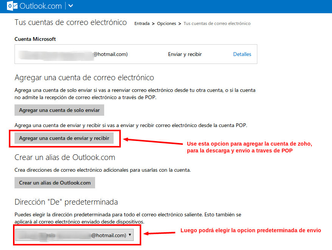
Afterward, you'll need to add the account, use the advanced options
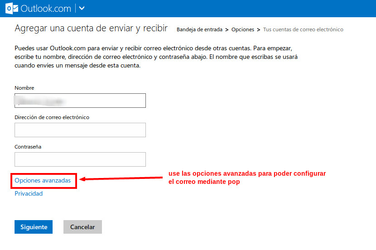
Keep in mind that you must first configure your ZohoMail account to send and receive via POP. Use the POP configuration
To see general outlook.com help, click here
Mapaprop does not provide any kind of support for setting up your outlook.com account
To import emails from other email accounts into ZohoMail, go to Settings > Mail > Accounts > Import Emails. ZohoMail lets you import emails from Gmail, Yahoo, Outlook.com, and any other account that supports IMAP. The import process may take several hours depending on the number of emails to import.
Here's some help on this:
- All import methods https://www.zoho.com/mail/help/adminconsole/migration.html
- Import via GENERIC IMAP (Gmail and others) > https://www.zoho.com/mail/help/adminconsole/imap-migration.html
- Import from Google Workspace > https://www.zoho.com/mail/help/adminconsole/gmail-to-zoho-imap-migration.html
- Import from Microsoft 365 > https://www.zoho.com/mail/help/adminconsole/office365-to-zoho-imap-migration.html
⚠ Attention: ZohoMail is not a Mapaprop service, and Mapaprop provides no warranty for that service, nor owns it, nor administers it. The owner of the Zoho account is you, and you are free to use it with Mapaprop or any other hosting provider.