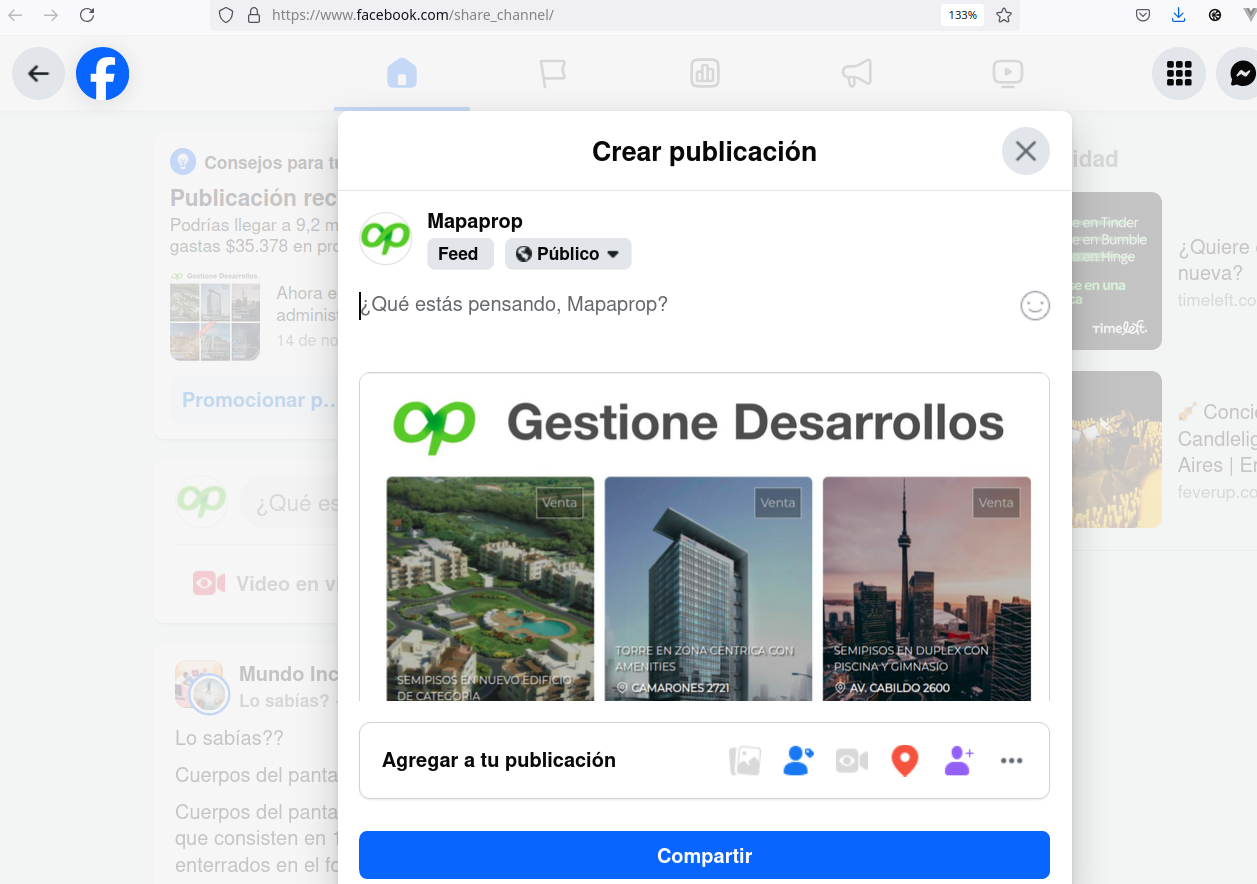
This error refers to the fact that the Share via Facebook system only works through a personal user.
What does this mean?
If you are connected to Facebook and have switched your profile to page mode, then the Facebook session does not recognize you as a personal user.
While in Mapaprop and pressing Share via Facebook, the system detects that you are not a personal user and shows that message.
"The user opted to leave the platform…"
Why does this happen?
Many websites continue running even when you have the browser tab closed. Facebook is one of those cases.
Usually, every time you access Facebook, you don't need to enter your username and password.
If the last time you were on Facebook the active user was not a "Person" type but a "Page" type, then the share system from Mapaprop to Facebook will not work.
To share on Facebook from Mapaprop, you must make sure that your last active user in your Facebook session is of type "Person".
The solution to the problem is simple. You must make sure the active Facebook user is a "Person" type. Do the following:
- Log into your Facebook account
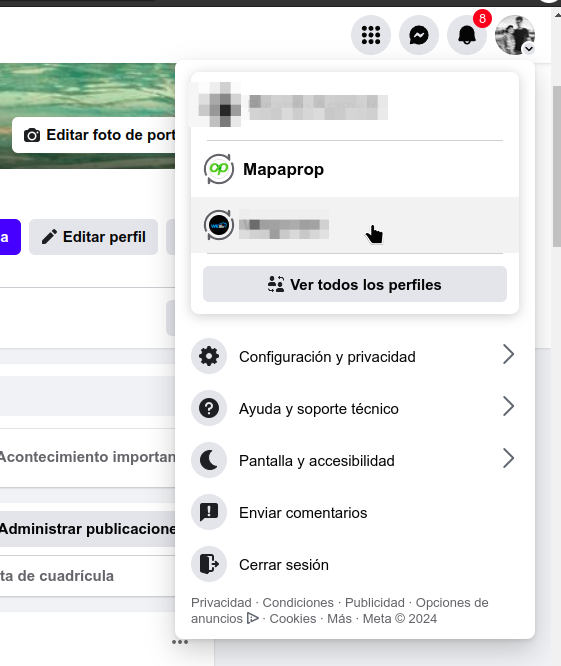
- Click on the user icon
- Check which user is active
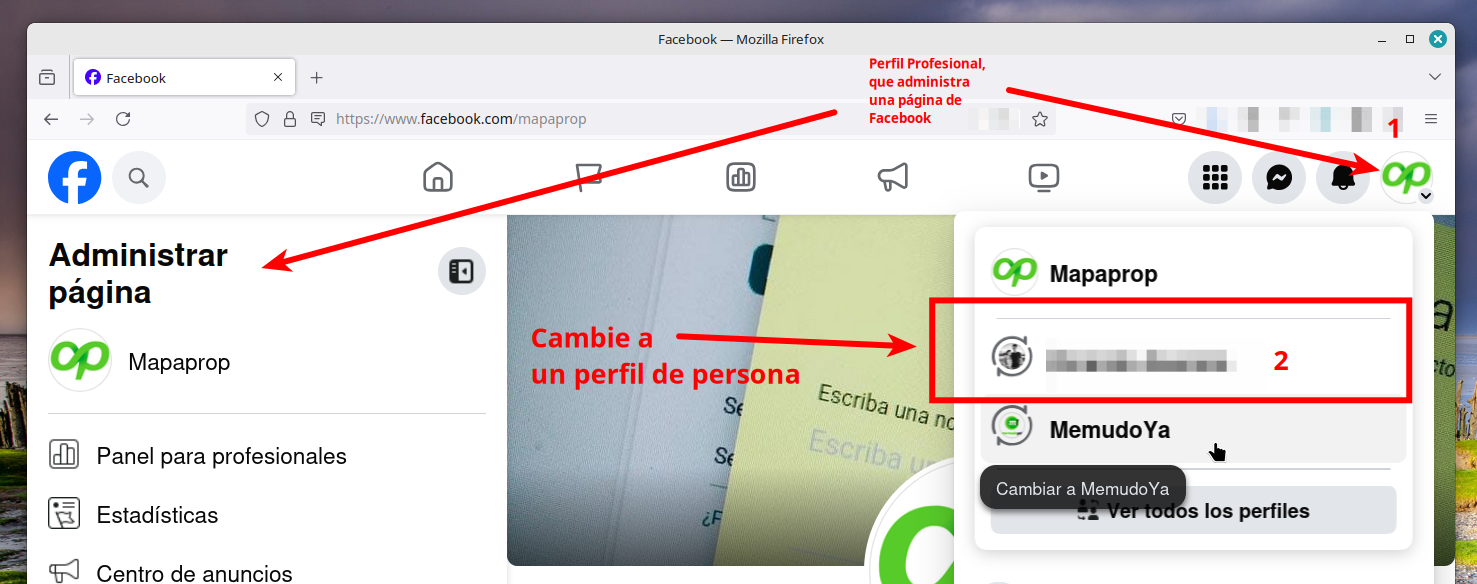
- IF you notice that the user is of type "Page", switch to a "Person" type user. You will usually recognize this by the names and user icons (avatars)
- Then, once you recognize the "Person" user, click on it
- From that moment on, Facebook reloads and shows your avatar in the user area
We recommend always using our efficient Connect with Instagram feature, which will let you Publish on Instagram and, from there, generate better posts for a Facebook page.
Publishing on Instagram and from there to Facebook
From Mapaprop, you can connect an Instagram account, which will then let you Publish on Instagram individual images or galleries.
This feature is only available for Professional Instagram accounts linked to a Facebook page from Meta Business Suite. https://business.facebook.com/latest/home. We recommend reading our help article on Connect with Instagram carefully.
From an Instagram post, you can generate better posts for a Facebook page.
To do this, follow these steps:
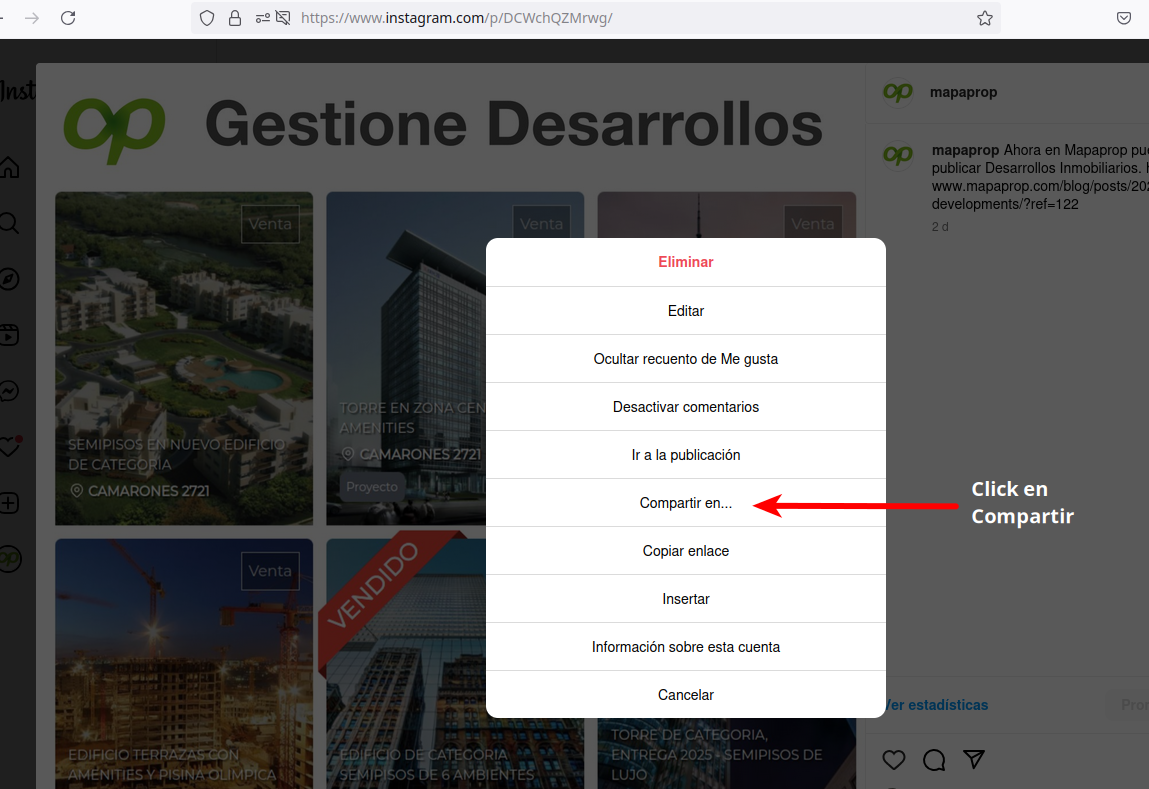
1. Click on the Instagram post options
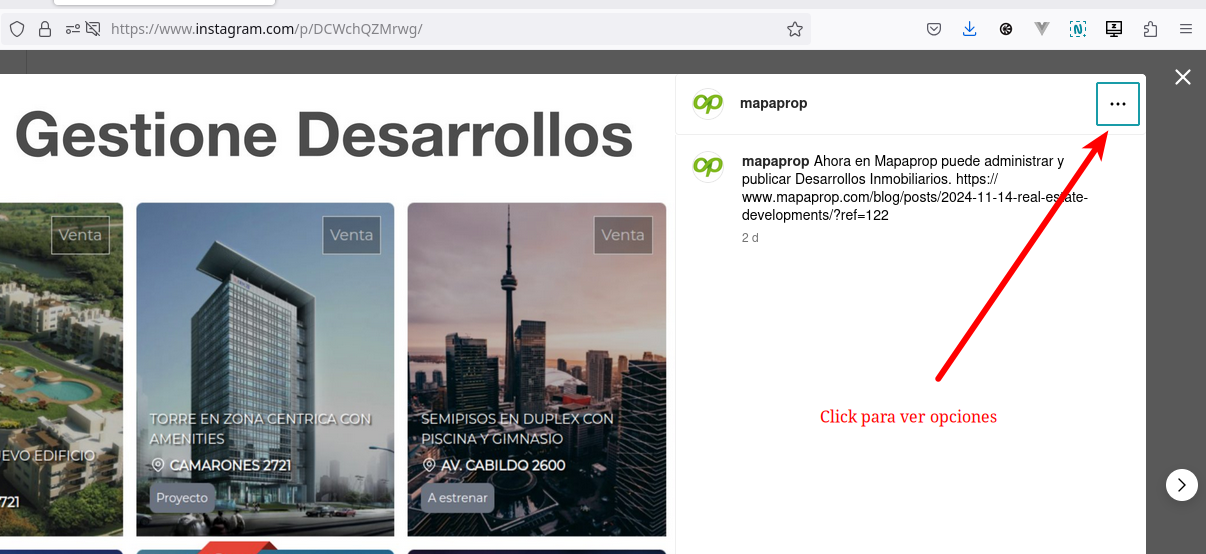
2. Click on Share to…
3. Click on Share to Facebook
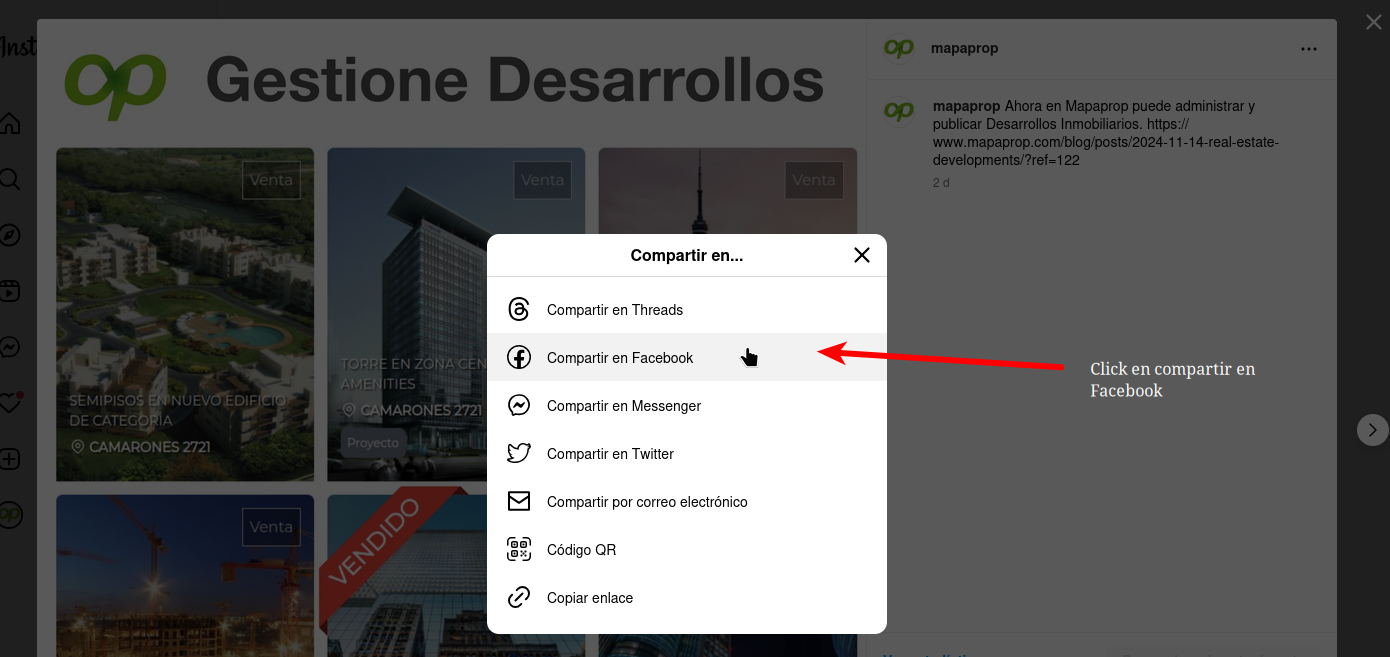
4. Now you can publish it directly to your linked Facebook page