
This help article will teach you how to add or change images when editing a property
Manage the property's images
There is no limit on the number of images, only a maximum size (10mb). Accepted formats: *.jpg, *.jpeg, *.jfif, *.gif, *.webp and *.png. The system also lets you take photos or upload images from your mobile device
From Property, access edit images either from the dropdown menu or from image > edit
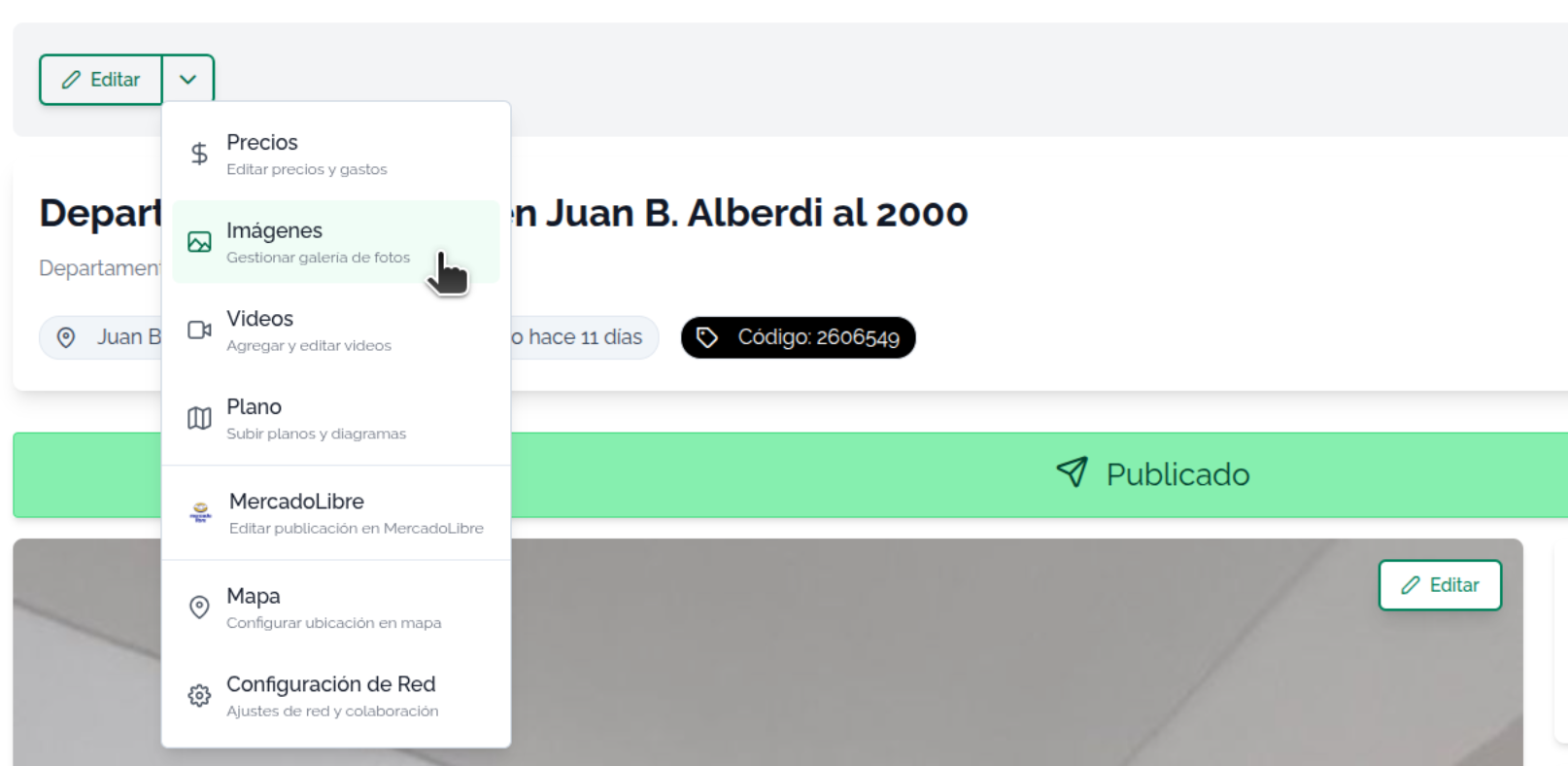
The image upload method is simple: drag and drop one or several images from a folder in your file explorer to the indicated area
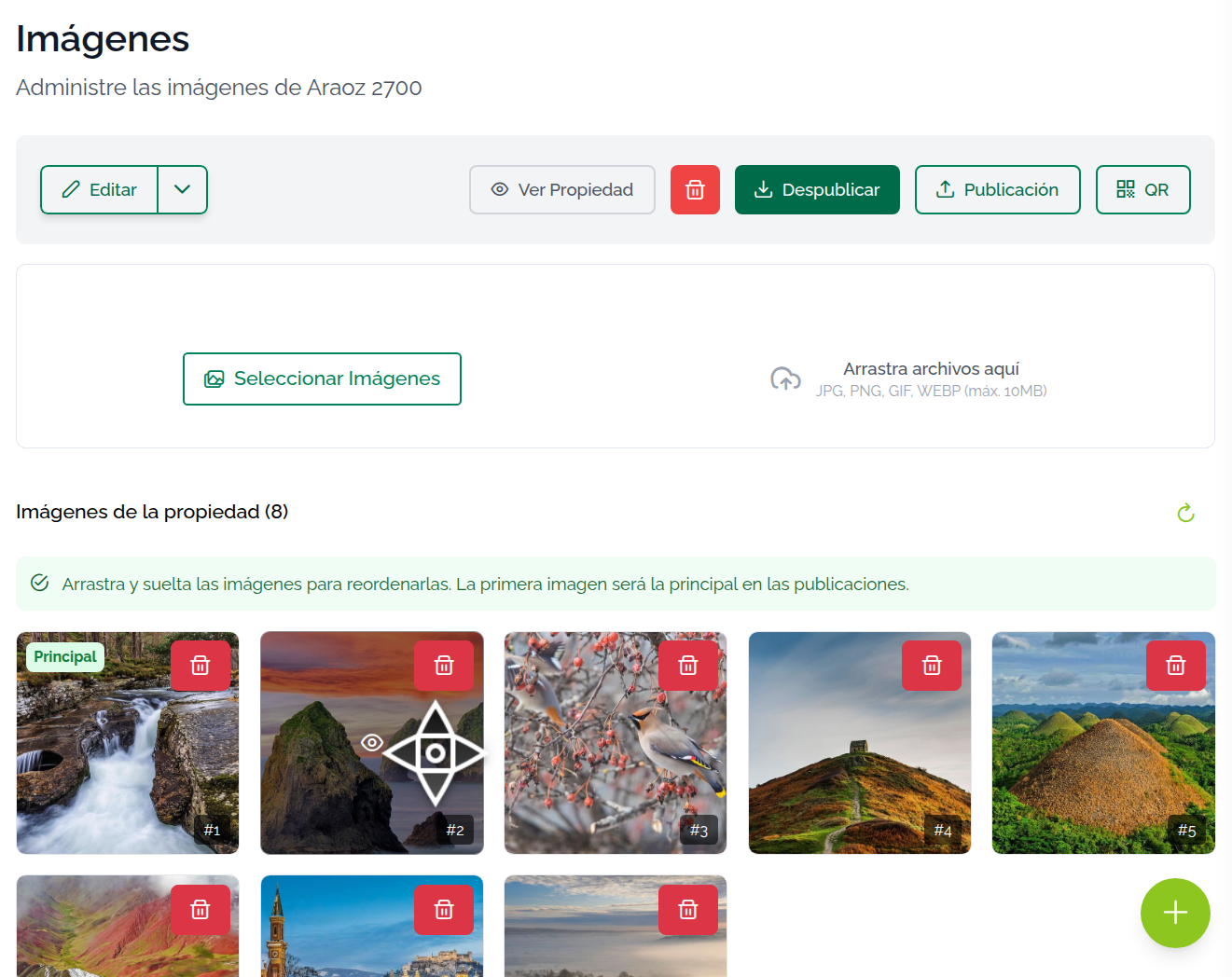
You can also click the "Select images" button to browse for files through your computer's dialog.
When an image is uploaded, it is processed to convert and optimize it. This process will take a few seconds until the image appears in the final listing. PNG images take a bit longer.
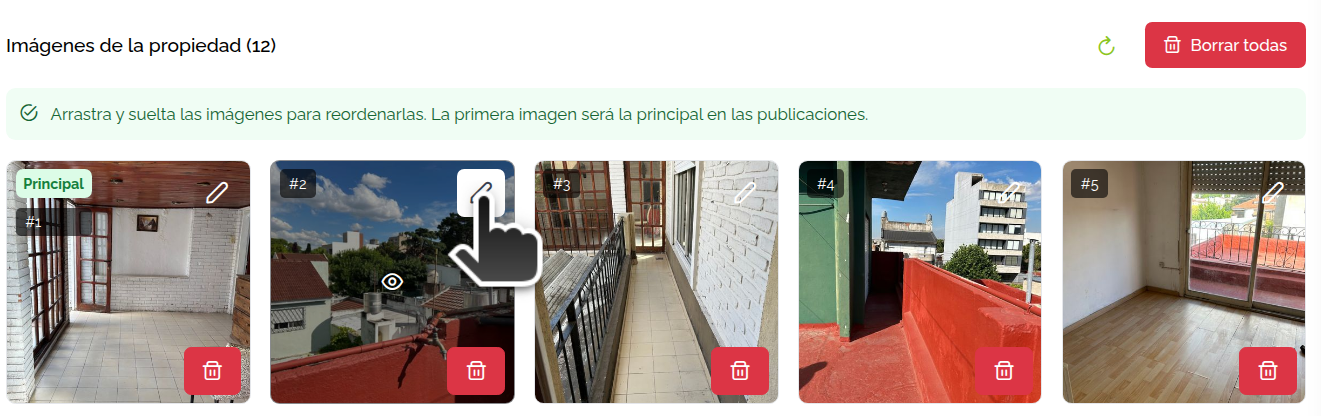
Once uploaded, the images are arranged in a grid.
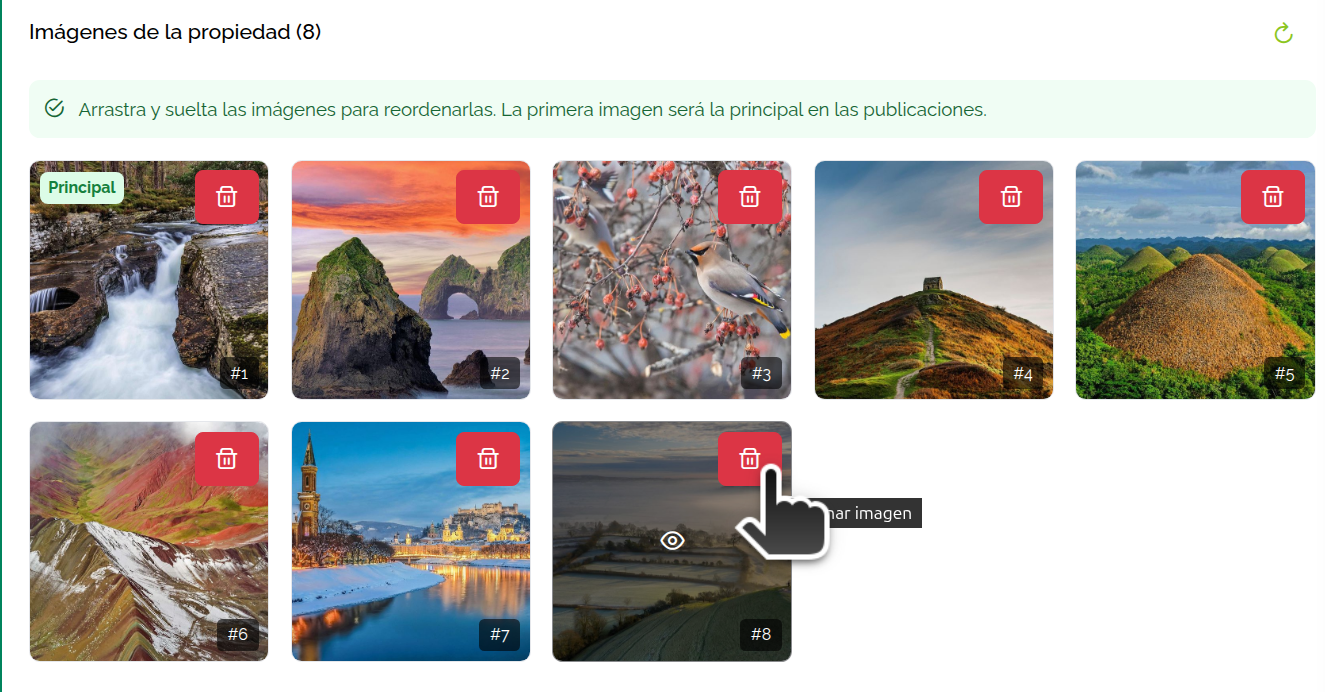
The main image is marked in red with the "main" label. The main image is always the first one.
Images are arranged in upload order, but the order can shift due to some images processing faster than others. The only way to keep the upload order is to upload one image at a time, but this only holds up to image 9 — with image 10 the order shifts. Sorting images is a Mapaprop Plus feature
The main image is the first and most prominent one. It's shown in listings, property records, printouts, emails, etc. When uploading images, the first one uploaded is always set as the main one.
To change the main image, simply reorder the photos by dragging and dropping (only with an active Subscription).
Clients without a Subscription can set the main image by EDITING the image and setting it as main.
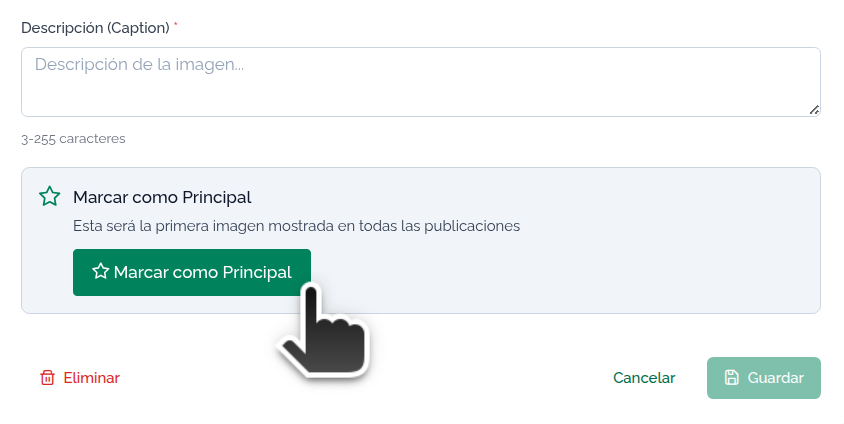
Attention: Setting a new main image will change the order of the photos.
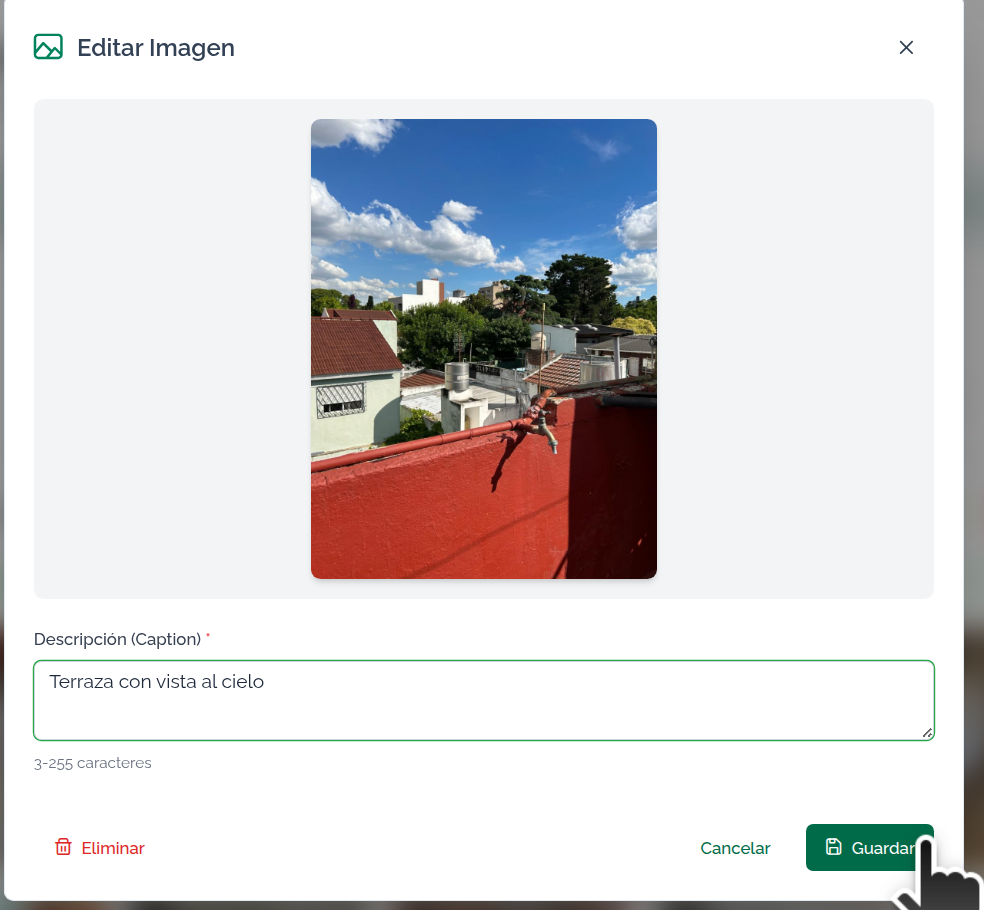
You can edit images to add a description, set one as main, or delete them completely.
Editing an image is very simple: set the image as "main", clear or write the description.
Sort images (only for Mapaprop Plus subscribers)
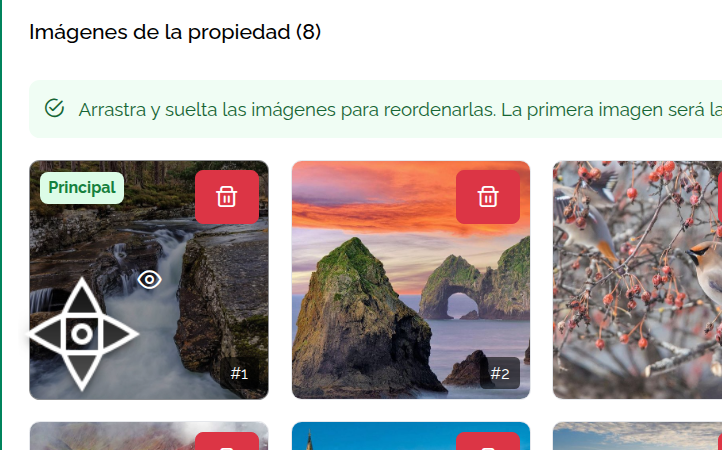
Sort images using the arrows that let you change the order of the list.
Hold your mouse or finger over the image and drag it wherever you want.
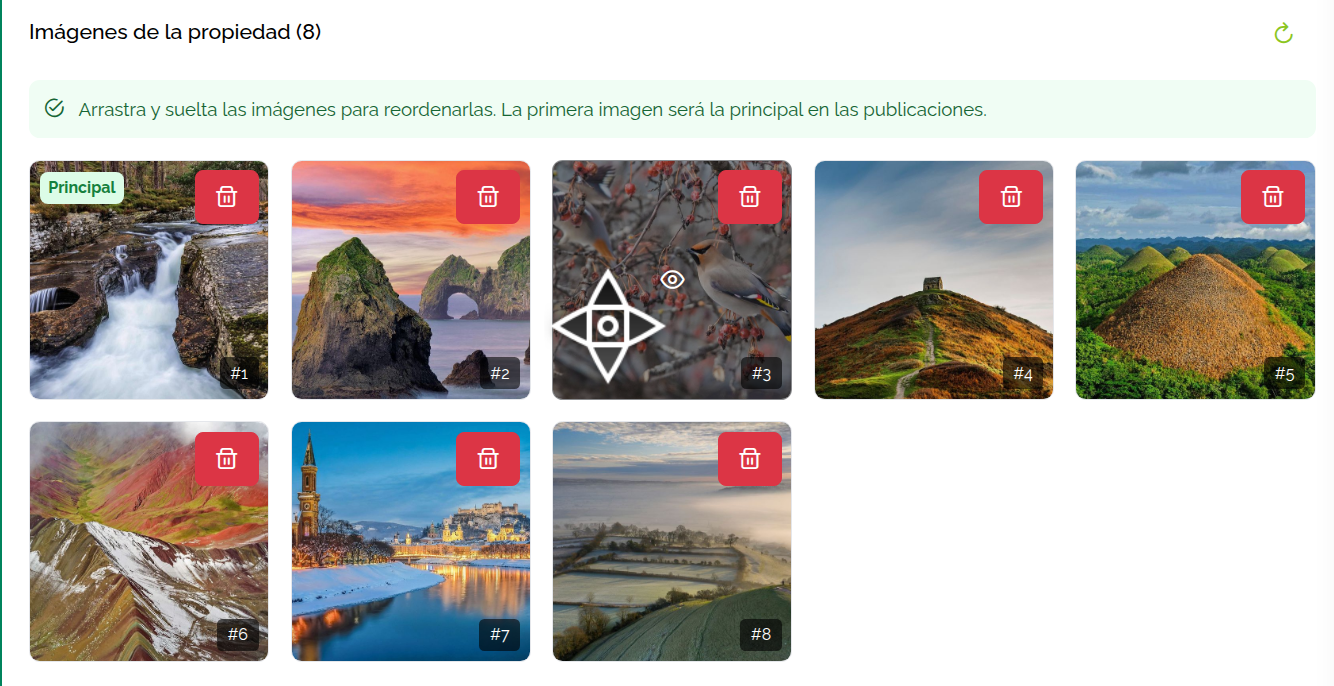
Wherever you drop the image, it will be placed there
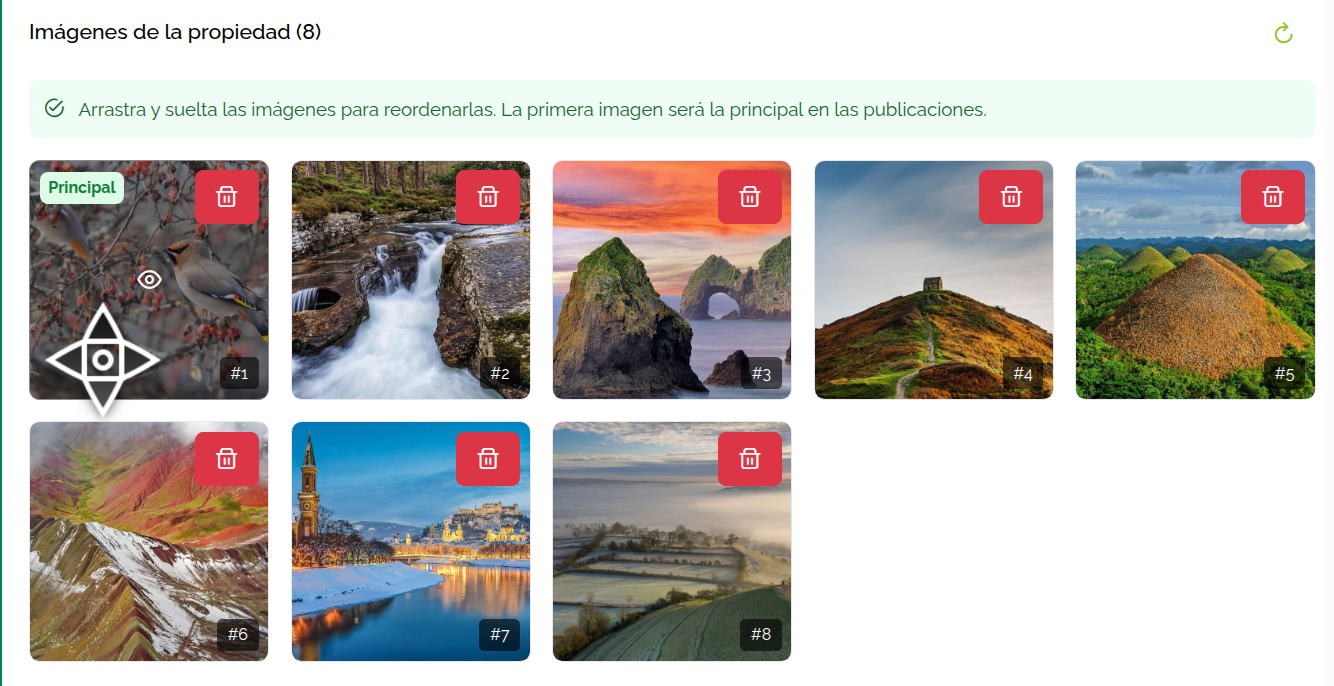
For non-subscriber users, the order of images is set by upload order. But the order is only kept from image 1 through image 9
Keep in mind that to move the last photo from its position, you'll need to tap the right arrow of the previous photo.
- Image order: Images are ordered by upload order, regardless of the file name. When uploading several images simultaneously, whichever finishes uploading first will be first in the order. This won't necessarily respect the order you assigned, so if you want a strict image order, upload one image at a time. Only Mapaprop Plus users can sort images.
- Avoid using images with names containing strange characters: Images with names that include characters like ñ Ñ / ° ? = ! " ( ) etc, should be avoided, since these can cause problems when uploading them. Solution: rename your images to remove those characters.
- Editing images: shrinking, rotating, cropping, optimizing images: If you want to optimize your images before uploading them to Mapaprop, we recommend using Xnview
- Rotated images: Some mobile phones have a specific position for taking photos, and print "orientation" metadata on them. Since March 19, 2021, Mapaprop has an automatic orientation detection and auto-rotate feature for images, so you should never have issues with images appearing incorrectly rotated. If you notice problems, please report them.
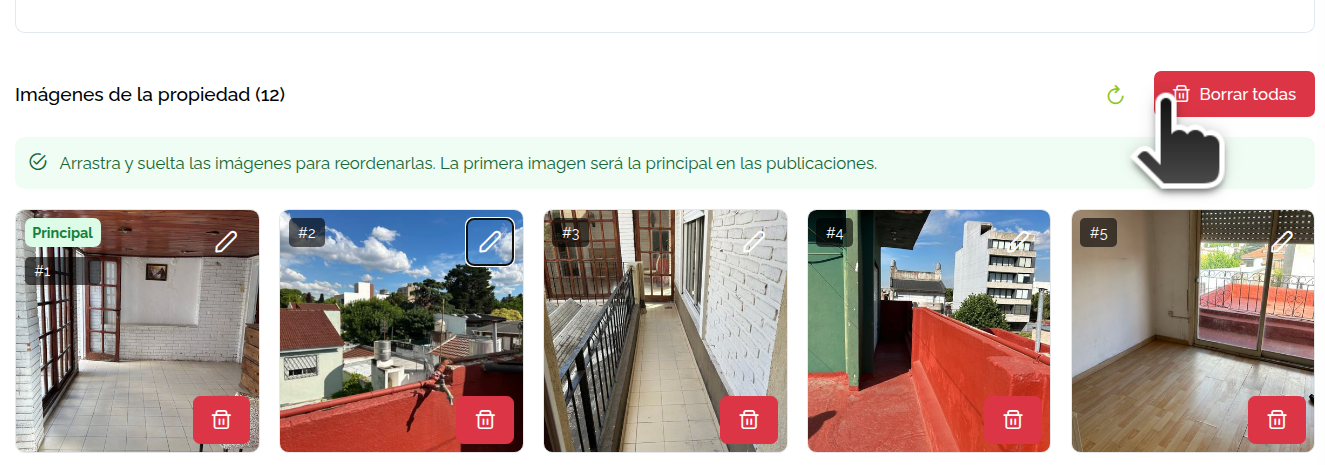
- Delete all images: You can delete all images using the "delete all" button. Only for users with an active Subscription
In summary...
- Uploading multiple images at once won't keep the desired order.
- Uploading and processing take a few seconds, so images take a while to appear.
- For users without Mapaprop Plus, the order is only kept from image 1 to 9. When uploading a tenth image, the system rearranges all images except the main one.
- Sorting photos is a feature exclusive to Mapaprop Plus users.
- Photos with EXIF orientation information are automatically rotated for correct display.