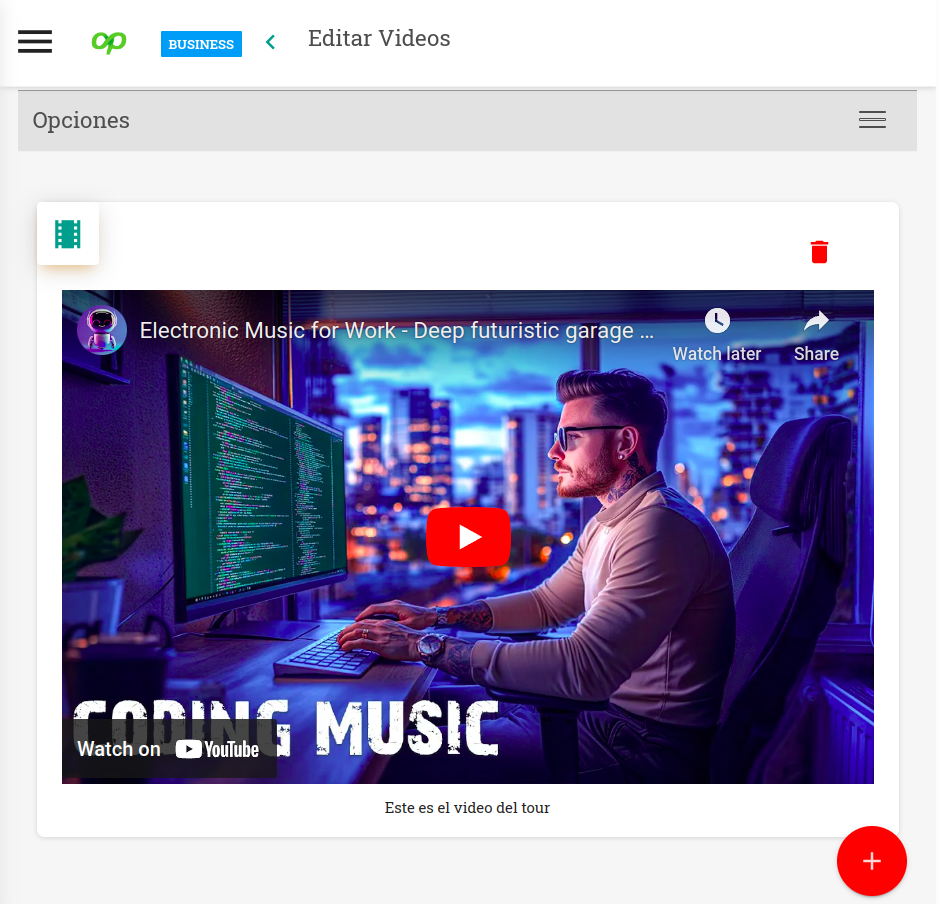
This help article will teach you how to add videos to a property, whether from Youtube or Matterport. In addition, the system allows you to insert any type of video from any source (360° videos, 360° photos, 360° tours, or conventional videos). The method Mapaprop offers lets you add videos without limits.
Help contents:
Adding videos to the property
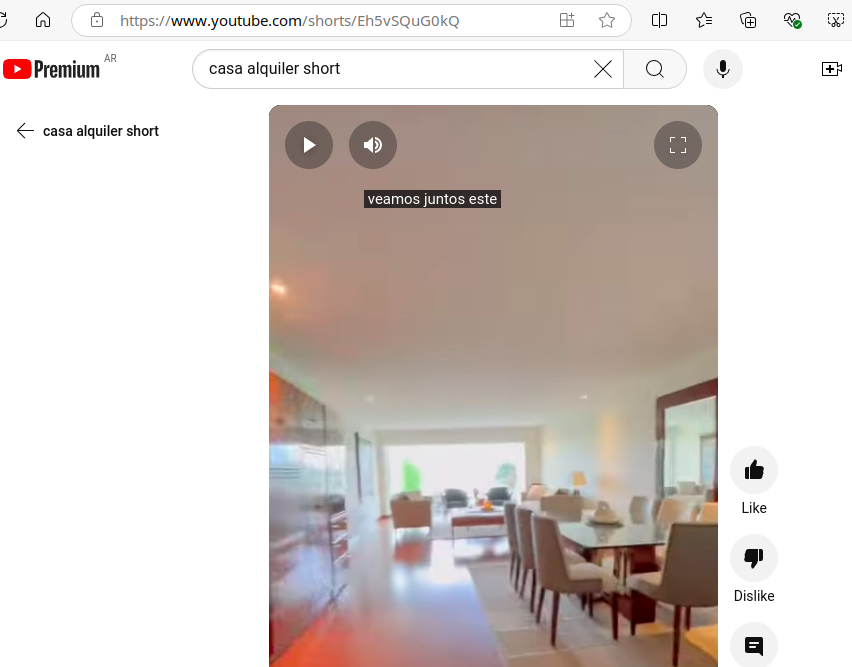
Since November 13, 2024, the Mapaprop system accepts any type of YouTube video, including shorts. Videos are now added directly by pasting the URL, although you can also use the previous system, which also lets you add any type of video.
Accessing the videos section
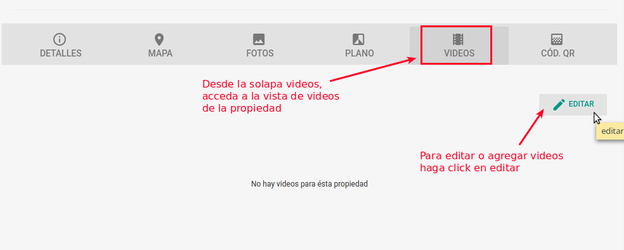
From the videos tab, in the Property record, you can insert videos (you must first have the code mentioned above). To add one, look for the Videos section and press EDIT.
Adding YouTube videos
To add YouTube videos to your property in Mapaprop, follow these simple steps:
Step 1: Copy the URL of the YouTube video you want to add.
Step 2: Press the "Add Video" button or link to add a new video.
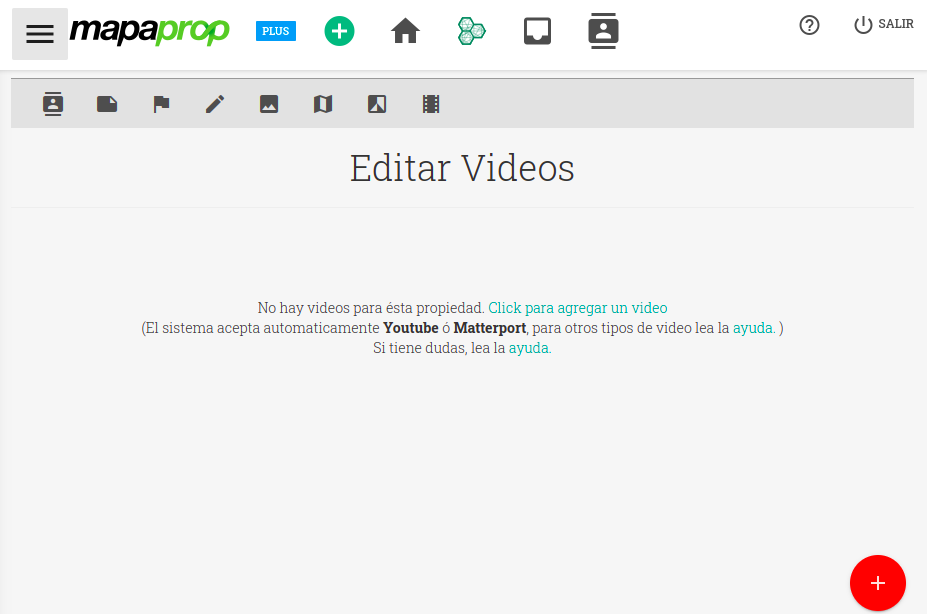
Step 3: In the corresponding field, paste the YouTube video URL you copied.
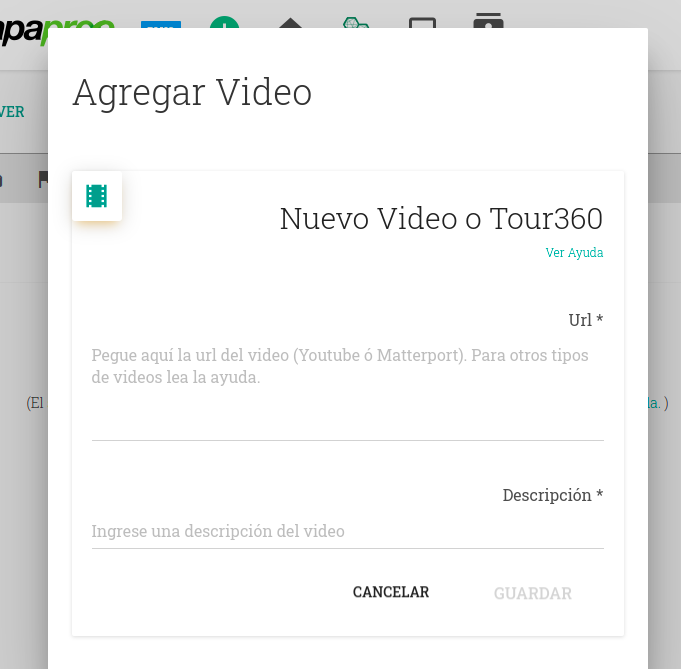
Step 4: Add a description for the video (required). Click "Save" to add the video to your property.
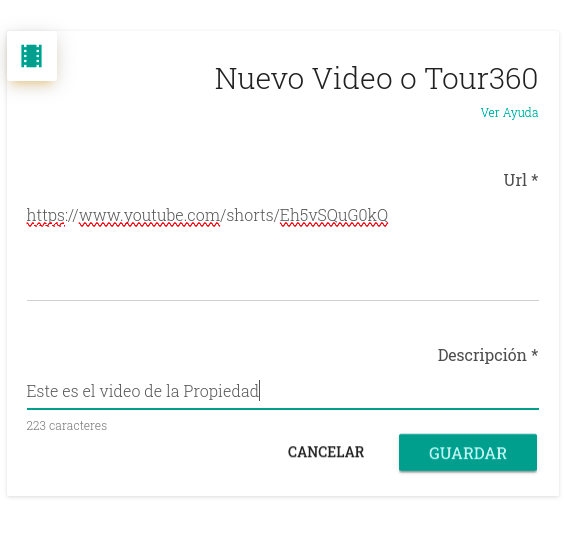
The system will automatically process the URL and display the video on the property record. It will now be shown across all compatible publication systems. You can keep adding videos without limits, remove them with the delete button, or go back to the Property record.
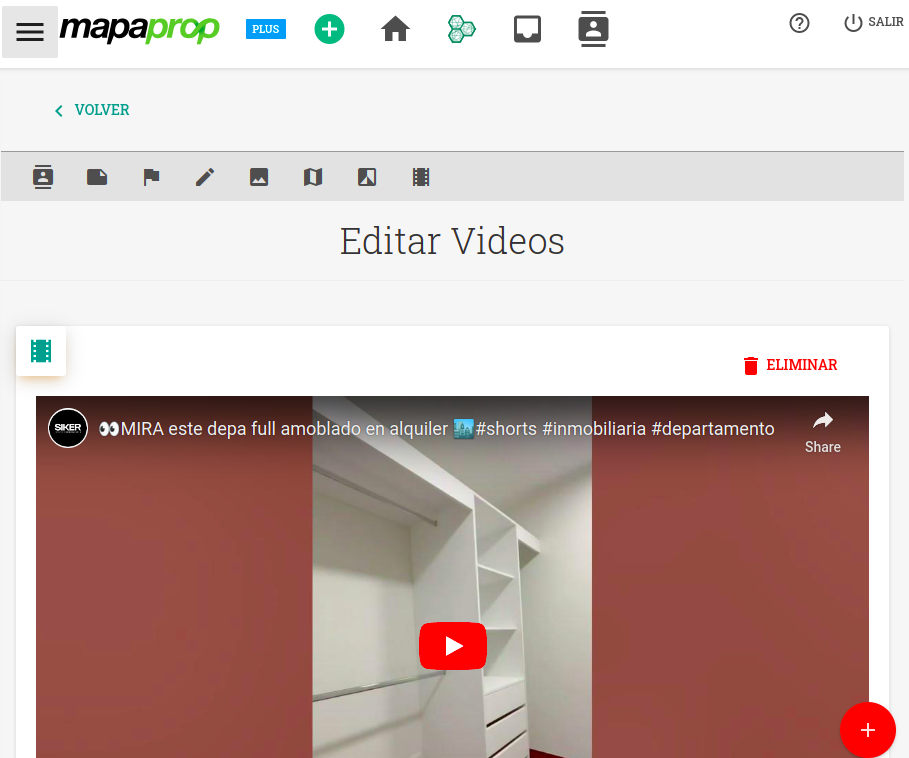
You can add multiple videos to the same property. Press the + (New video) button to add more videos.
To add Matterport videos to your property in Mapaprop, follow these steps:
- Copy the URL of the Matterport virtual tour you want to add.
- On the property record, find the "Videos" section and click "Add Video" or "New video".
- Paste the Matterport tour URL into the corresponding field.
- Add a description for the virtual tour (required).
- Click "Save" to add the Matterport tour to your property.
The system will automatically process the URL and display the Matterport virtual tour on the property record.
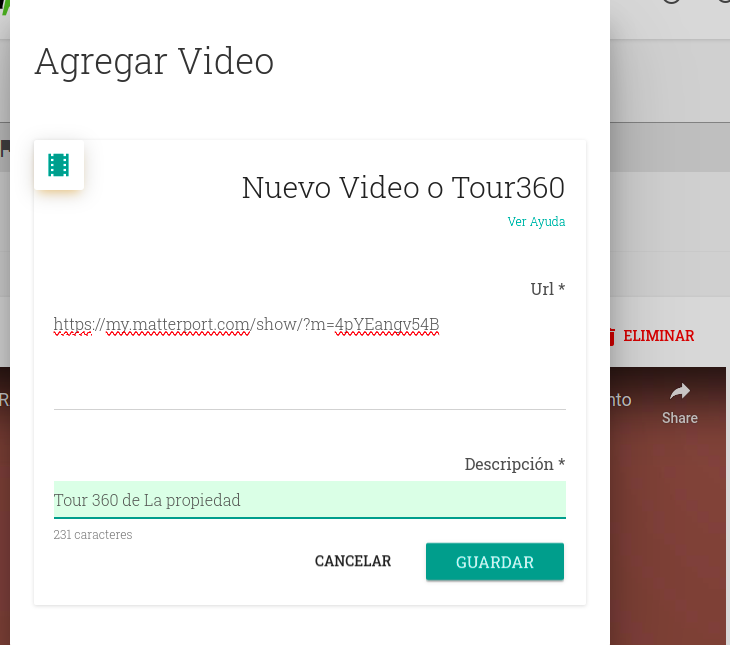
Just like with YouTube videos, you can add multiple Matterport tours by repeating this process.
Adding other types of videos and content
Other types of videos and content are not processed automatically by Mapaprop when you copy and paste the URL. However, it is still possible to add this content to Mapaprop.
To add unsupported content directly, you need the embed code. This code is usually provided by the platform where your content is hosted (such as YouTube, Vimeo, RoundMe, etc.). In some cases, it may need to be composed manually.
This help article mainly refers to YouTube videos, but the same method can be used to embed 360° photos. Always look for the embed code on your hosting platform's website, whether for videos, 360° photos, or 360° videos. This code can be inserted the same way as explained in this guide. Have questions? Feel free to report an issue.
Here's an example of how to get a YouTube video:
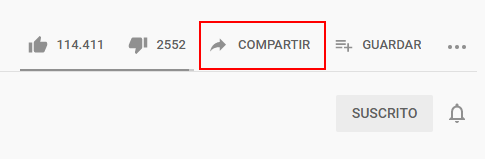
Step 1: Tap the "SHARE" button located below the video.
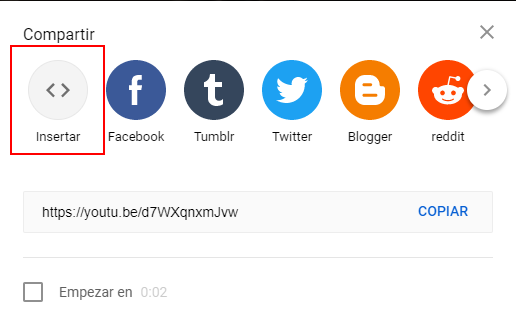
Step 2: Press the "Embed" button.
Step 3: Here the code needed to load the video into Mapaprop will be shown.
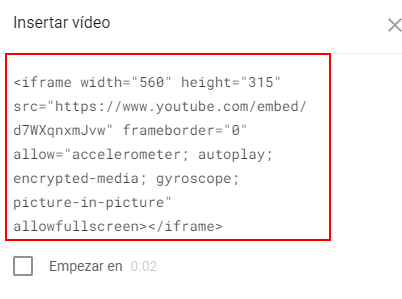
This is an example of the code provided by YouTube (see YouTube help) to copy.
<iframe width="560" height="315" src="https://www.youtube.com/embed/aWGzr-kOoQY" frameborder="0" allow="accelerometer; autoplay; encrypted-media; gyroscope; picture-in-picture" allowfullscreen></iframe>
By copying that code, you can then paste it into the New Video or Tour360 field in Mapaprop.
Composing your own embed code
🗒️ This section helps you compose an embed code, and you can use it in case your content hosting provider doesn't provide a ready-made code.
First get the final URL of the video, for example:
https://my.matterport.com/show/?m=4pYEangv54B
Then, use this code, and replace the part that says xxxxx with the video's URL.
<iframe width="853" height="480" src="xxxxxxxxxxxxx" frameborder="0" allowfullscreen allow="vr"></iframe>
The final code to insert should look like this:
<iframe width="853" height="480" src="https://my.matterport.com/show/?m=4pYEangv54B" frameborder="0" allowfullscreen allow="vr"></iframe>
When you insert the video, it will be displayed in Mapaprop and all linked platforms.