
From a property's page, the Signs button shows the signs that are placed there and the work orders scheduled on them.
It is the same information as the Signs module, but limited to this property: it answers "what signage do I have up here?" without leaving the page.
This screen is a view of the property. The complete inventory, the console and the record of every work order live in Signs.
Signs at this property
Each sign placed at the property is shown with:
- Its photo, if it has one.
- Its code.
- Its condition: Good, Damaged, Under repair or Discarded.
- Its sign type.
- The owning branch of the sign.
Clicking on it takes you into the sign's page, with its location, its work orders and its complete history.
If there are none, the screen says so. A sign appears here when it is actually placed: scheduling an installation does not place it, you have to confirm the work order.
Work orders
The work orders scheduled or already closed on this property, with their type, their date and their status —Pending, Completed or Cancelled—. Clicking on one takes you into the detail, where you can confirm it, cancel it or send it to the installer.
Scheduling a work order
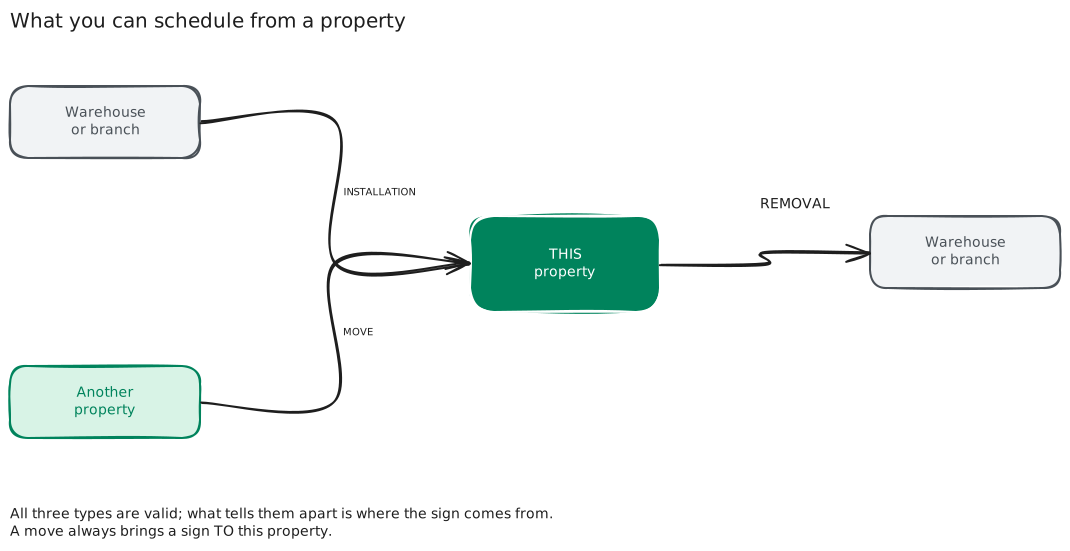
The Schedule job button opens the same form as the Signs console, with this property already selected. You can schedule all three types:
| Type | What it does | Where the sign comes from |
|---|---|---|
| Installation | Brings a sign to this property | from the warehouse or from a branch |
| Move | Brings a sign to this property | from another property |
| Removal | Takes a sign away from this property | from here |
The difference between installation and move is only where the sign comes from: one that is stored or one that is currently placed at another address. The system offers you the signs that apply to each case, so you do not have to remember it.
From here, a move always brings a sign towards this property. To take a sign from this property to another one, schedule the move from the Signs console or from the sign's page: there you can choose the destination property.
Scheduling a work order does not move the sign. The sign changes place only when you confirm the work order.
What you need
Scheduling work orders requires the Pro+ plan or higher. Viewing the signs that are placed and their work orders has no plan requirement.
Support
If you have any difficulty with this help article, you can report a problem by clicking here