
Since February 16, 2024, it is only possible to add new contacts if you have a Subscription with Mapaprop
Assign contacts to the property
Linking contacts with properties will let you get more organized and simplified management. Mapaprop Plus users can also activate contacts.
Access to the panel
From the Properties list
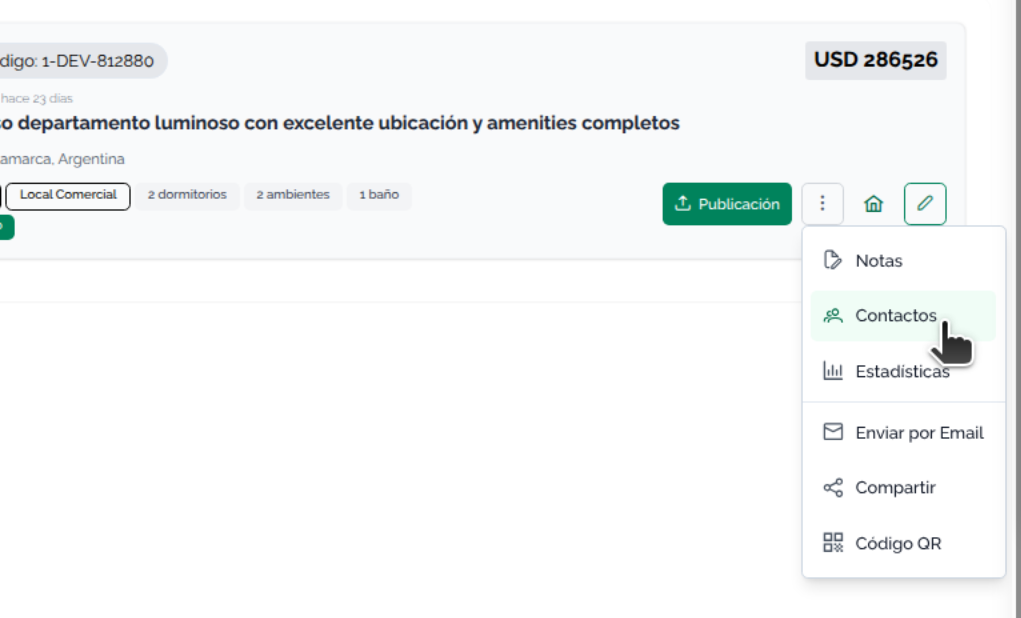
Or from the Property record
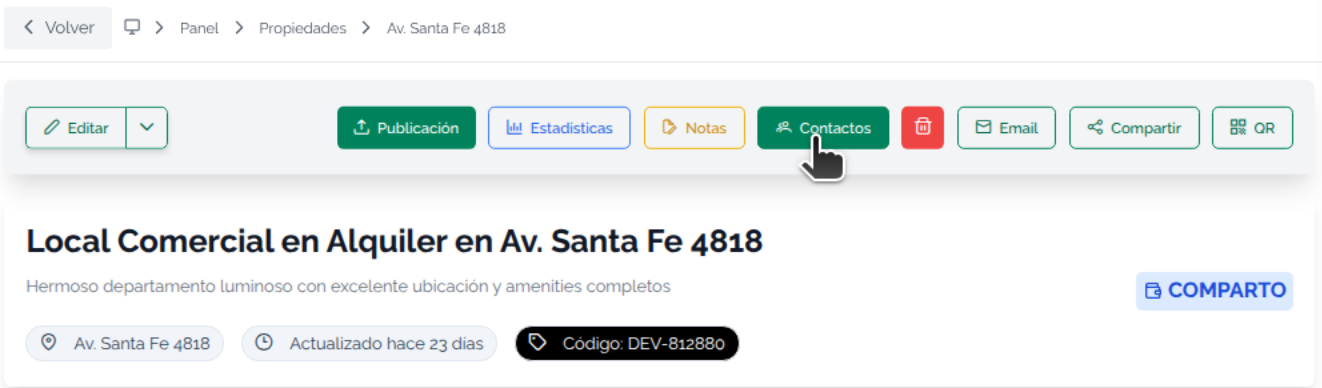
Then the Property Contacts panel opens, where you can see the contacts linked to the property.
Link a contact
Click the + Link contact button to link an existing contact or a new contact to the property
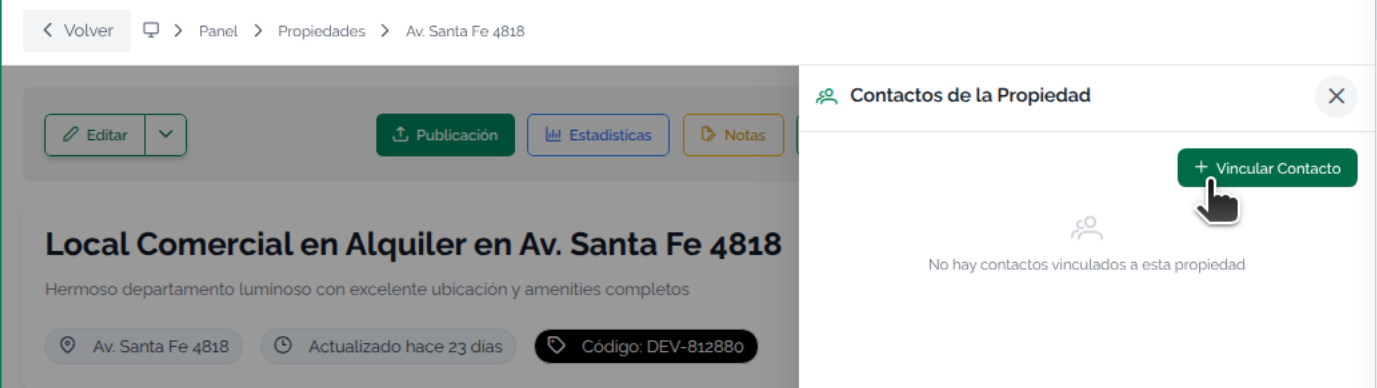
Types of links
From the Property Contacts panel, there are several options to link contacts:
- Interested party (no limit of interested parties per property)
- Owner
- Tenant
To assign the contact, click the Link Contact button.
Now you can select the link type
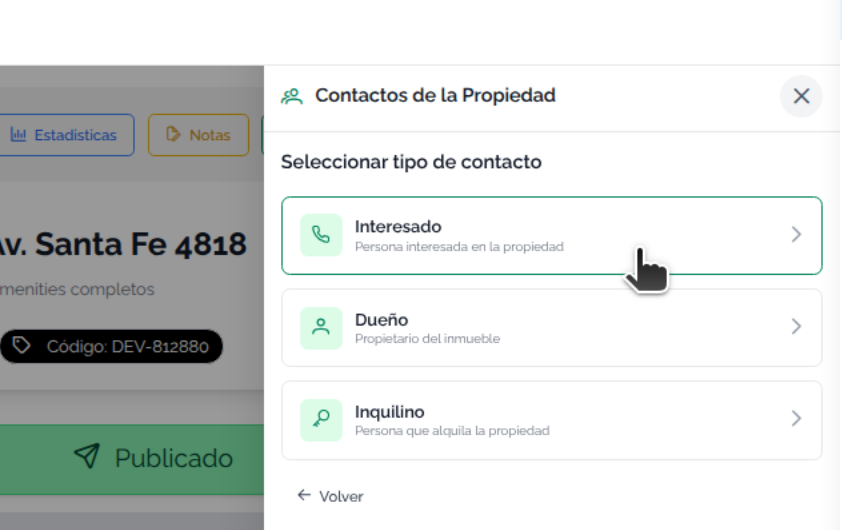
When you click the desired link, a new option will appear to Search contacts. Type name, phone or email to search for a contact and select it, or click the + button to Add Contact
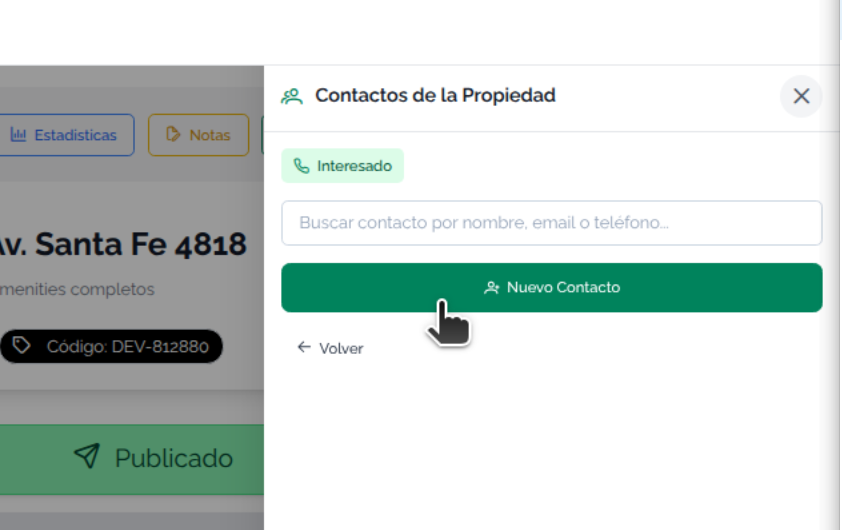
Either way, the final contact will appear ready to select
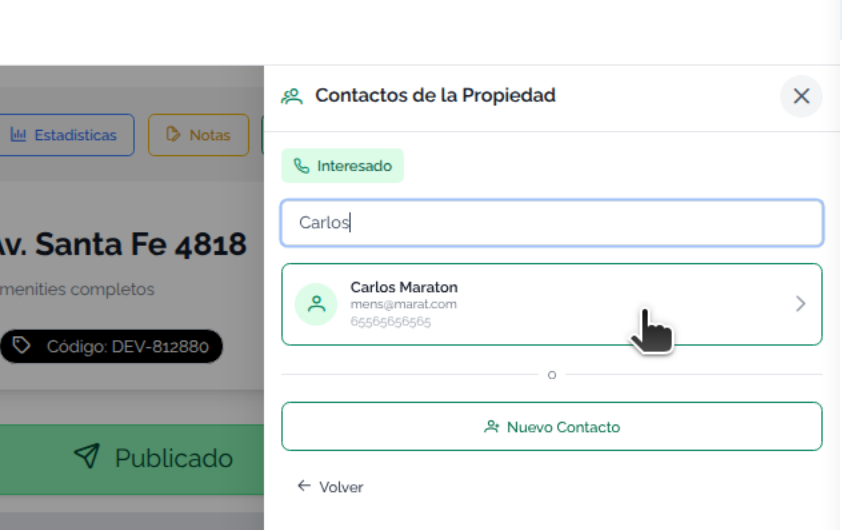
View linked contacts
Now the panel shows the property's contacts according to their type of link with it
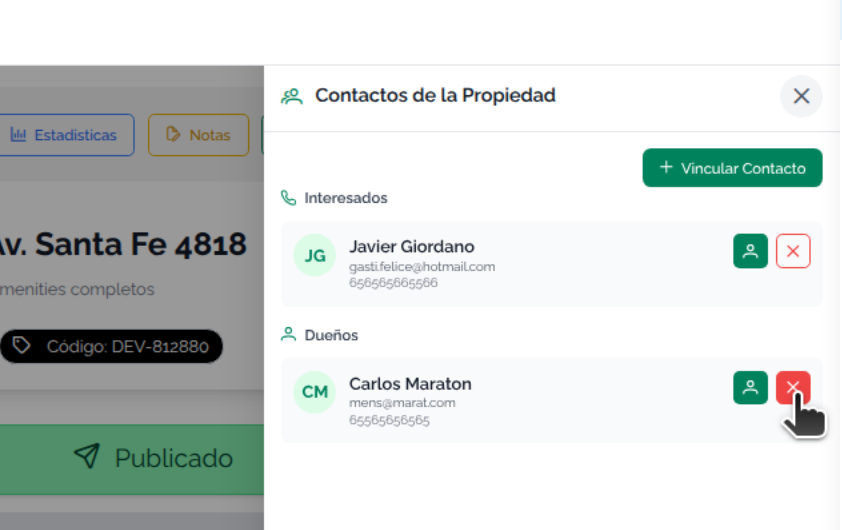
The contact is also added to the section related to the link type (Interested party, Owner or Tenant), which can help you organize contacts from CRM / Customers
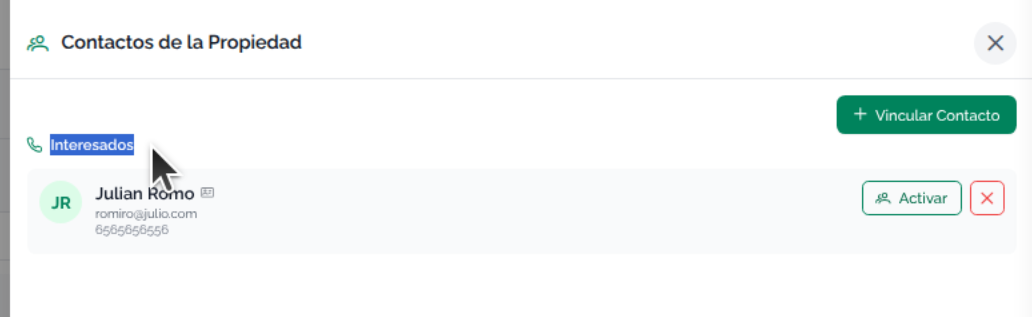
Unlink contact
From the contacts screen you can unlink contacts.
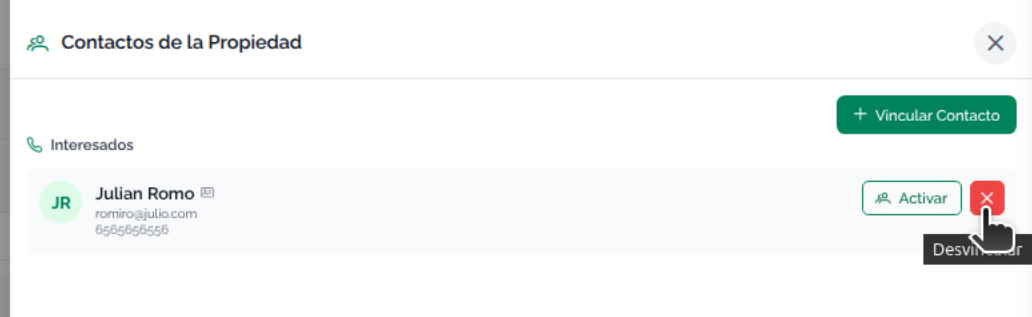
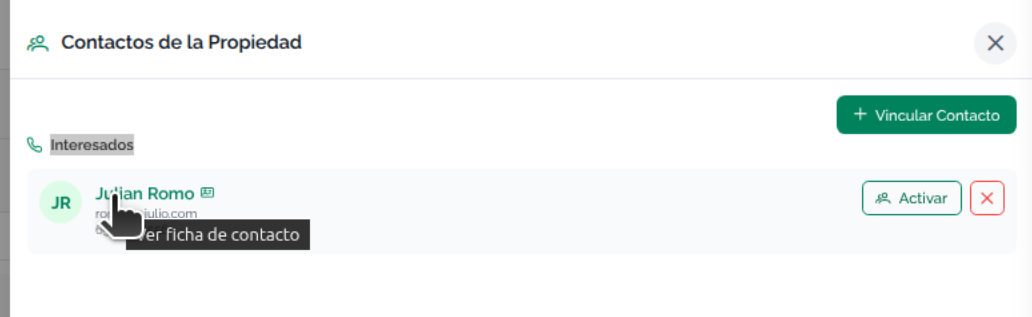
View contact
By clicking on the name, you can access the Contact in the CRM / Customers. The property will appear in the contact's information, either as Interests, Owner or Tenant
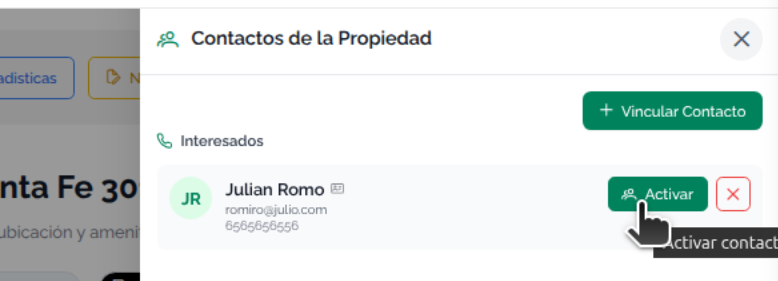
Activate contact
Mapaprop Plus users can also activate multiple contacts for Customer Care
Contact record
All the property's data is also added to the contact's specific record. You can find the information in the Contact record, through the information tabs, whether Interests, Owner or Tenant
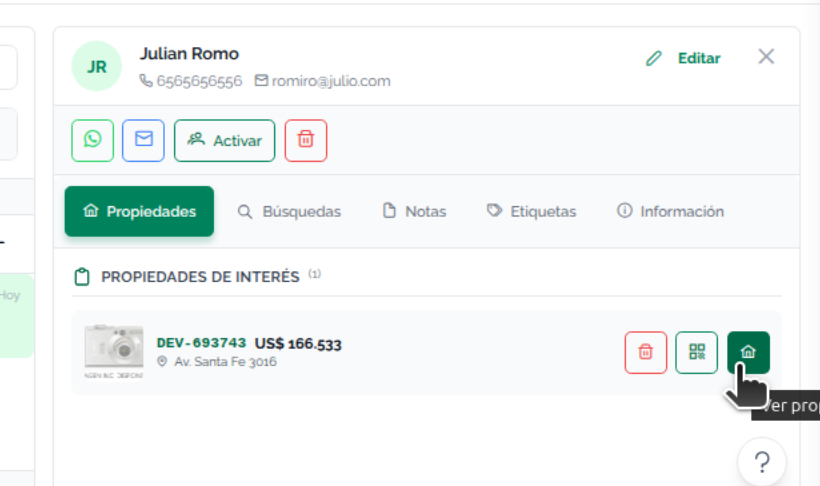
When a contact is linked to a property, it remains active for customer care !WARNING If you have difficulties with this help article, you can report a problem by clicking here